Purpose
This guide explains how to submit a Purchase Order (PO) for approval, how approvers review and approve Purchase Orders, how dual approval works for high-value POs, and how rejected Purchase Orders are managed and resubmitted.
Prerequisites
Before submitting or approving a Purchase Order, ensure that:
- The Purchase Order has been created and saved as a Draft.
- At least one valid PO line exists on the Purchase Order.
- All rates, quantities, taxes, and required information have been reviewed and completed.
- The user has appropriate permissions to perform the required action.
Important: Only users with Approver access can approve, reject, amend, or manage submitted Purchase Orders. Standard users can create and submit Purchase Orders for approval.
Step 1: Review the Draft Purchase Order
Before submission, while creating the PO verify:
- Vendor information
- Service Order charge lines
- Quantities and rates
- Tax details
- Subtotal, tax, and total amounts
The draft of the PO will be saved and shows the complete Purchase Order before it enters the approval workflow.
Step 2: Add Notes (Optional)
If required:
- Enter comments or instructions in the Notes section.
- Click Save Notes.
- Notes are saved for approvers and future reference.
Notes can be updated while the PO remains in Draft status.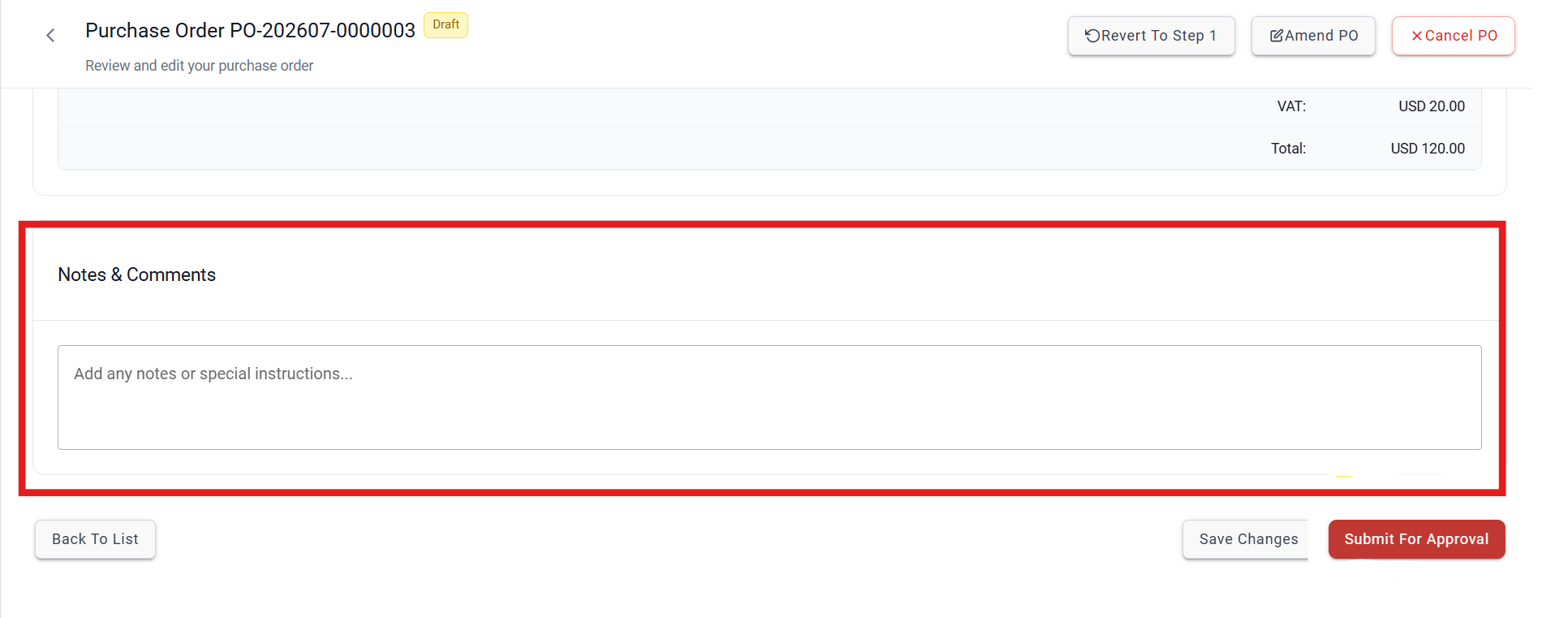
Step 3: Submit the Purchase Order for Approval
After reviewing the Purchase Order:
- Click Submit for Approval.
- The system validates all PO information.
- The Purchase Order status changes from Draft to Issued.
- The Purchase Order becomes locked and can no longer be edited by the creator.
- The PO is placed in the approvers' review queue.
Note: During creation of the PO, the system verifies that none of the selected charge lines have been assigned to another active Purchase Order. If a conflict exists, the system displays the conflicting PO and prevents submission until the issue is resolved.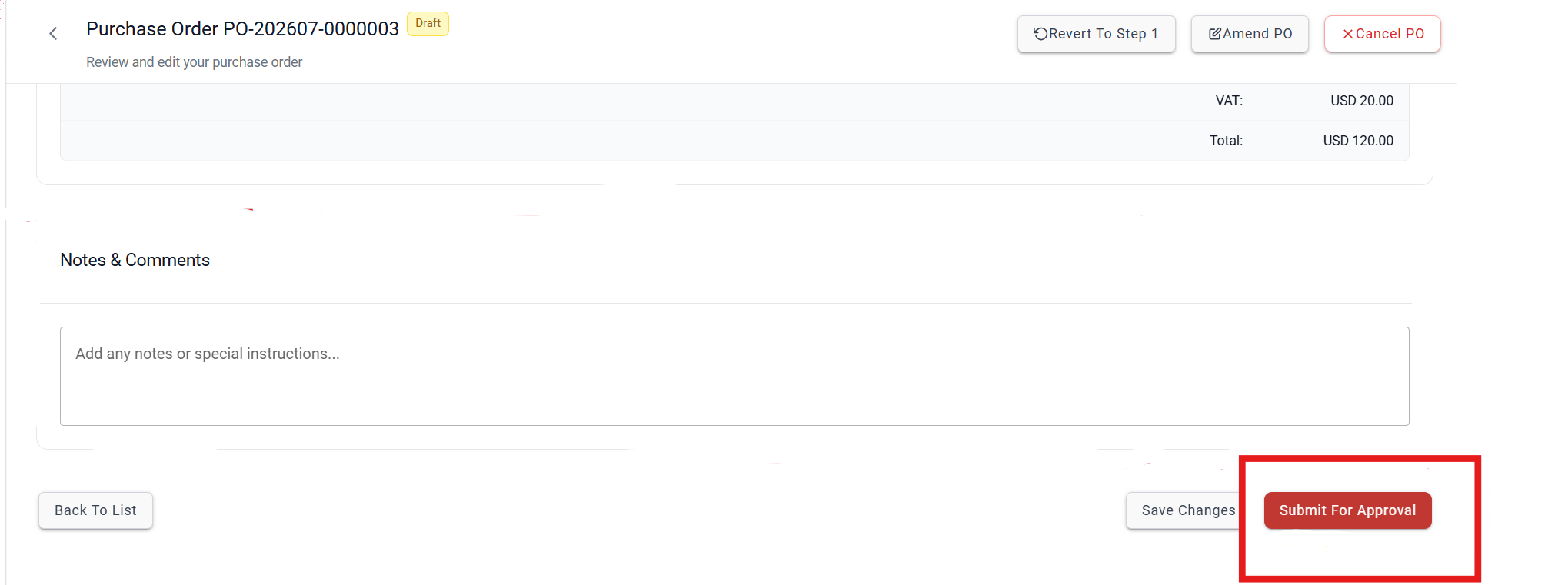
Was this article helpful?
That’s Great!
Thank you for your feedback
Sorry! We couldn't be helpful
Thank you for your feedback
Feedback sent
We appreciate your effort and will try to fix the article