Overview
The Purchase Order (PO) Module is used to manage purchases from vendors within RedSky ATS. It allows users to create Purchase Orders directly from the charges/accounting lines already created on a Service Order, submit them through an approval process, and record vendor invoices against approved Purchase Orders.
The module also sends email notifications to the creator of the Purchase Order whenever the PO is approved or rejected, ensuring users are kept informed throughout the approval process.
Every PO line is created from a Service Order accounting line, and each account line can only be included in one active Purchase Order at a time, the module automatically prevents duplicate ordering and duplicate payment of the same charge.
Accessing the Purchase Order Module
The Purchase Order Module can be accessed directly from within RedSky (ATS).
To open the module, click the Purchase Order (Cart) icon located in the top-right corner of the RedSky screen, next to the Account/Profile icon. Selecting this icon opens the ATS Purchase Order section.
Once opened, the Purchase Order Module displays three main screens:
Dashboard – Provides a summary of Purchase Order activity, statistics, and quick actions.
Purchase Orders – Displays all Purchase Orders in a searchable and filterable list and allows the creation of new Purchase Orders.
Invoices – Displays all vendor invoices recorded against Purchase Orders and provides access to the invoice approval queue.
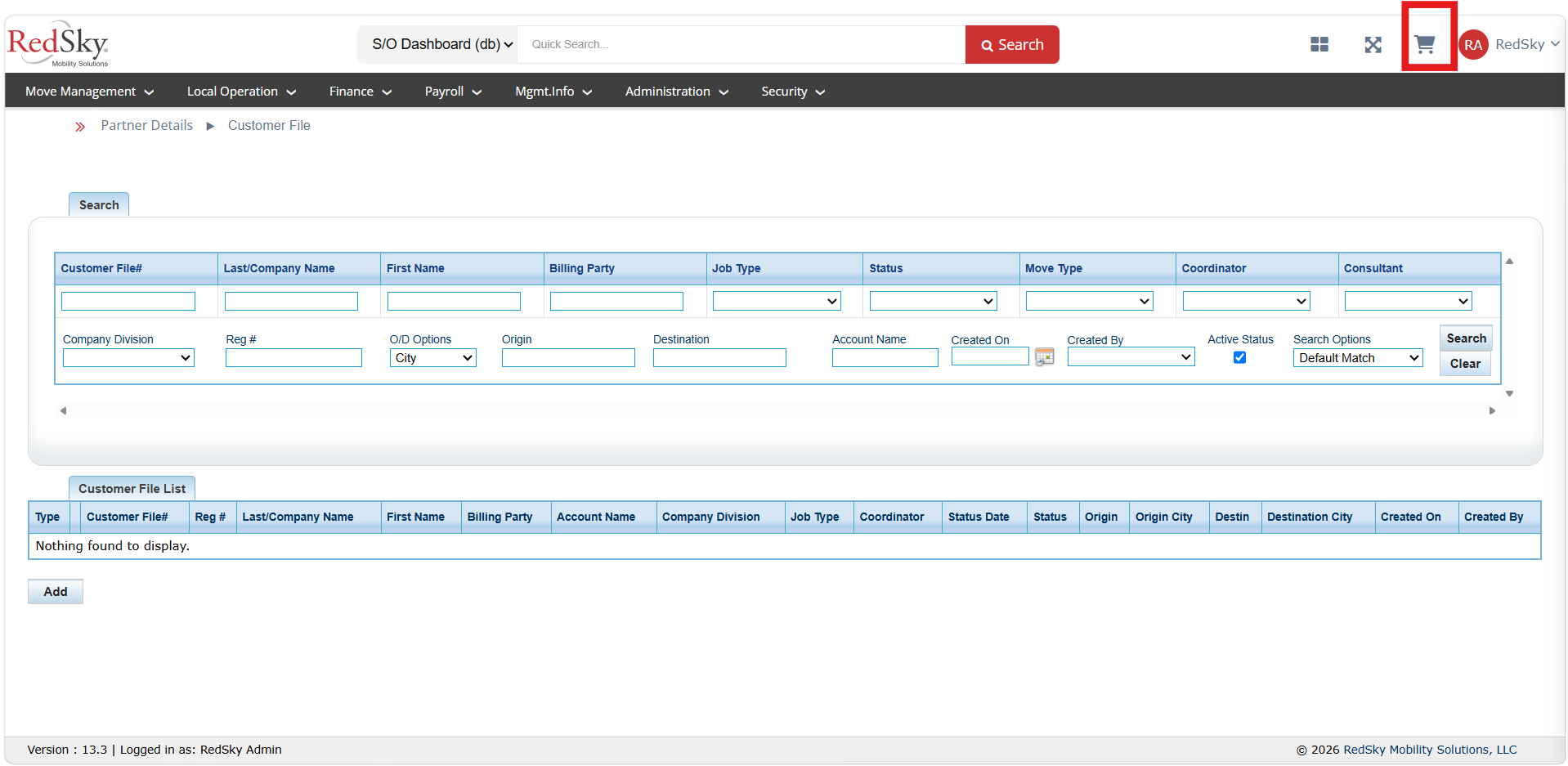
Main Screens in the Purchase Order Module
1. Dashboard
The Dashboard serves as the home screen of the Purchase Order Module and provides an overview of all Purchase Order activity within the organization. It helps users quickly monitor purchasing performance, approval activity, and recently created Purchase Orders.
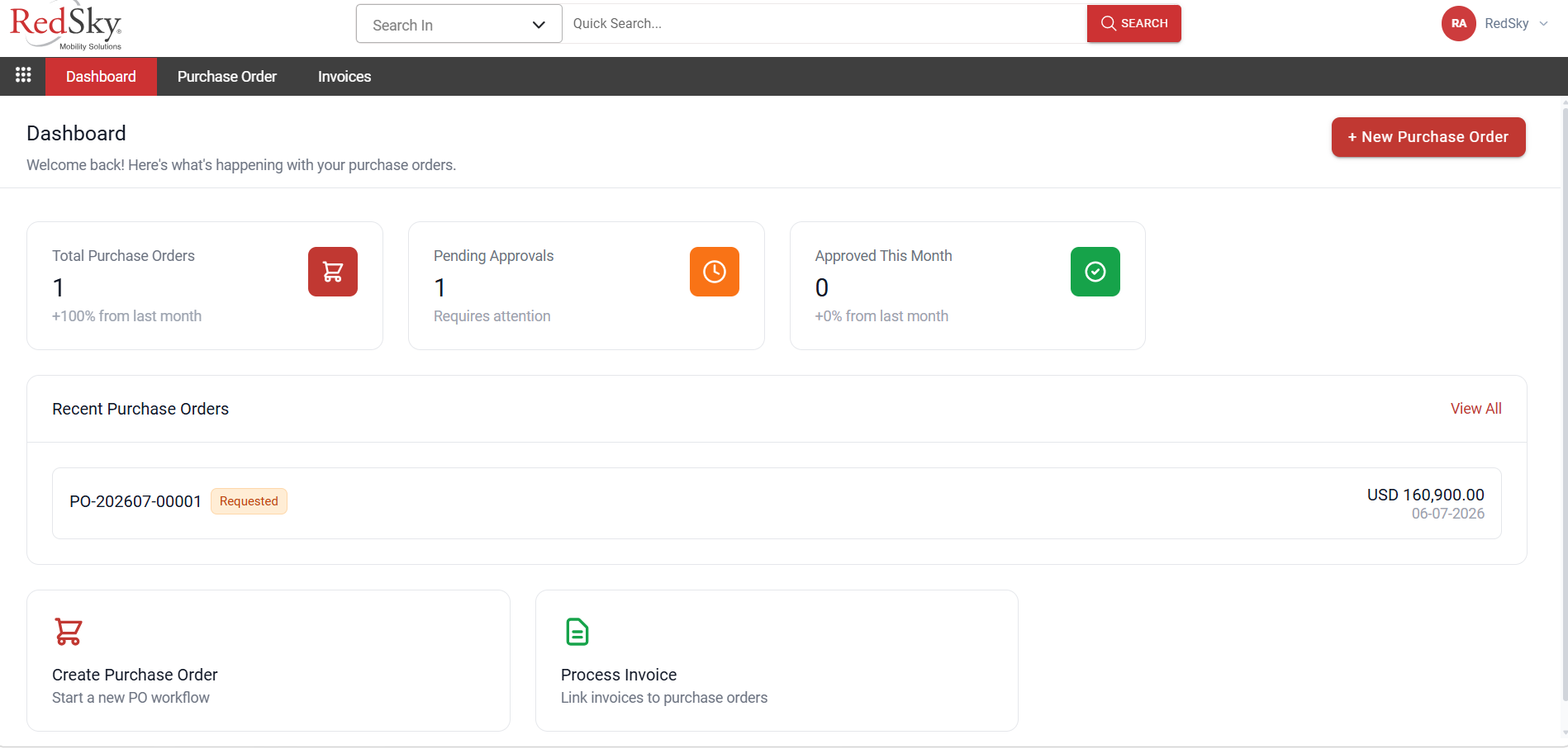 Dashboard Components
New Purchase Order Button: Located in the top-right corner of the screen. Selecting this button starts the Purchase Order creation process.
Total Purchase Orders Card: Displays the total number of Purchase Orders created within the system, along with growth statistics compared to the previous month.
Pending Approvals Card: Displays the number of Purchase Orders currently waiting for approval from an authorized approver. The PO can be approved and amend only by the user who have been assigned with the ROLE_PO in RedSky.
Approved This Month Card: Shows the number of Purchase Orders approved during the current month and compares the results with the previous month.
Overdue Approvals Card: Displays Purchase Orders that have remained in the approval queue beyond the defined approval period.
Recent Purchase Orders list: Displays recently created Purchase Orders, including the PO Number, Vendor, Amount, and Current Status. Users can select a Purchase Order to view additional details.
Create Purchase Order Shortcut: Provides quick access to the Purchase Order creation process.
Process Invoice Shortcut: Allows users to quickly navigate to the invoice processing functionality and record a vendor invoice against a Purchase Order.
2. Purchase Orders
The Purchase Orders screen provides a centralized view of all Purchase Orders created within the system. Users can search, filter, review, and manage Purchase Orders based on their access permissions.
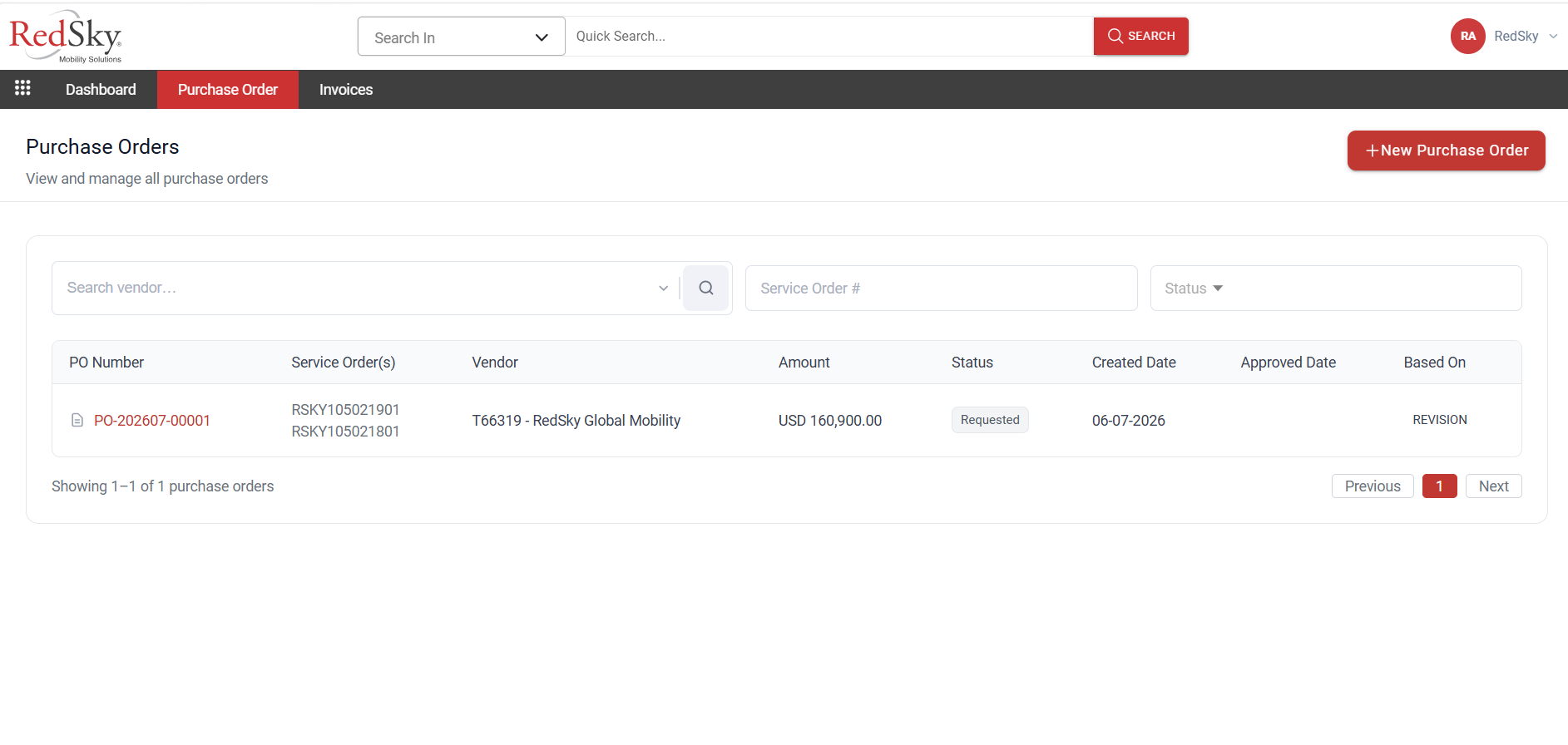
Search and Filter Options
Search Vendor Field: Allows users to search for Purchase Orders belonging to a specific vendor by entering the vendor name.
Service Order # Field: Allows users to search using a Service Order number to display all Purchase Orders associated with accounting lines from that Service Order.
Status Filter: Enables users to display Purchase Orders with a specific status, such as Draft, Issued, Ordered, Completed, Invoice, Rejected, or Cancelled.
All Purchase Orders are displayed within a searchable and filterable table, making it easy to locate specific records and track their status.
Purchase Order Table
The Purchase Order table displays the following information:
PO Number: The unique system-generated Purchase Order number.
Service Order(s): The Service Orders whose accounting lines are included in the Purchase Order.
Vendor: The supplier for whom the Purchase Order was created.
Amount: The total Purchase Order amount, including applicable taxes.
Status: Displays the current Purchase Order status.
Created Date: The date the Purchase Order was created.
Approved Date: The date the Purchase Order was approved, when applicable.
Based On: Indicates whether the Purchase Order values are based on the Service Order Estimate or Revision amounts.
Opening a Purchase Order
Users can click on the PO Number to open the Purchase Order number and review its details, approval history, invoice information, and available actions based on their permissions.
3. Invoices
The Invoices screen is used to record, track, review, and approve vendor invoices associated with Purchase Orders. It provides complete visibility into invoice processing activities and approval status.
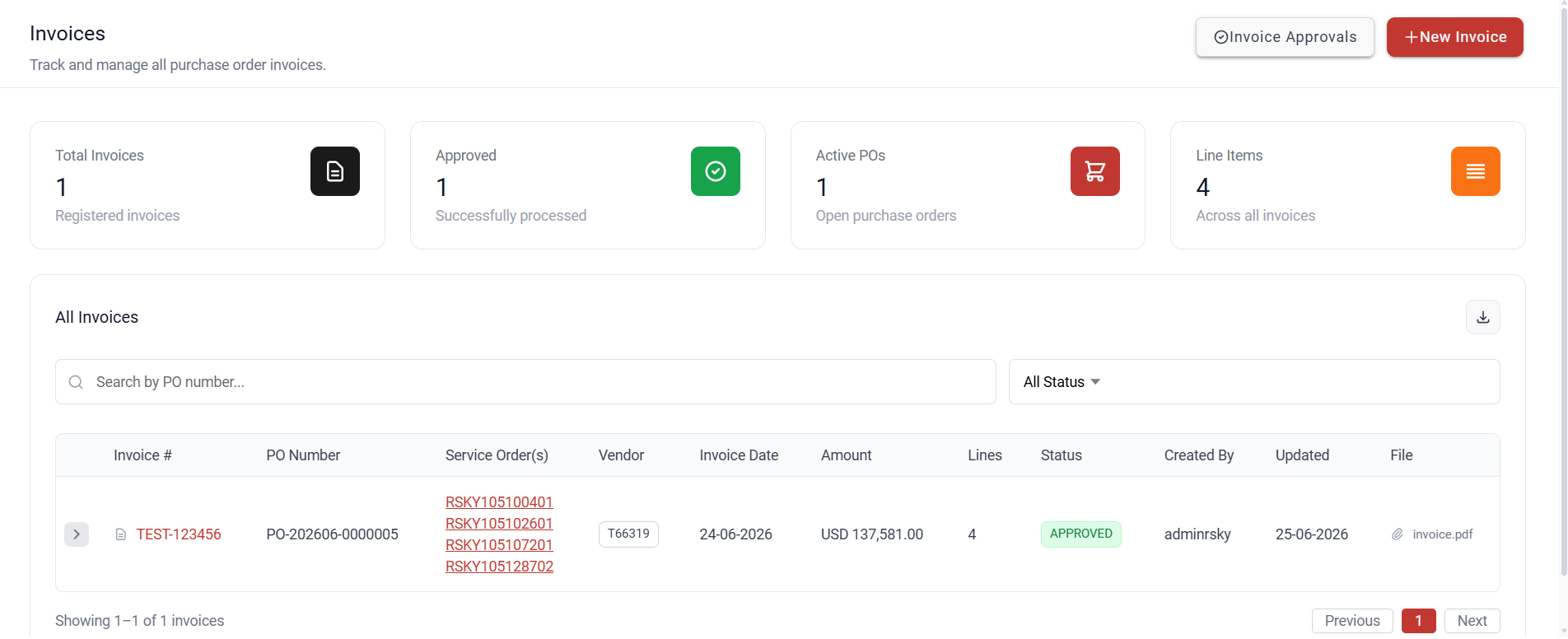
Invoice Management Features
New Invoice Button: Opens the invoice creation screen, allowing users to record a vendor invoice against an approved Purchase Order. The invoice can be generated when the status of the is marked as Filled/Complete.
Invoice Approvals Button: Available to approvers and displays the list of invoices awaiting approval.
Invoice Summary Cards
Total Invoices Card: Displays the total number of invoices recorded within the system.
Approved Card: Displays the number of invoices that have been reviewed and approved.
Active POs Card: Shows the total number of Purchase Orders that are invoiced.
Line Items Card: Displays the total number of invoice line items recorded across all invoices.
Search and Filter Options
Search by PO Number: Allows users to quickly locate invoices associated with a specific Purchase Order.
Status Filter: Allows users to filter invoices by status, such as Pending, Approved, or Rejected.
The Invoices screen ensures that all vendor invoices are accurately tracked, reviewed, approved, and linked to the appropriate Purchase Orders, providing a complete audit trail of purchasing and payment activities.
Invoice Table
The All-Invoices table displays the following information:
Invoice #: The vendor's invoice number.
PO Number: The Purchase Order associated with the invoice.
Service Order(s): The Service Orders linked to the Purchase Order. The user can directly open the Service order in RedSky by clicking on it.
Vendor Tcode: The vendor that issued the invoice.
Invoice Date: The invoice date provided by the vendor.
Amount: The total invoice value.
Lines: The number of Purchase Order lines covered by the invoice.
Status: Displays the current invoice status, such as Pending, Approved, or Rejected.
Created By: The user who recorded the invoice.
Updated: The date on which the invoice was last modified.
File: Displays the attached invoice document and allows it to be downloaded for review.
Was this article helpful?
That’s Great!
Thank you for your feedback
Sorry! We couldn't be helpful
Thank you for your feedback
Feedback sent
We appreciate your effort and will try to fix the article