Status of Purchase Order (PO)
A Purchase Order (PO) is generated and then moves through different stages during its lifecycle. As the PO progresses, its status changes to reflect its current stage in the approval, ordering, delivery, and invoicing process. The table below provides a brief explanation of each PO status.
| Status | What It Means | Can It Be Edited? | What Happens Next |
|---|---|---|---|
| Draft | PO is being created by the user. Nothing has been submitted yet. | Yes – lines and notes can be changed freely. | Submit for approval or cancel the PO. |
| Issued | PO has been submitted and is awaiting approval. | No – locked while waiting for approval (an approver can amend it). | An approver approves, rejects, or cancels it. |
| Ordered | PO has been approved and is now an official order. | No – approvers can amend it, which sends it back for approval. | The work order was sent to the vendor, the vendor started the work, and it was subsequently marked as Completed. |
| Completed | Vendor has completed the task. | No – same amendment rule as Ordered. | Record vendor invoices against the PO. |
| Invoice | Every PO line has been fully invoiced under Invoice section. | No – final state. | Nothing. View-only status. |
| Rejected | An approver rejects the draft of the PO submitted by the user for approval. | Yes – becomes editable again, similar to Draft. | Correct issues and resubmit, or reject the PO. |
| Cancelled | PO has been cancelled and closed. | No – final state. | Nothing. View-only status. Charge lines become available for a new PO. |
Normal PO Lifecycle
Draft → Issued → Ordered → Completed → Invoice
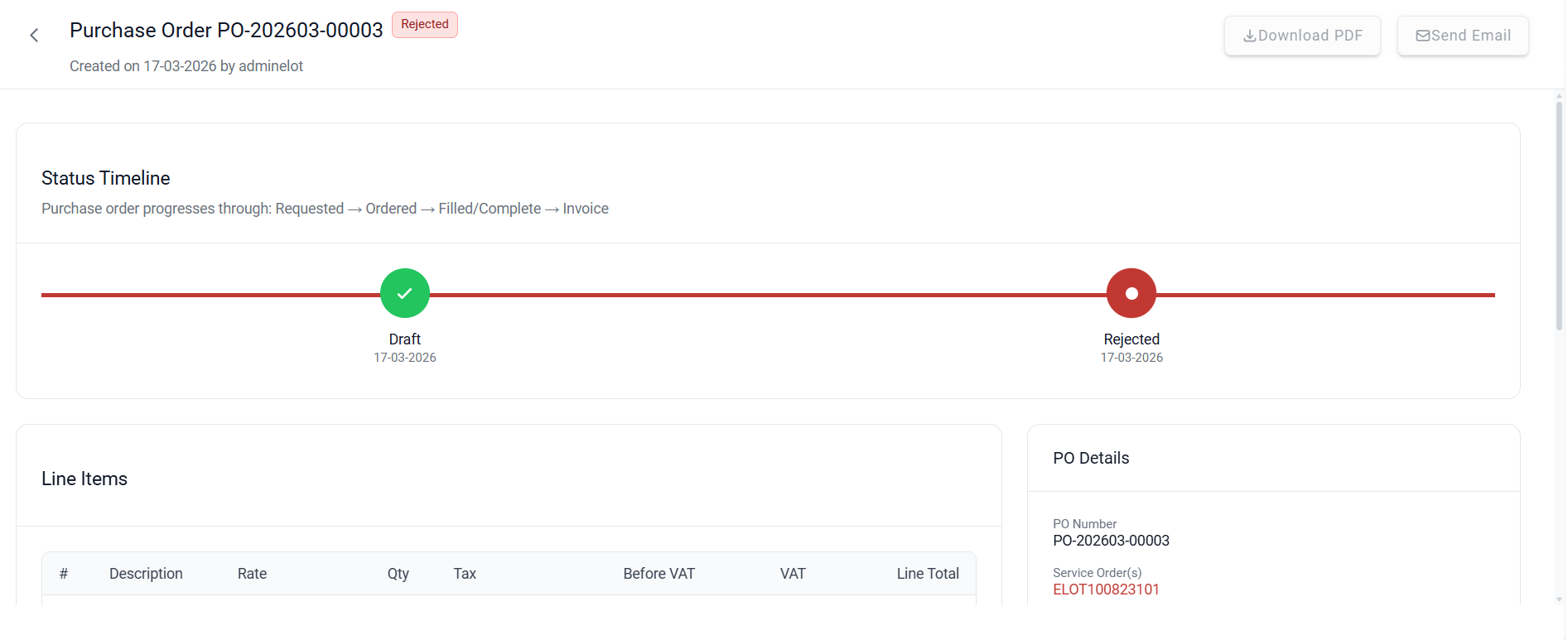
Every PO screen shows this path as a progress bar, with the current step highlighted, so you always know
where the PO stands. If a PO is rejected or cancelled, the progress bar shows that ending instead.
User Access Levels
The system provides two levels of access, each with different permissions and responsibilities.
Standard User
Standard Users can:
- View Dashboard, Purchase Orders, and Invoices
- Create Purchase Orders
- Edit Draft and Rejected Purchase Orders
- Submit Purchase Orders for Approval
- Record Vendor Invoices
Approver
Approvers have all Standard User permissions, plus the ability to:
- Approve Purchase Orders
- Reject Purchase Orders
- Amend Submitted or Approved Purchase Orders
- Cancel Issued, Ordered, and Completed Purchase Orders
- Mark Purchase Orders as Completed
- Mark Purchase Orders as Invoiced
- Approve Vendor Invoices
- Reject Vendor Invoices
| Access Level | What You Can Do |
|---|---|
| Standard User | Create Purchase Orders (POs), submit POs for approval, record invoices, cancel draft POs, and send PO emails to vendors. |
| Approver | Includes all Standard User permissions, plus the ability to approve or reject POs, cancel submitted or approved POs, amend approved POs, mark POs as Completed or Invoice, and approve or reject invoices. Only ROLE_PO has the approver rights. |
Assigning Approver Access (ROLE_PO)
To grant Approver permissions, the administrator must assign the ROLE_PO role to the user by following these steps:
- Navigate to Security.
- Select View User.
- Search for and open the required user's profile.
- Go to the Assign Roles section.
- Assign the ROLE_PO role to the user.
- Save the changes.
Once the ROLE_PO role is assigned, the user will have access to approver functions such as approving or rejecting POs and invoices, amending approved POs, and updating PO statuses.
Was this article helpful?
That’s Great!
Thank you for your feedback
Sorry! We couldn't be helpful
Thank you for your feedback
Feedback sent
We appreciate your effort and will try to fix the article