Purpose
This guide explains the actions available to an approver when reviewing a submitted Purchase Order (PO), including approving, amending, rejecting, and cancelling the PO.
Prerequisites
Before reviewing a Purchase Order:
- You must have Approver access.
- The Purchase Order must be in Issued, Ordered, or Completed status, depending on the action being performed.
- Review the PO details, line items, amounts, and notes before taking action.
Step 1: Open the Submitted Purchase Order
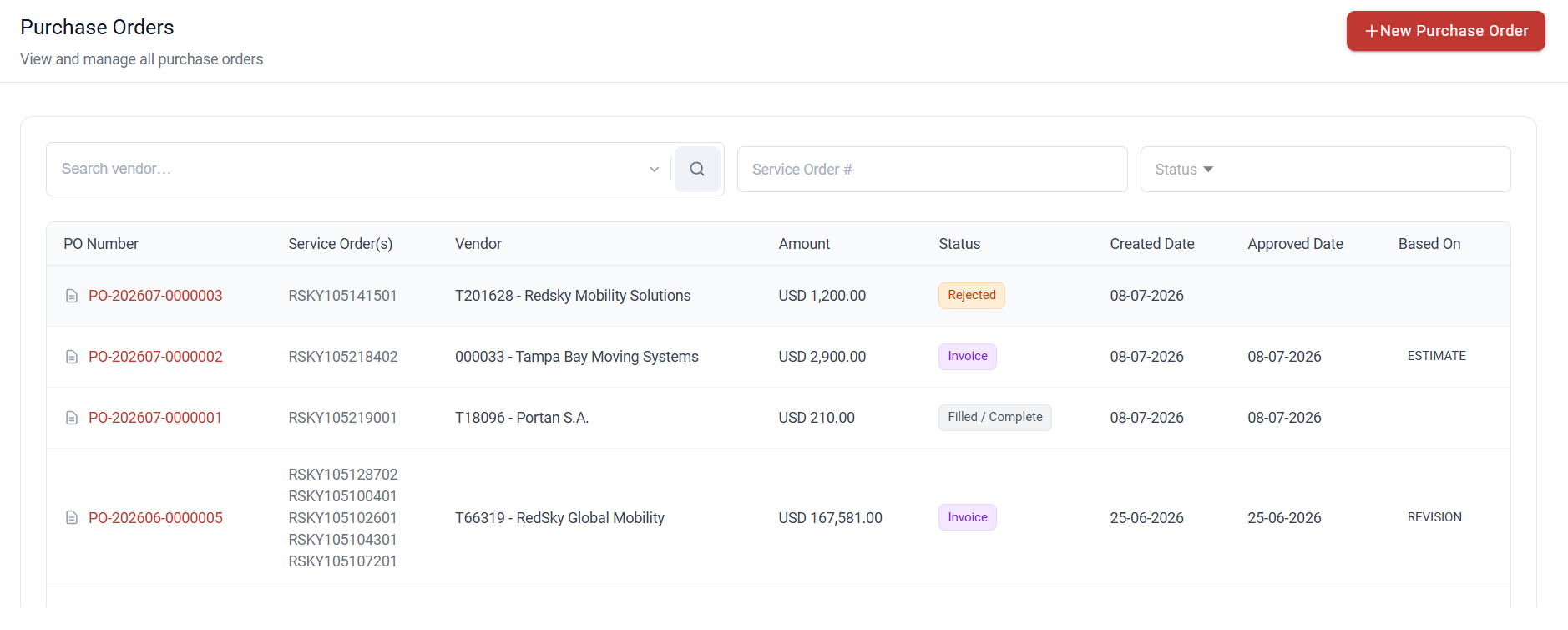
Navigate to the Purchase Order list and open the PO with status Issued, Ordered, or Completed.
The review screen displays:
- Vendor details
- Purchase Order line items
- Line amounts and totals
- Notes
- PO status
- History timeline showing previous actions and dates
Step 2: Review the Purchase Order
Before taking any action:
- Verify the vendor information.
- Review all selected PO lines.
- Confirm quantities, rates, and taxes are correct.
- Review the subtotal, tax, and total values.
- Check any notes provided by the PO creator.
Available Approver Actions
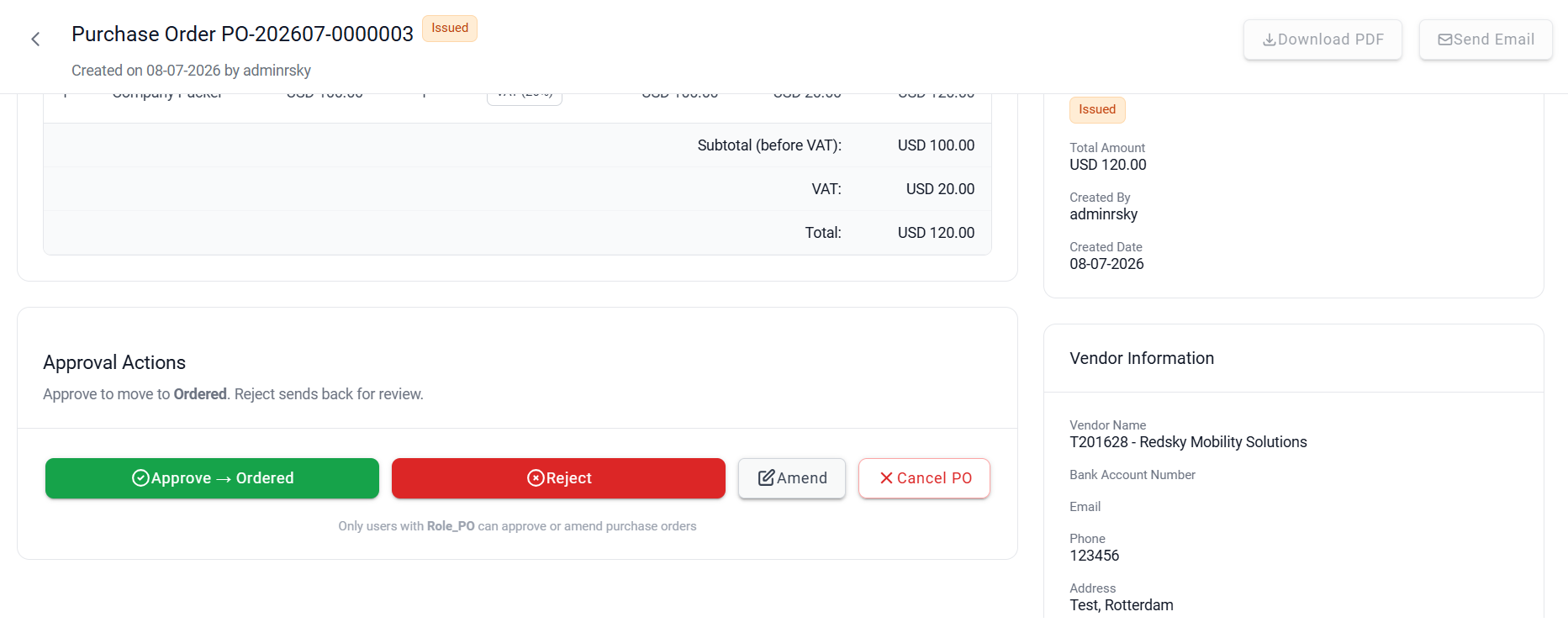
When an approver opens a submitted Purchase Order, the following actions may be available:
- Amend
- Reject
- Cancel PO
- Approve
Amend the Purchase Order
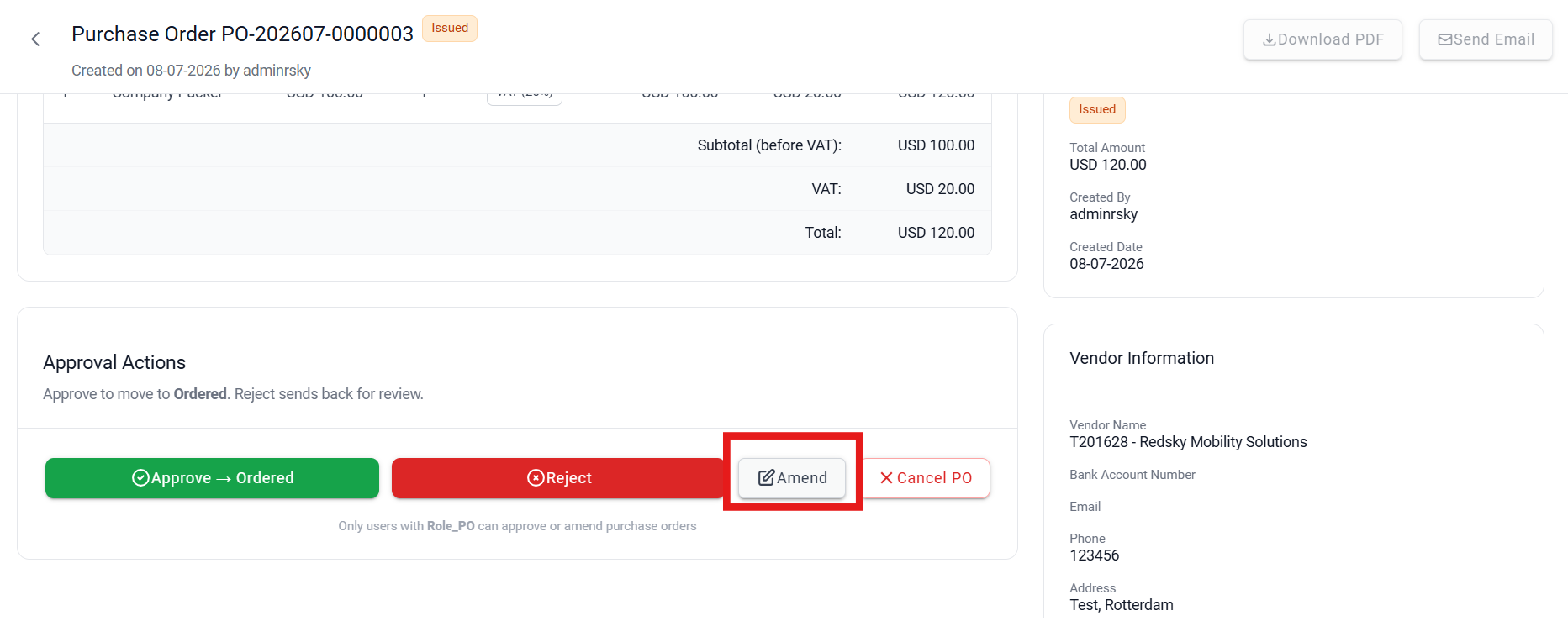
Use Amend when changes are required before the PO can proceed.
- Click Amend.
- The Purchase Order reopens in edit mode with the existing lines loaded.
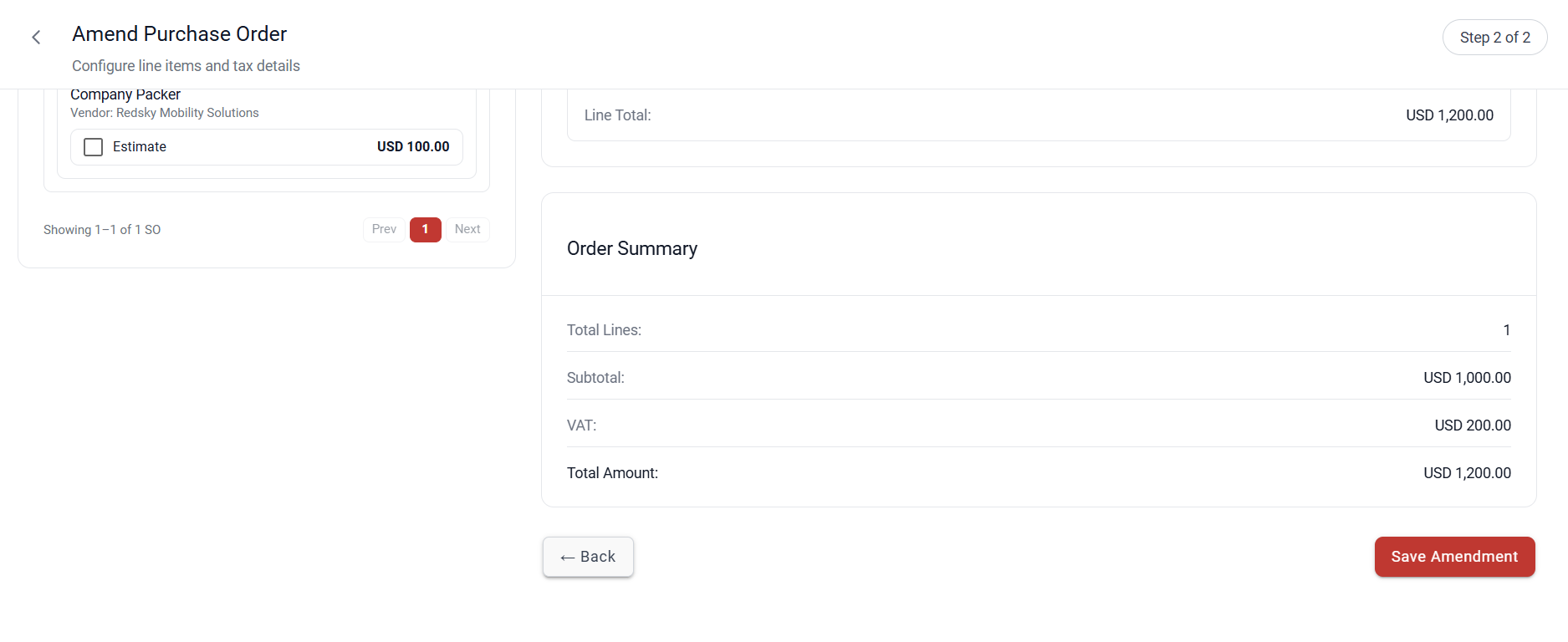
- Add, remove, or modify the required PO lines.
- Click Save to save the amendments.
- The Amend option is available while the PO status is Issued, Ordered, or Completed.
Reject the Purchase Order
Use Reject when the PO should not be approved.
- Click Reject.
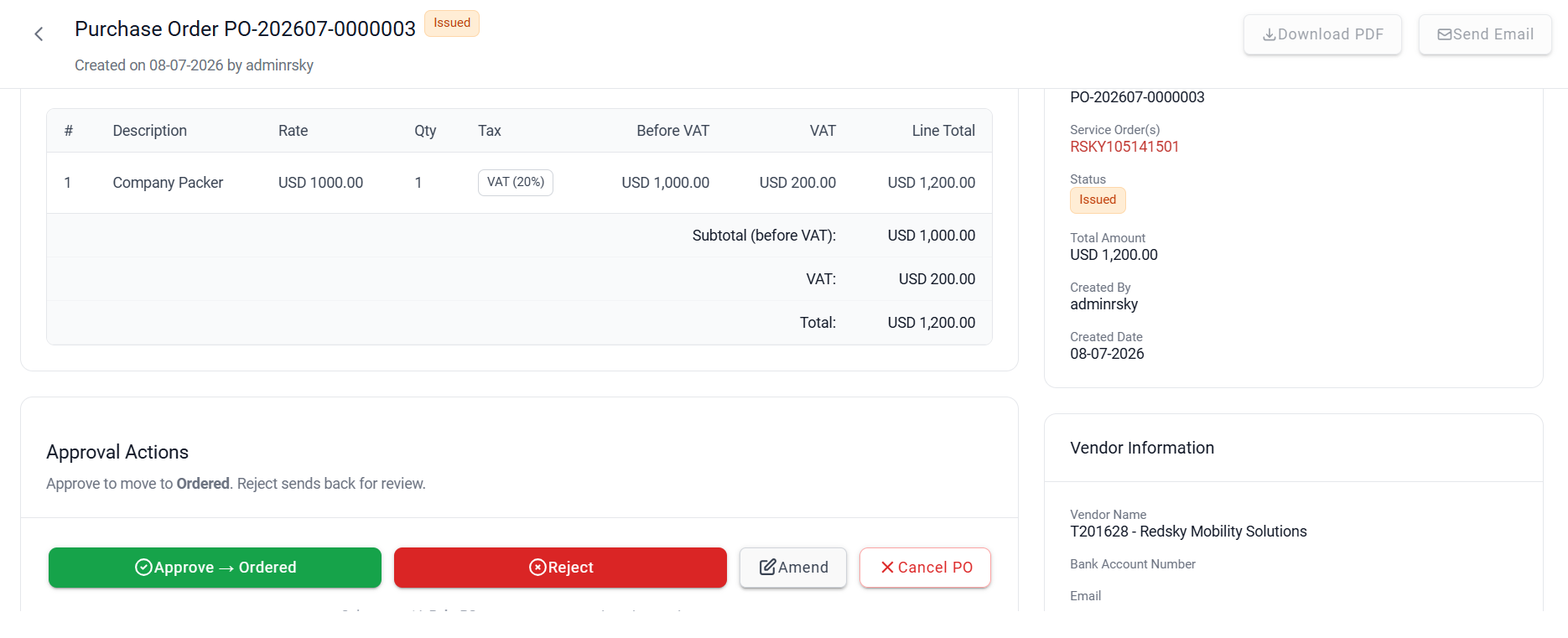
- A rejection section is displayed.
- Enter the reason for rejecting the Purchase Order.
- Click Reject to confirm.
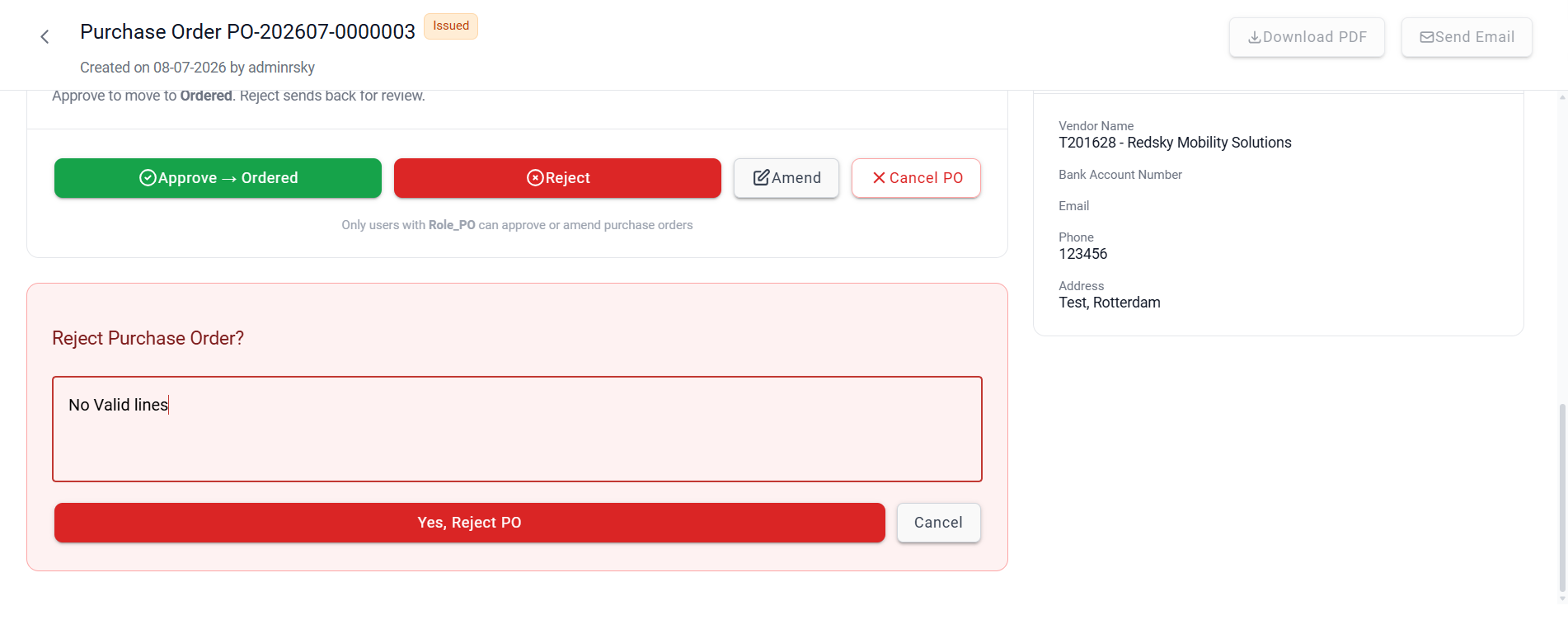
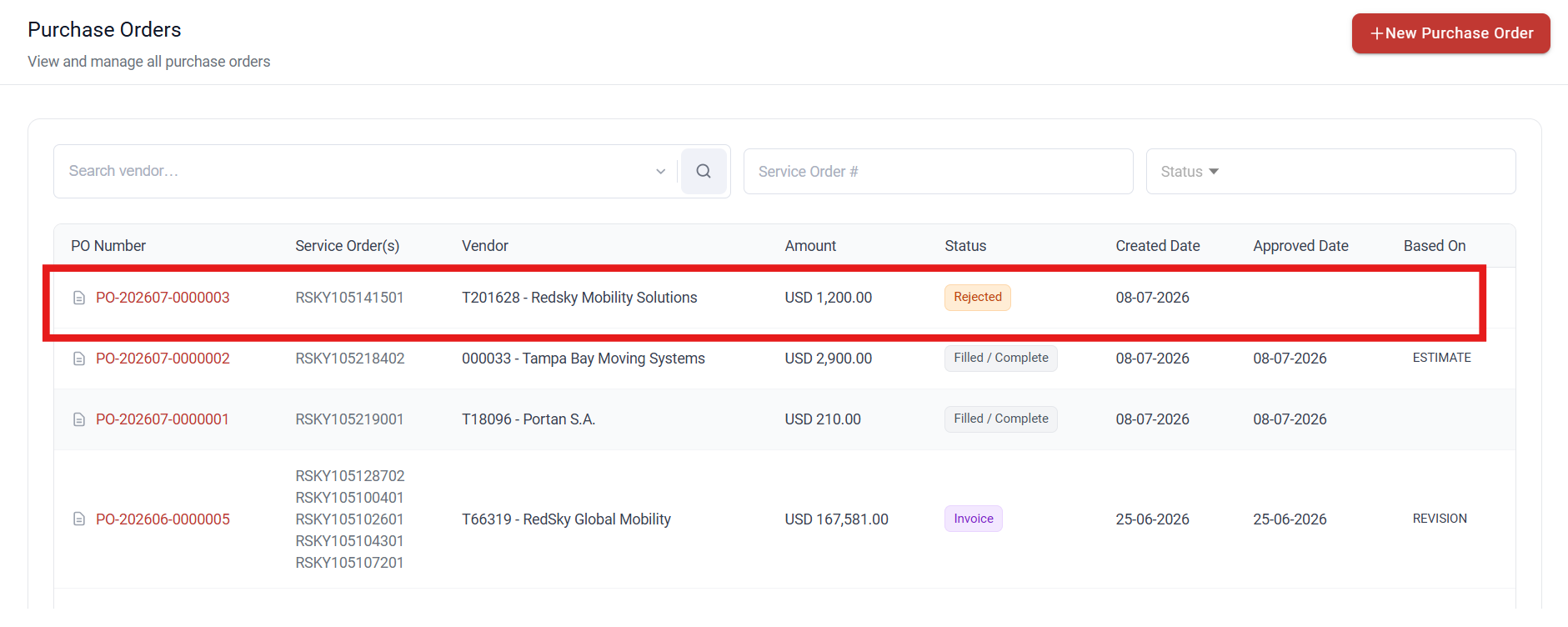
After rejection:
- The PO status changes to Rejected.
- The rejection reason is recorded in the PO notes.
- The PO creator is notified.
Cancel the Purchase Order
Use Cancel PO when the Purchase Order is no longer required.
- Click Cancel PO.
- Confirm the cancellation.
After cancellation:
- The PO status changes to Cancelled.
- The Purchase Order is permanently closed.
- The associated charge lines become available for use on a new Purchase Order.
- The Cancel PO option is available while the PO status is Issued, Ordered, or Completed.
Approve the Purchase Order
Use Approve when the Purchase Order has been reviewed and authorized.
- Review the Purchase Order details.
- Click Approve.
- The approval is recorded by the system.
- Click the button displayed to move the PO to the next stage of the PO cycle.
- Approvers can progress the Purchase Order through the following status flow:
Issued → Ordered → Completed → Invoice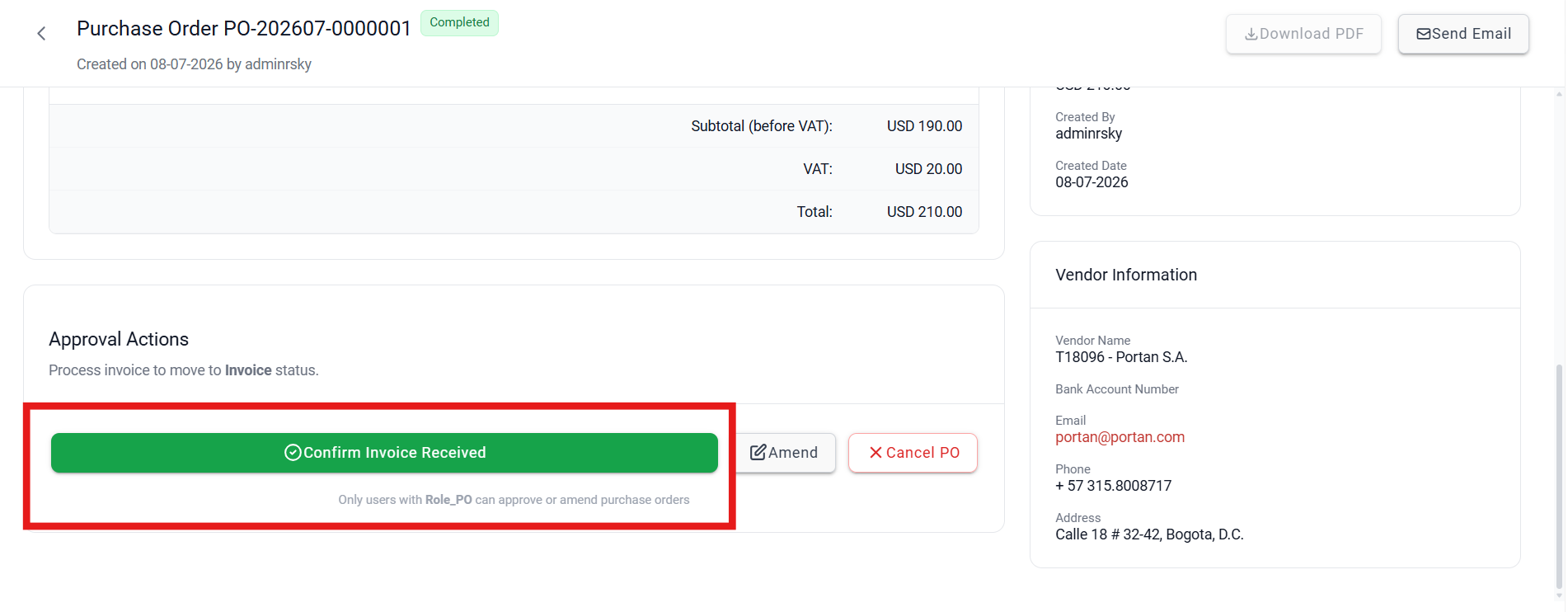
After approval:
- The PO status changes.
- The PO creator receives an email notification.
Note: If dual approval is configured for large Purchase Orders, the PO remains in Issued status until a second approver also approves it.
Summary
Approvers can manage submitted Purchase Orders using the following actions:
- Amend – Modify PO details and save the changes.
- Reject – Provide a reason and return the PO to the creator for correction.
- Cancel PO – Permanently cancel the Purchase Order.
- Approve – Authorize the PO and progress it through the approval lifecycle.
The Purchase Order approval workflow follows:
Issued → Ordered → Completed → Invoice.
Was this article helpful?
That’s Great!
Thank you for your feedback
Sorry! We couldn't be helpful
Thank you for your feedback
Feedback sent
We appreciate your effort and will try to fix the article