How to Create Credentials for Your Crew From RedSky?

Created by Uroosa Anwer, Modified on Fri, 3 Apr at 1:05 AM by Uroosa Anwer

Purpose

This guide explains how an administrator can create login credentials for crew members within RedSky, enabling them to access the Ops App and perform their assigned tasks.

Prerequisites

  • Administrator access to RedSky.

  • Crew member has already been set up under Crew Payroll Setup

  • Required crew details are available:

    • Username

    • First Name

    • Last Name

    • Company Division

    • Email Address

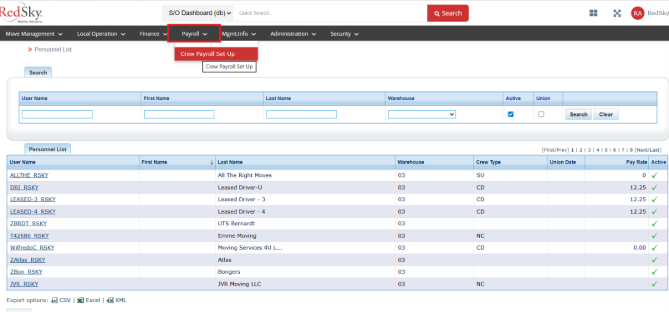
Step 1: Navigate to Crew Payroll Setup

  • Log in to RedSky as an administrator.

  • From the main menu, navigate to:
    Payroll → Crew Payroll Setup

Locate and open the profile of the assigned crew member.


Step 2: Create Login User

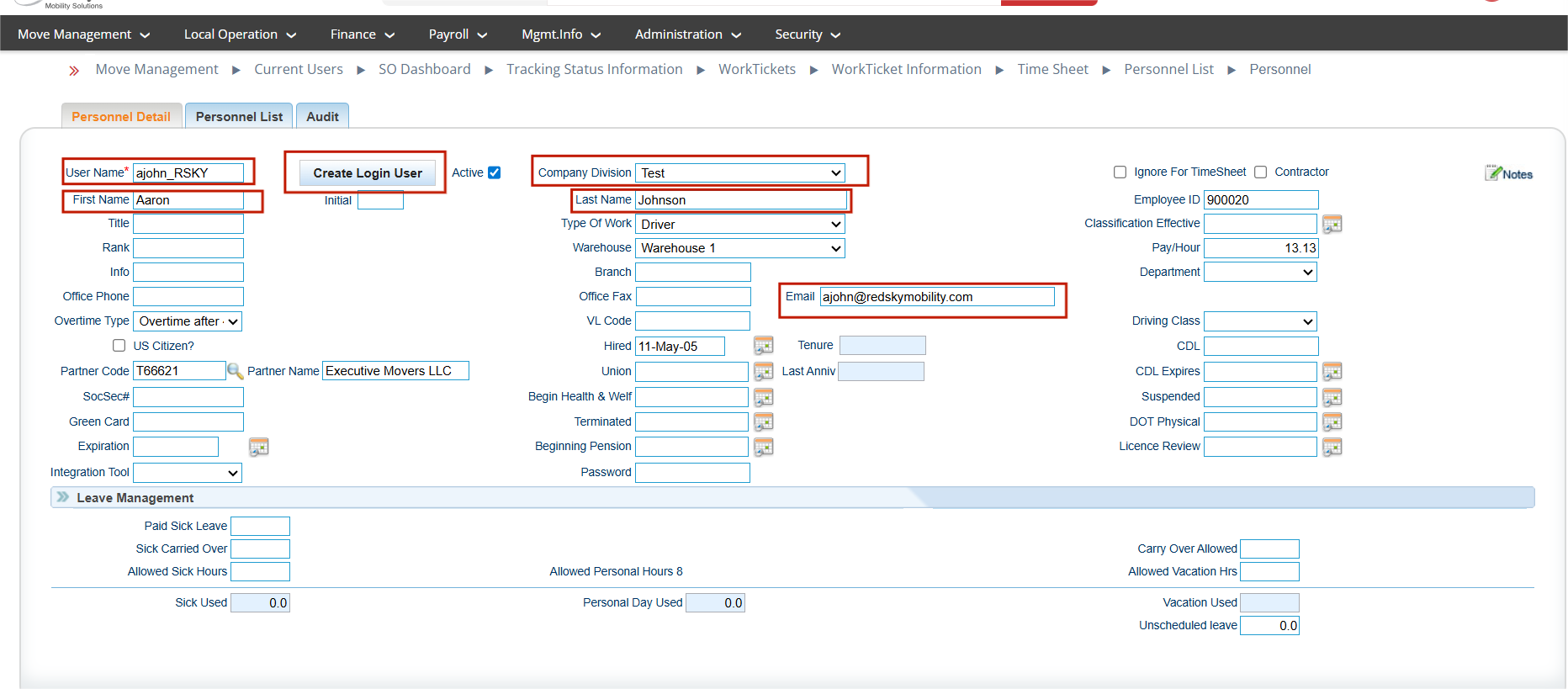
  • Inside the crew member’s profile, click on Create Login User.
  • Enter the required mandatory fields:
    • Username
    • First Name
    • Last Name
    • Company Division
    • Email Address
Ensure all mandatory fields are completed accurately.


Step 3: Verify User Creation
  • After saving, the user account will be created.
  • The newly created user will appear under:
    Security → View User

Step 4: Assign Crew Role

  • Open the newly created user profile under Security → View User.
  • Assign the role:  Role_Crew
  • Save the role assignment to ensure correct access permissions.

Step 5: Set Password and Share Credentials

  • Set a password for the crew user.
  • Share the following login credentials securely with the respective crew member:
    • Username
    • Password

Step 6: Crew Login to Ops App

Once credentials are received, the crew member can:
  • Open the Ops App on their device.
  • Log in using the provided username and password.
  • Access and begin working on assigned job tickets and tasks.

Summary

Creating crew credentials in RedSky allows administrators to:

  • Provide secure access to the Ops App
  • Enable crews to manage assigned jobs efficiently
  • Ensure correct role-based access through Role_Crew

Once credentials are set up, crew members can immediately start working on their assigned tasks using the Ops App.


Was this article helpful?

That’s Great!

Thank you for your feedback

Sorry! We couldn't be helpful

Thank you for your feedback

Let us know how can we improve this article!

Select at least one of the reasons

Feedback sent

We appreciate your effort and will try to fix the article