Purpose
This guide explains how crew members can add rooms in the Inventory tab of the Ops App while working on an assigned job, allowing inventory to be organized room-wise with accurate details and photos.
Prerequisites
- A crew login account has been created.
- The crew has received valid login credentials (username and password).
- The Ops App is installed on the device.
- At least one job is assigned to the crew.
Step 1: Log In to the Ops App
- Open the Ops App on your device.
- Enter the provided username and password.
- Tap Login.
- After successful login, you will be directed to the Dashboard.
Step 2: Open an Assigned Job
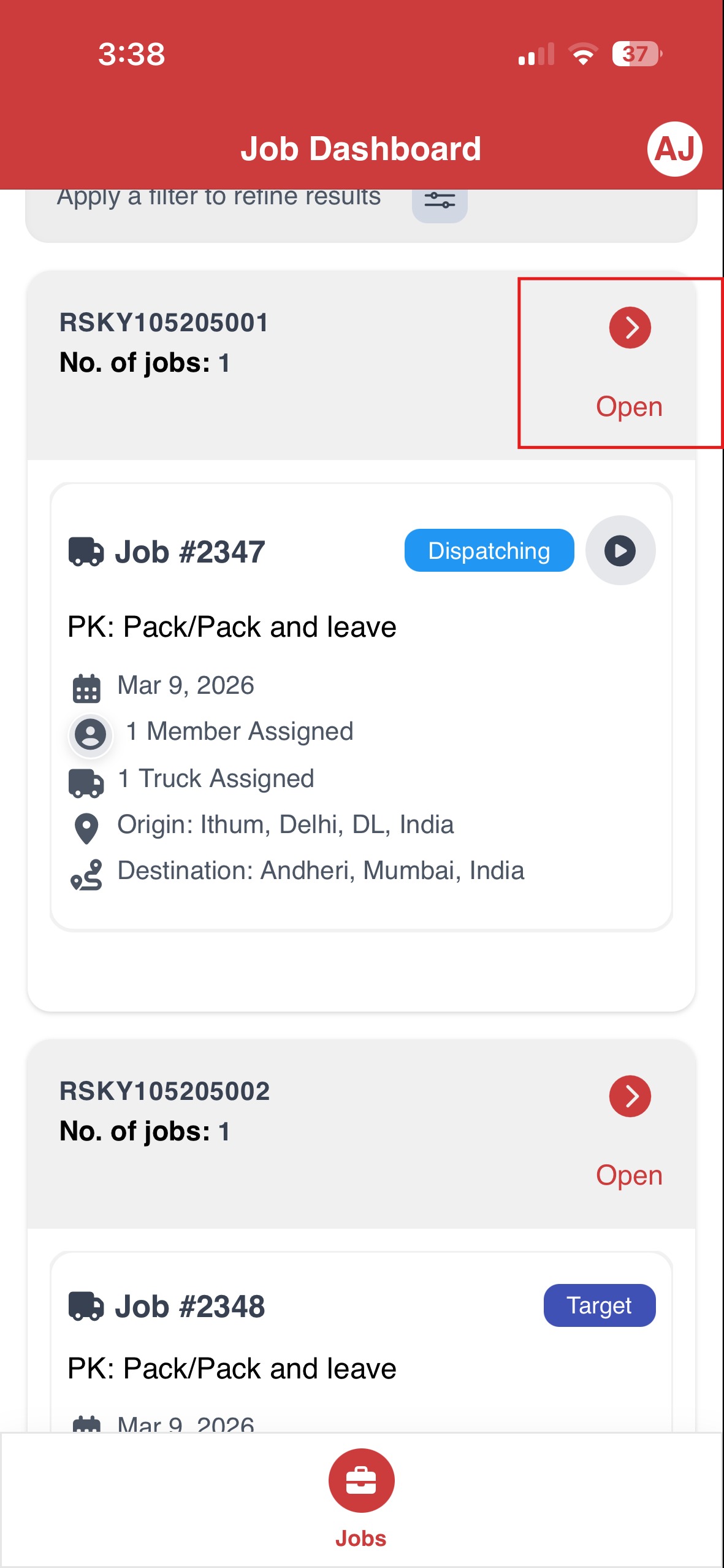
- From the Dashboard, view the list of assigned jobs.
- Tap the Open button located at the top left of the job ticket to open it and start working.
Step 3: Access the Inventory Tab
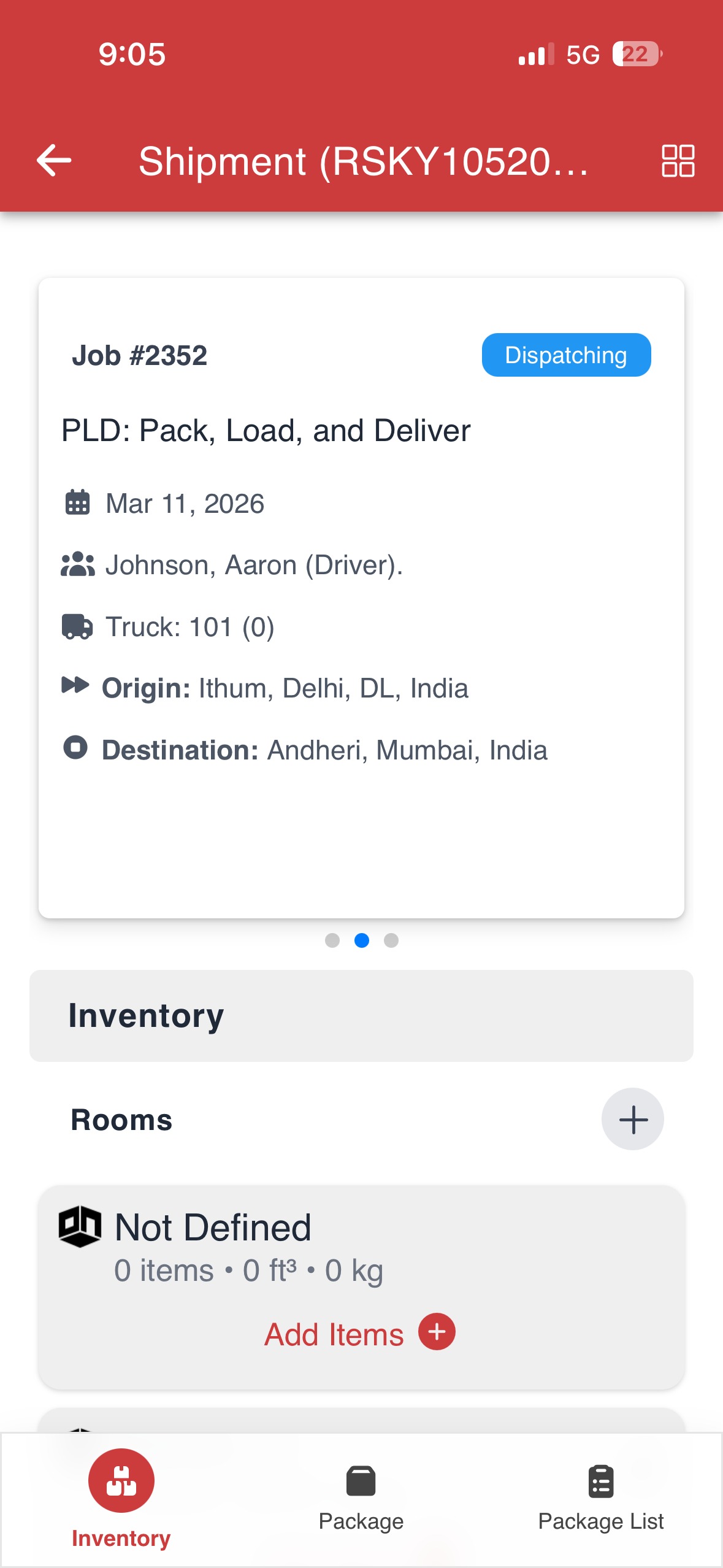
- Once the job is opened, navigate to the Inventory tab.
- The Inventory section displays job details in a card format, including:
- Work ticket number (job number)
- Tasks assigned for the job
- Crew members assigned to the ticket
- Truck details
- Origin and destination addresses
Step 4: Understand the Inventory Layout
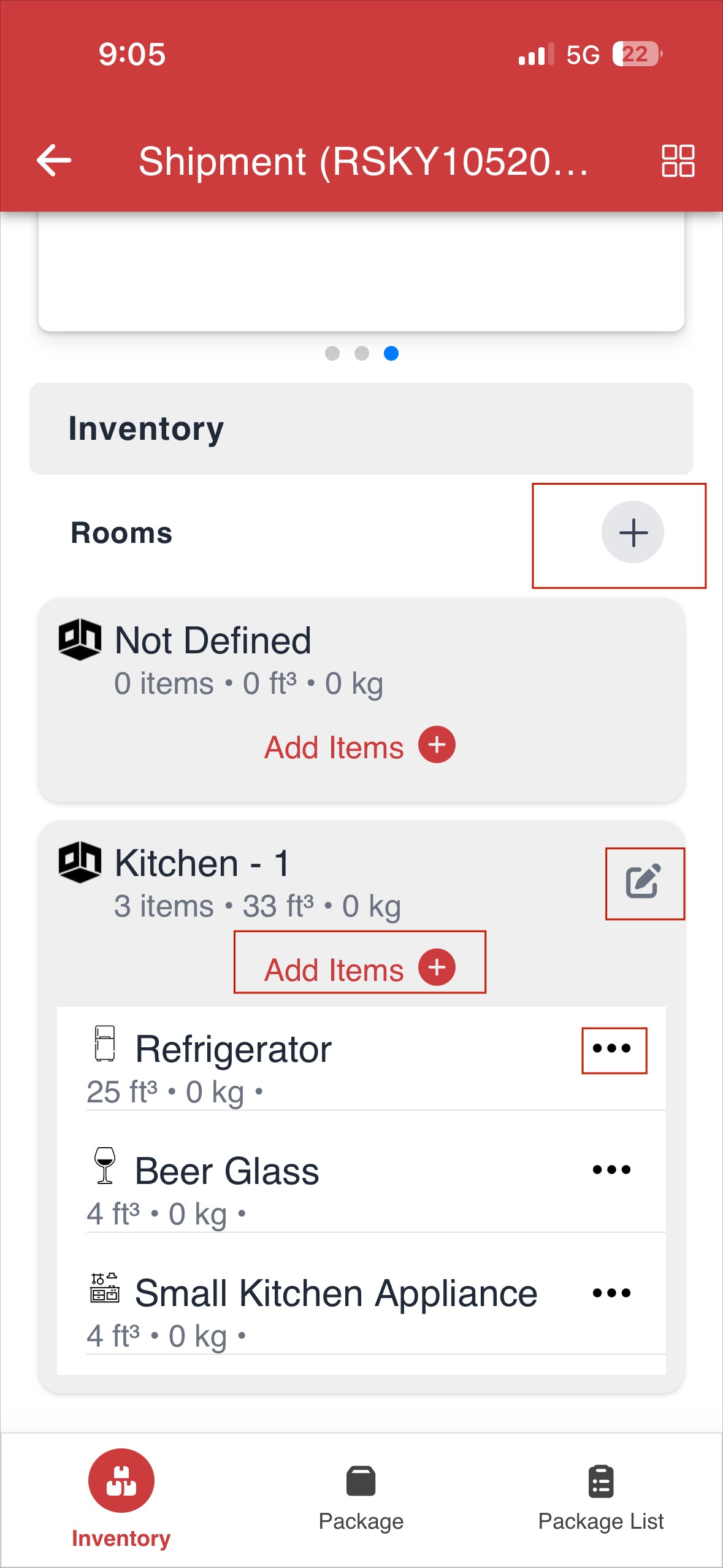
- Inventory is displayed room-wise, based on survey data.
- Crew members can:
- View existing rooms and items
- Add new rooms
- Edit room details and item information as required
Step 5: Add a New Room
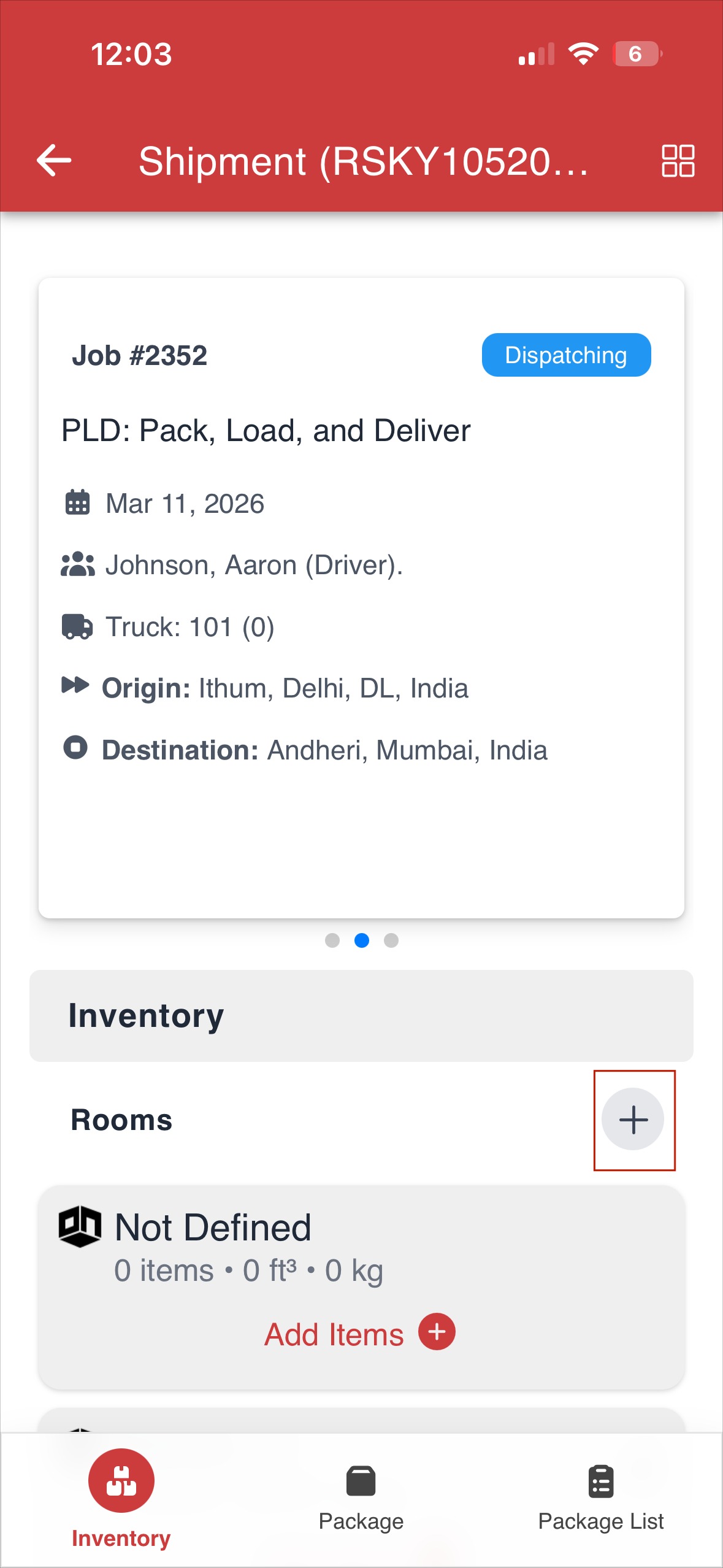
- Under the Inventory tab, tap the “+” icon.
- The Create Room screen will open.
Step 6: Enter Room Details
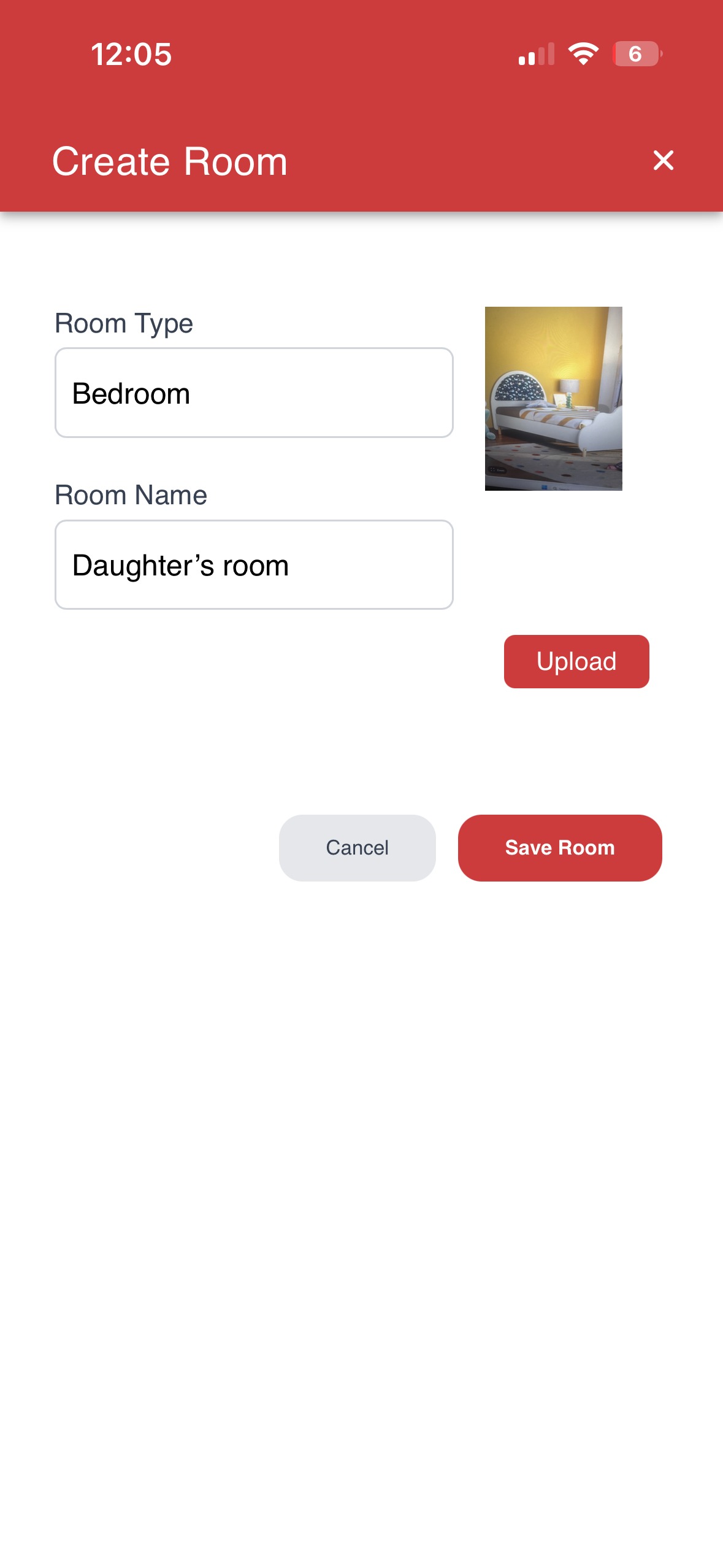
On the Create Room screen, provide the following information:
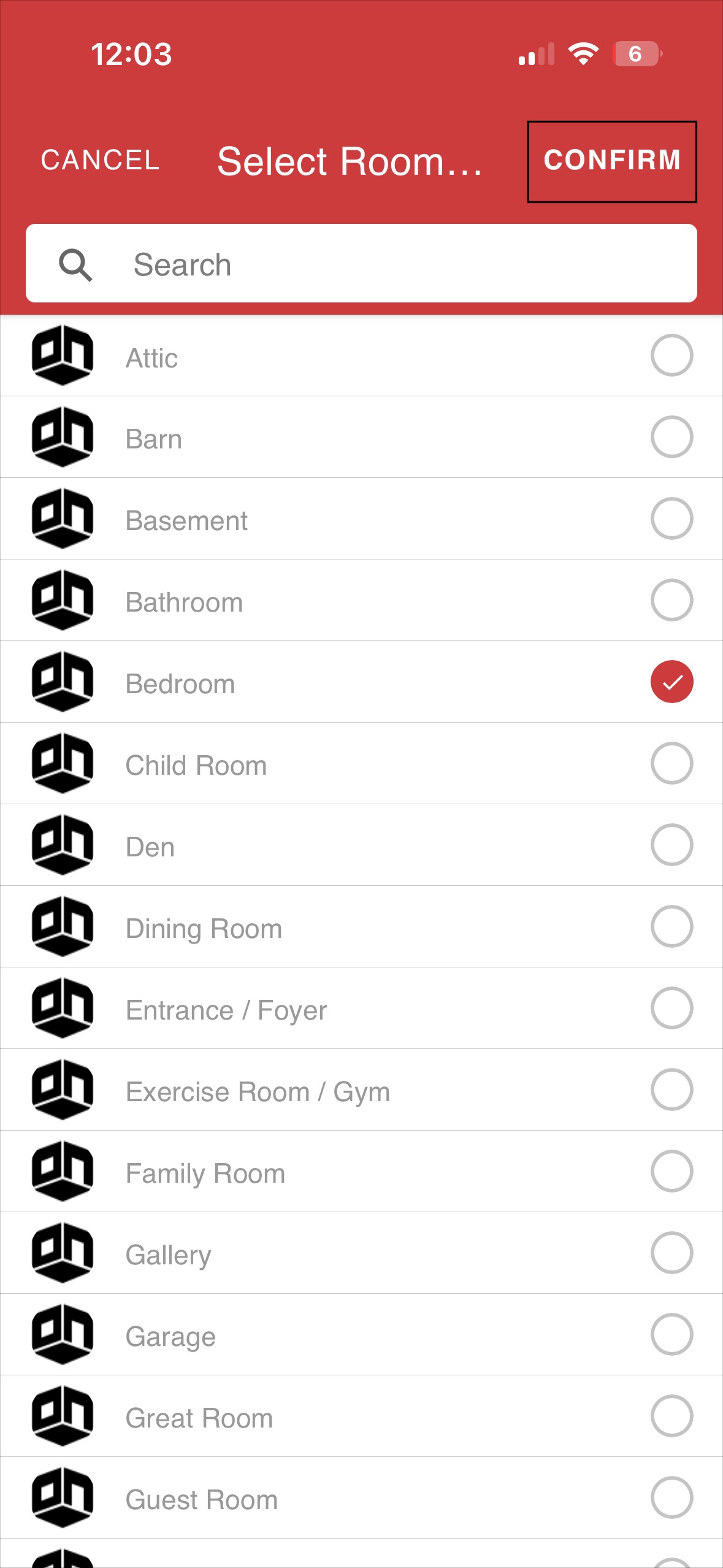
Room Type
- Tap the Room Type field.
- A list of available room types will appear.
- Select the required room type using the radio button.
- Tap Confirm to apply the selection.
Room Name
- Once the room type is selected, the Room Name is auto-populated.
- You may edit the room name if required.
Add Photo
- Tap the Photo icon to add a picture of the room.
- Choose one of the following options:
- Take a photo
- Upload a photo from the device
Step 7: Save the Room
- After entering all details, tap Save Room.
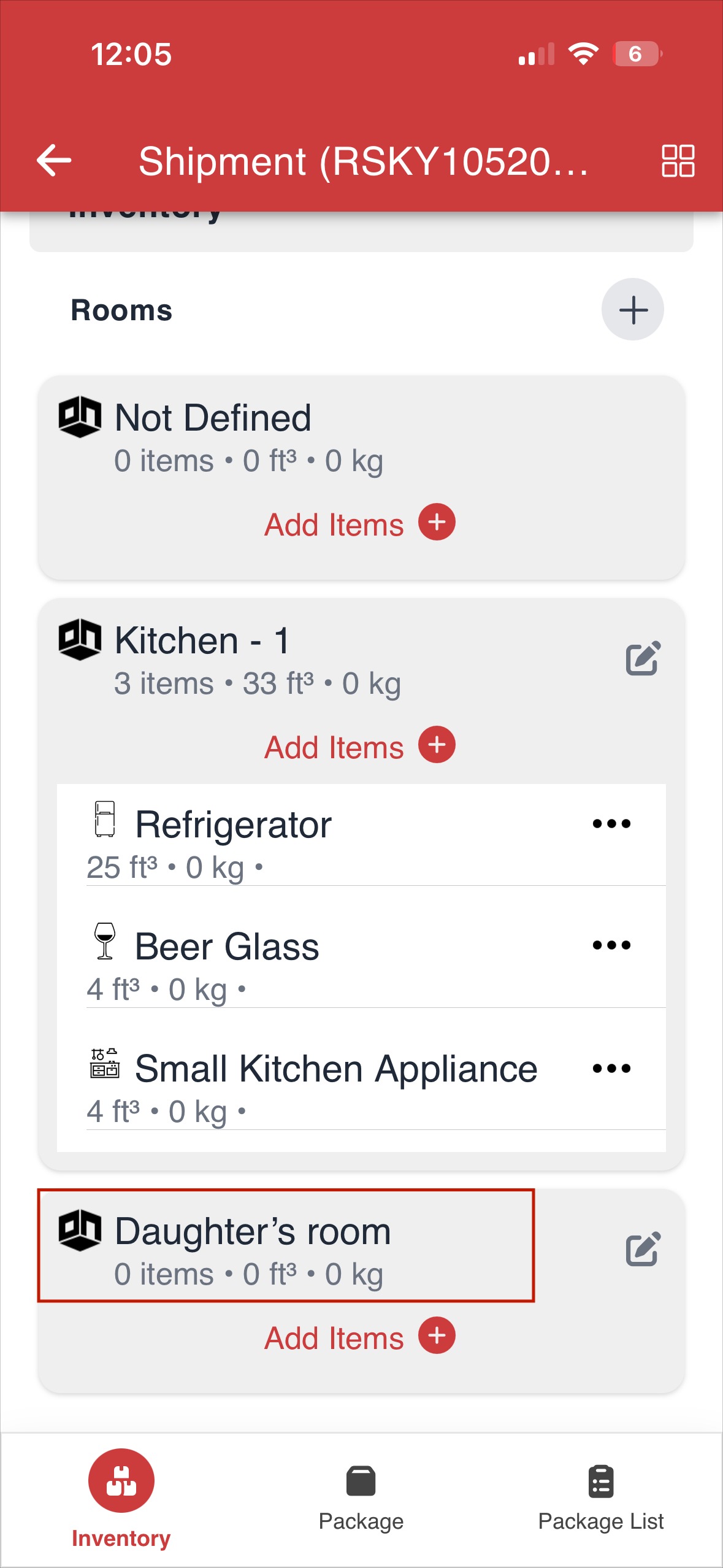
- The room is added to the Inventory list.
Step 8: View and Manage Rooms
- The newly added room appears in the Inventory section.
- Each room displays:
- Items added to the room
- Total number of items
- Total volume
- Total weight
- Crew members can edit room details or continue adding items as required.
Summary
Adding rooms in the Inventory tab helps crew members to:
For instructions on adding items to the inventory, refer to:
https://redskymobility.freshdesk.com/support/solutions/articles/43000779851-how-to-add-items-in-the-inventory-
Was this article helpful?
That’s Great!
Thank you for your feedback
Sorry! We couldn't be helpful
Thank you for your feedback
Feedback sent
We appreciate your effort and will try to fix the article