Crew Accessing the Ops App
When a work ticket is assigned to the crew from RedSky (RS), the crew can log in to the Ops App using the credentials provided to them.
After logging in, the crew will be able to access the Job Dashboard, where all the work tickets assigned to them from RedSky are displayed in the card view. From there, the crew can open the assigned job and begin performing the required tasks.
Filter Option: When you click on the Filter option, the filter screen opens where the crew can filter job tickets based on status, crew name, date, or a custom date range.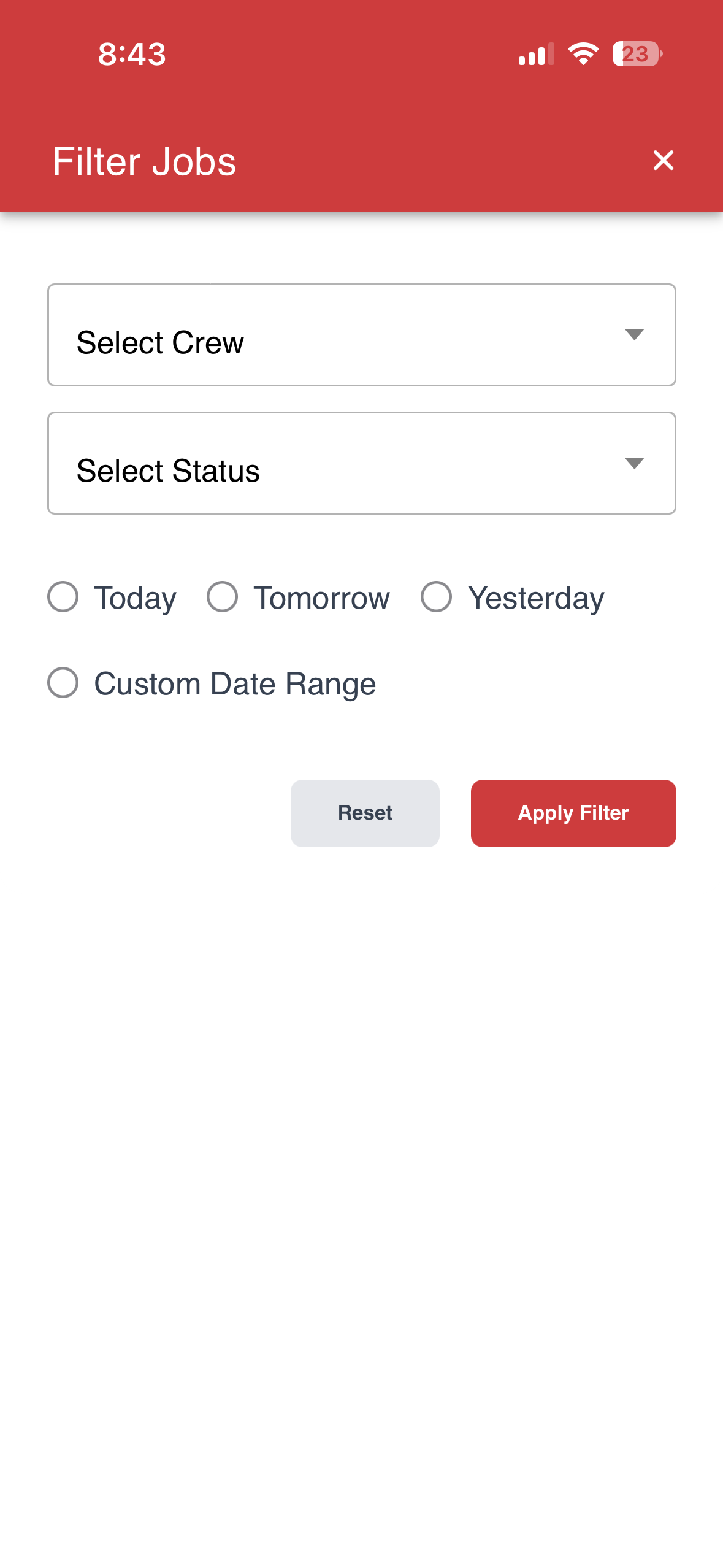
Check-In Button: Each job card has a Check-In button. When the crew starts the job, they can click this button to record the start time.
Open: There is an “Open” button with an icon at the top of each job card. The crew can click on it to open the job.
Job Card: The job card displays details such as the job type, job date, number of crew members assigned, number of trucks assigned, and the origin and destination addresses of the service order.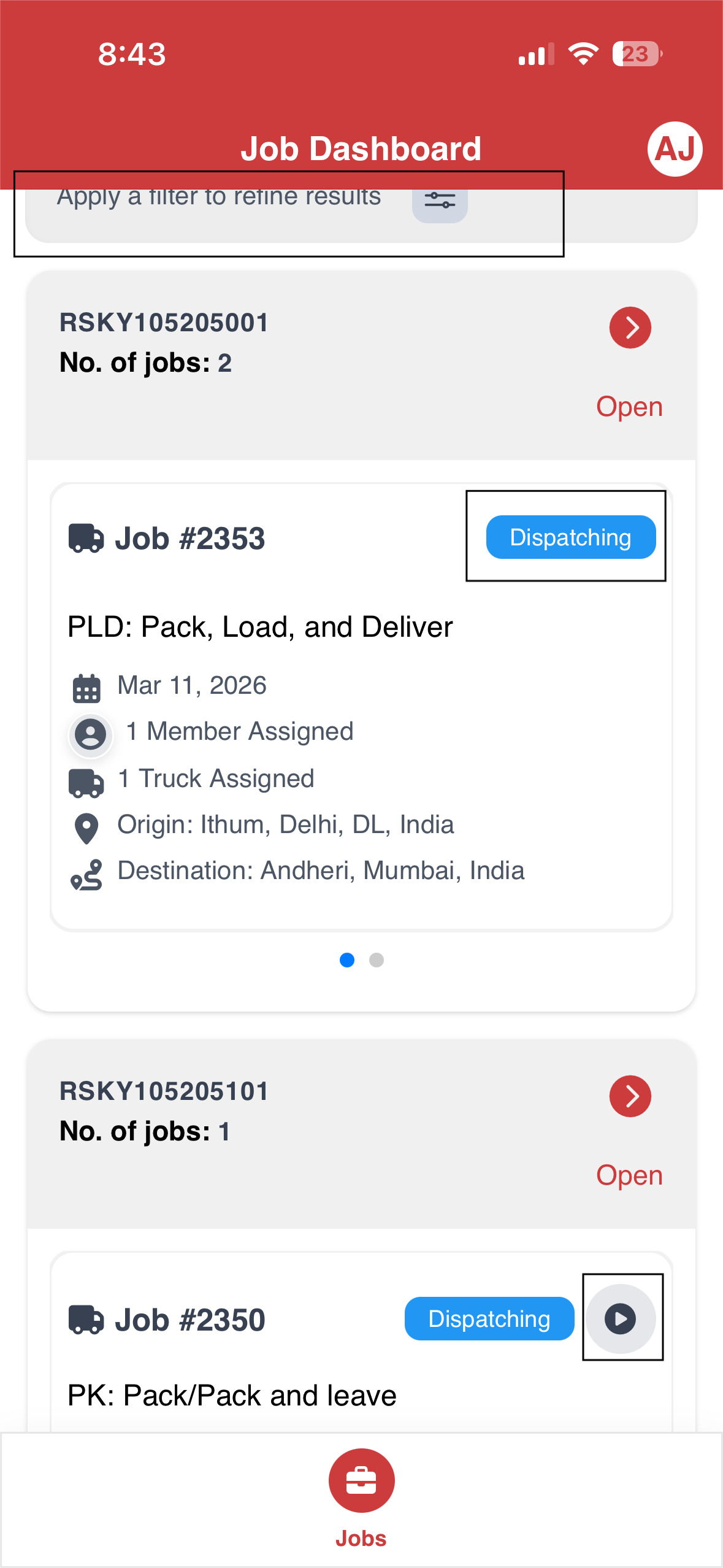
Main Screens in the Ops App
1. Inventory
When the crew opens a work ticket, the Inventory screen is displayed. This screen shows all the items that were recorded during the survey. The shipment number is displayed at the top of the screen.
Job Card: The Job Card displays information about the job ticket, similar to what appears on the dashboard. It includes details such as the job type, job date, assigned crew members, assigned truck, and the origin and destination address of the service order.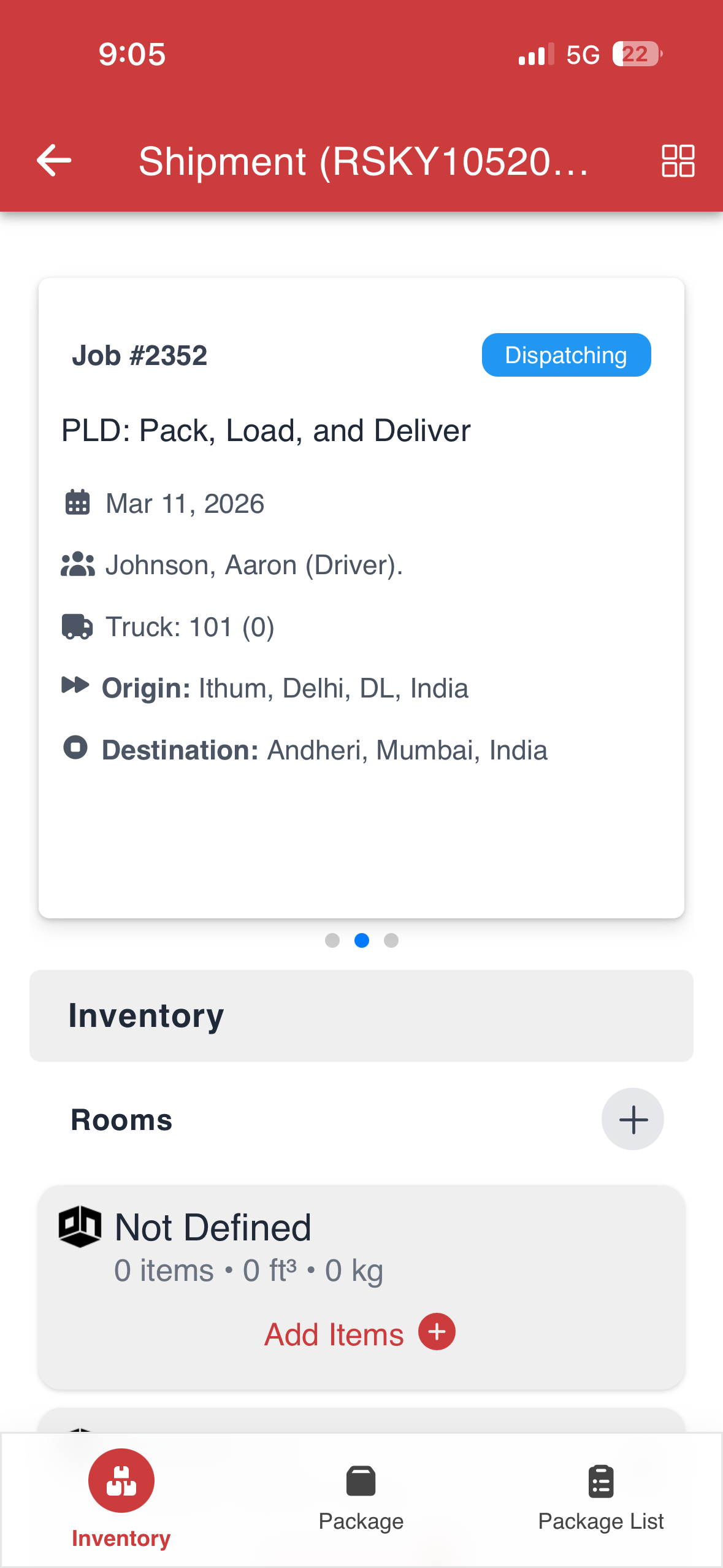
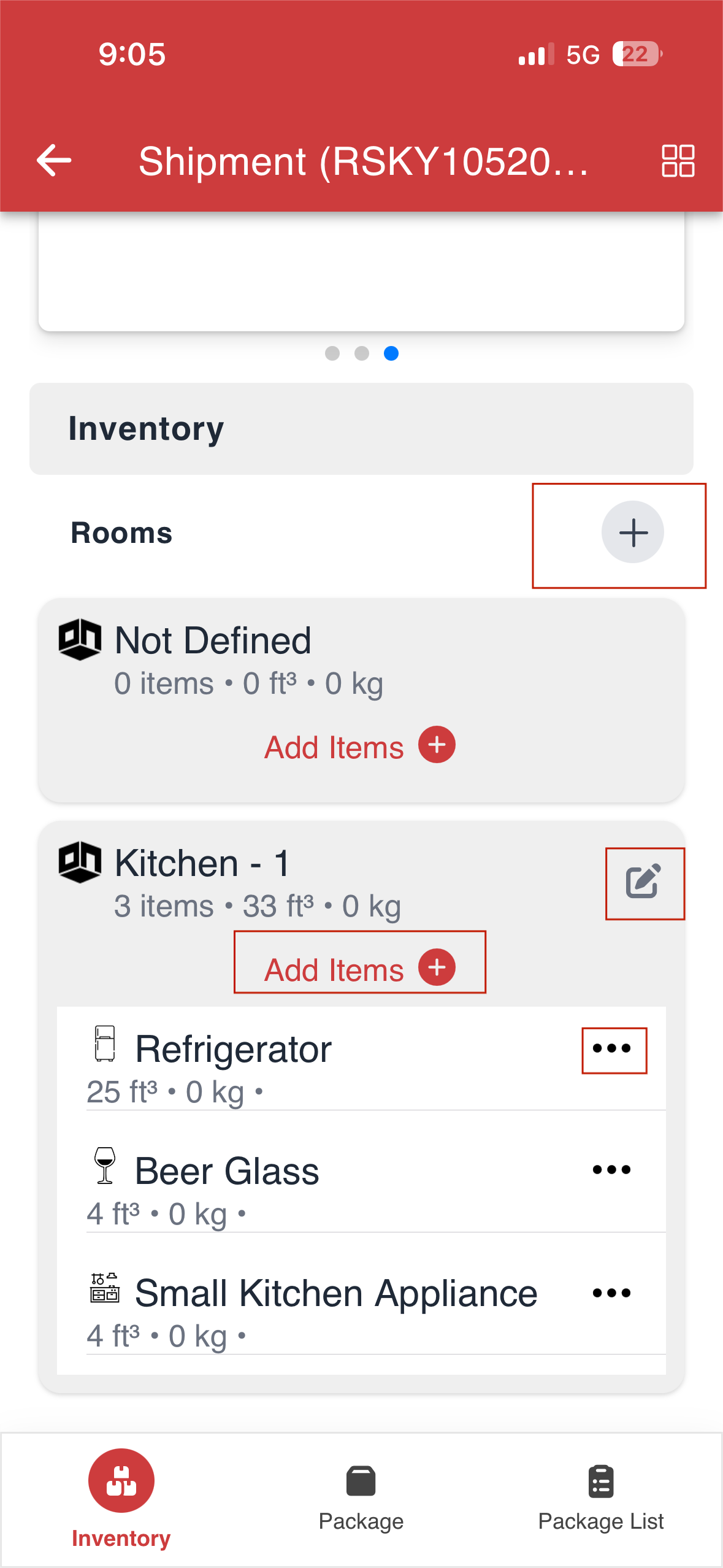
Inventory Section: In the Inventory section, the items are shown room wise as recorded during the survey, along with their details such as weight and volume.
The crew can:
- Add a room by clicking the “+” icon next to the rooms.
Add items to a room by clicking 'Add Items'
Update item information using the three horizontal dots (menu)
Delete an item using the three horizontal dots (menu)
Rename a room by clicking the edit icon
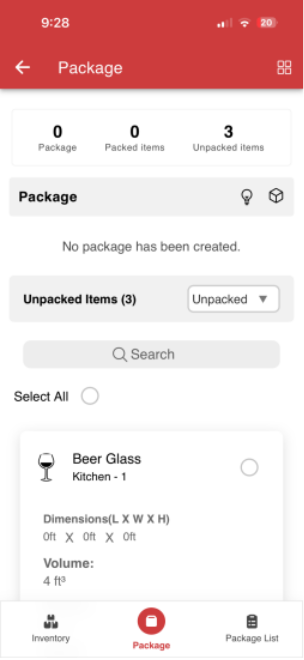
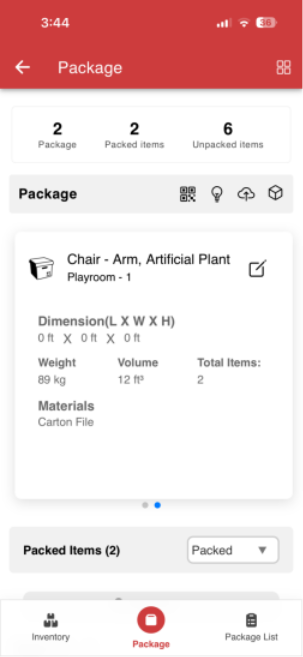
2. Package
3. Package List
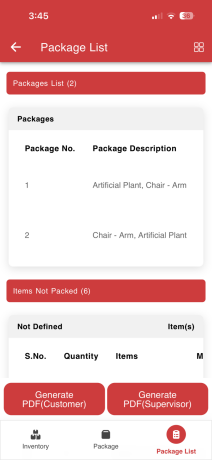
The Package List screen provides a consolidated view of all created packages and the items included in each package.
Package Information: Displays details such as package number, items included in each package, materials, volume, weight, dimensions, room, condition, handling information, barcode, notes, and images.
To view all the above details of the package, slide the screen to the right.
Unpacked Items Count: Shows the number of items that have not yet been packed under each room, along with details such as S. No., quantity, item name, materials, volume, weight, dimensions, room, condition, handling information, barcode, notes, and images.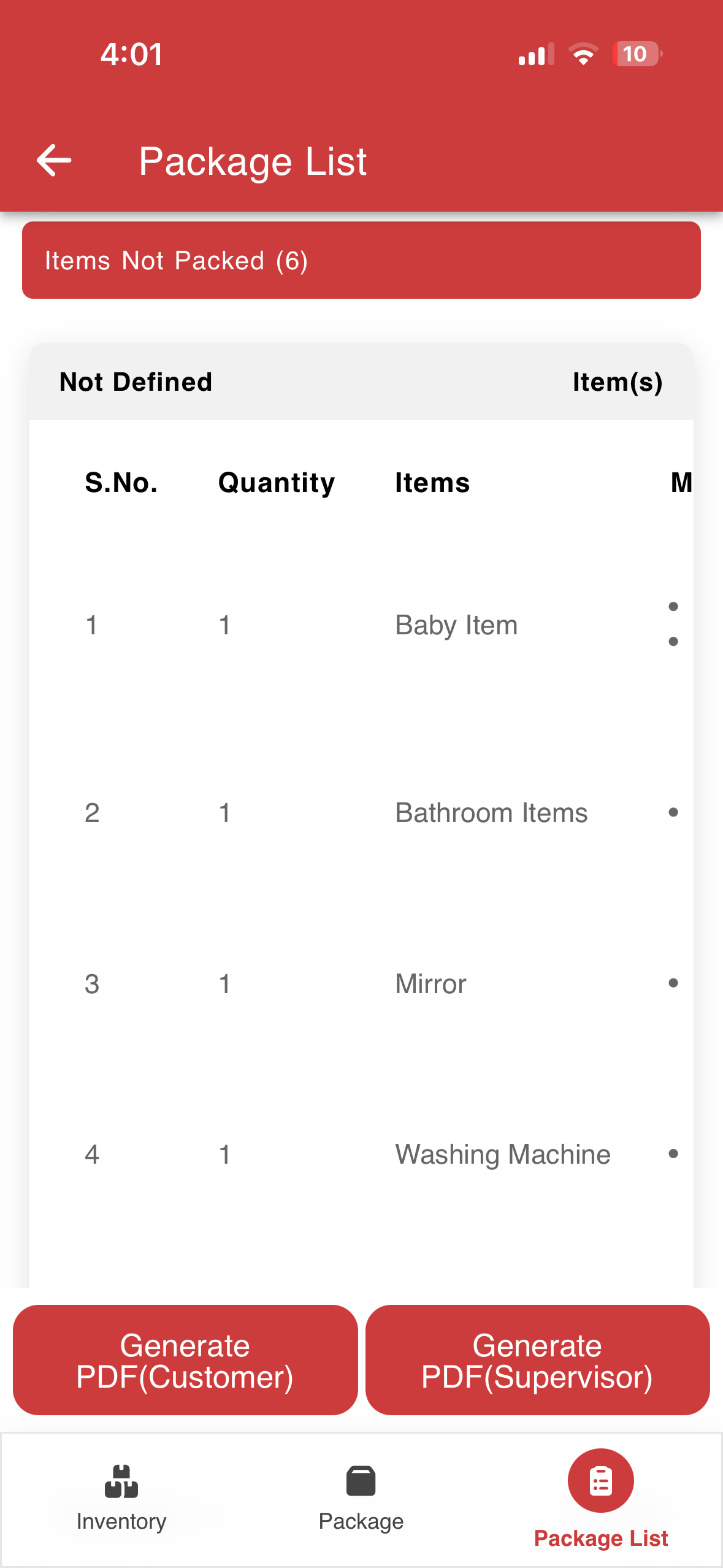
Signatures: The customer and supervisor signatures can be captured to confirm the packing details.
Packing List PDFs: Two types of Packing List PDFs can be generated:
Customer Copy: Includes both packed items and items that are not packed.
Supervisor Copy: Includes only the packed items
Was this article helpful?
That’s Great!
Thank you for your feedback
Sorry! We couldn't be helpful
Thank you for your feedback
Feedback sent
We appreciate your effort and will try to fix the article