Step 1: Login into Redsky Survey app with your credentials. Open the job for which you want to add/update a room.
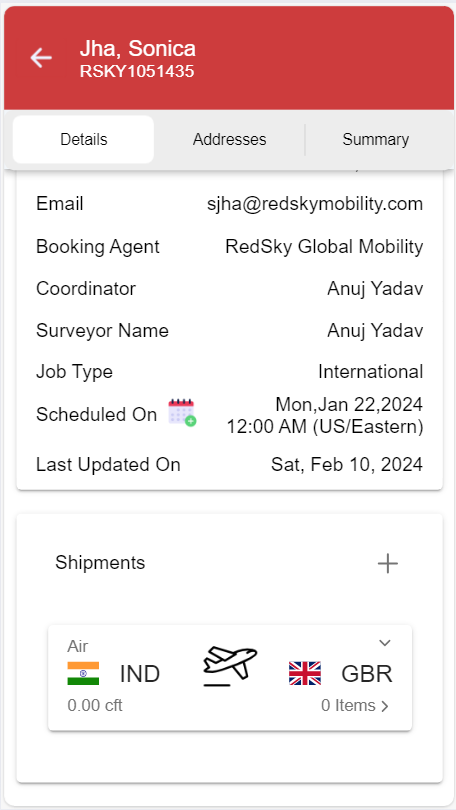
Step 2: Now, click on "items", and a pop-up window will open to select the room or for adding a new room.
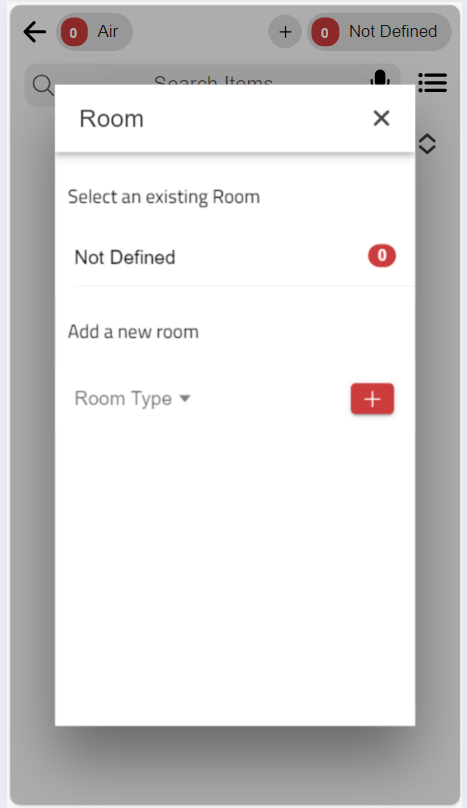
Step 3: For adding a new room, select the room type from the drop down and click on add icon.
The room will be added to the list for adding an item in it.
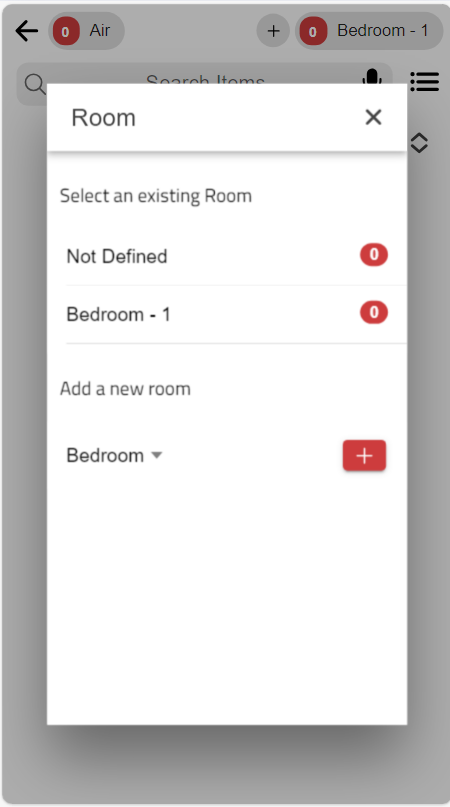
Step 4: Now select the room and proceed with adding the item into it.
Was this article helpful?
That’s Great!
Thank you for your feedback
Sorry! We couldn't be helpful
Thank you for your feedback
Feedback sent
We appreciate your effort and will try to fix the article