Purpose
This guide explains how crew members can capture, update, and remove Customer and Supervisor signatures in the Ops App after packages have been created.
Prerequisites
- A crew login account has been created.
- The crew has received valid login credentials (username and password).
- The Ops App is installed on the device.
- A job is assigned to the crew.
- At least one package has been created under the Package tab.
Step 1: Log In to the Ops App
- Open the Ops App on your device.
- Enter the provided username and password.
- Tap Login.
- After successful login, you will be directed to the Dashboard.
Step 2: Open an Assigned Job
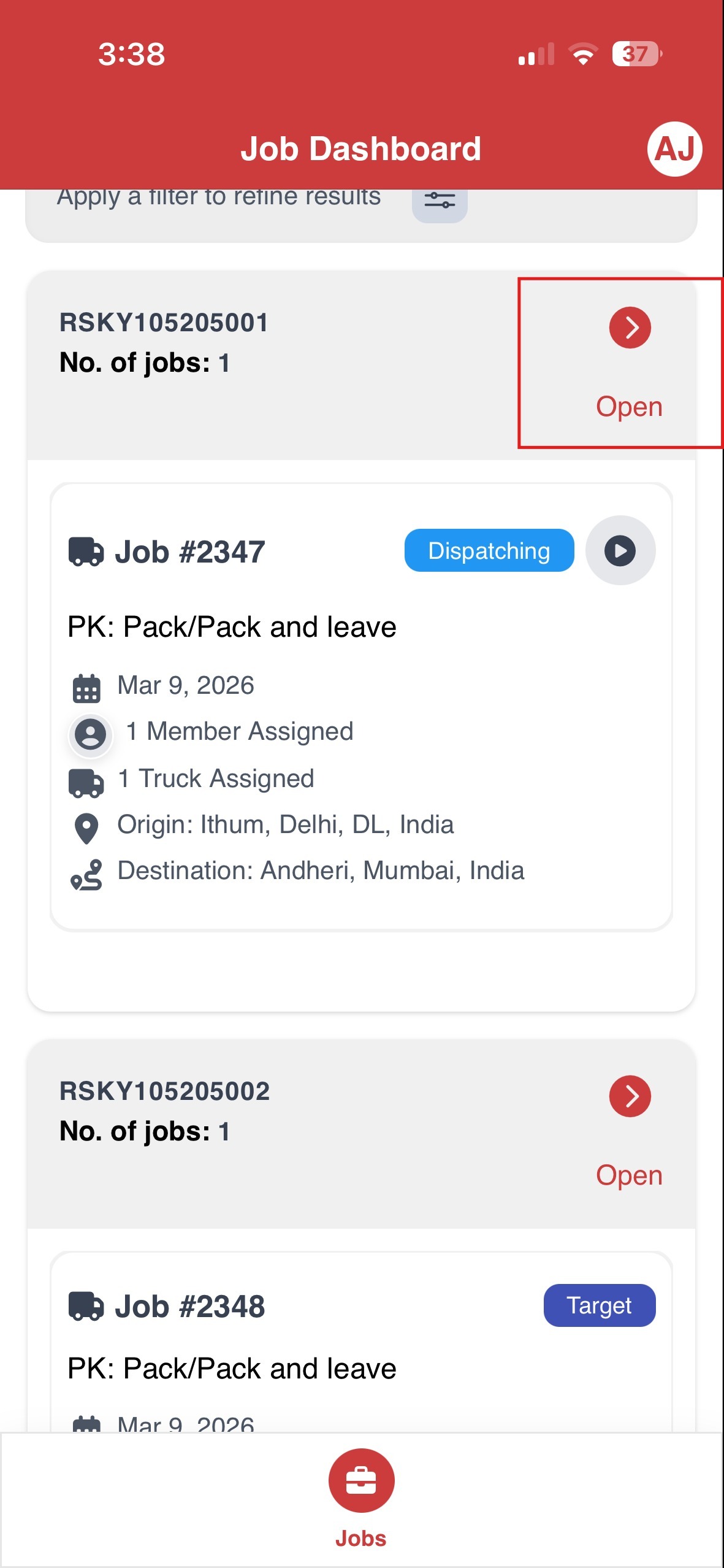
- From the Dashboard, go to the assigned job ticket.
- Tap the Open button located at the top left of the job ticket.
- Navigate to the Package tab.
Step 3: Add Signature
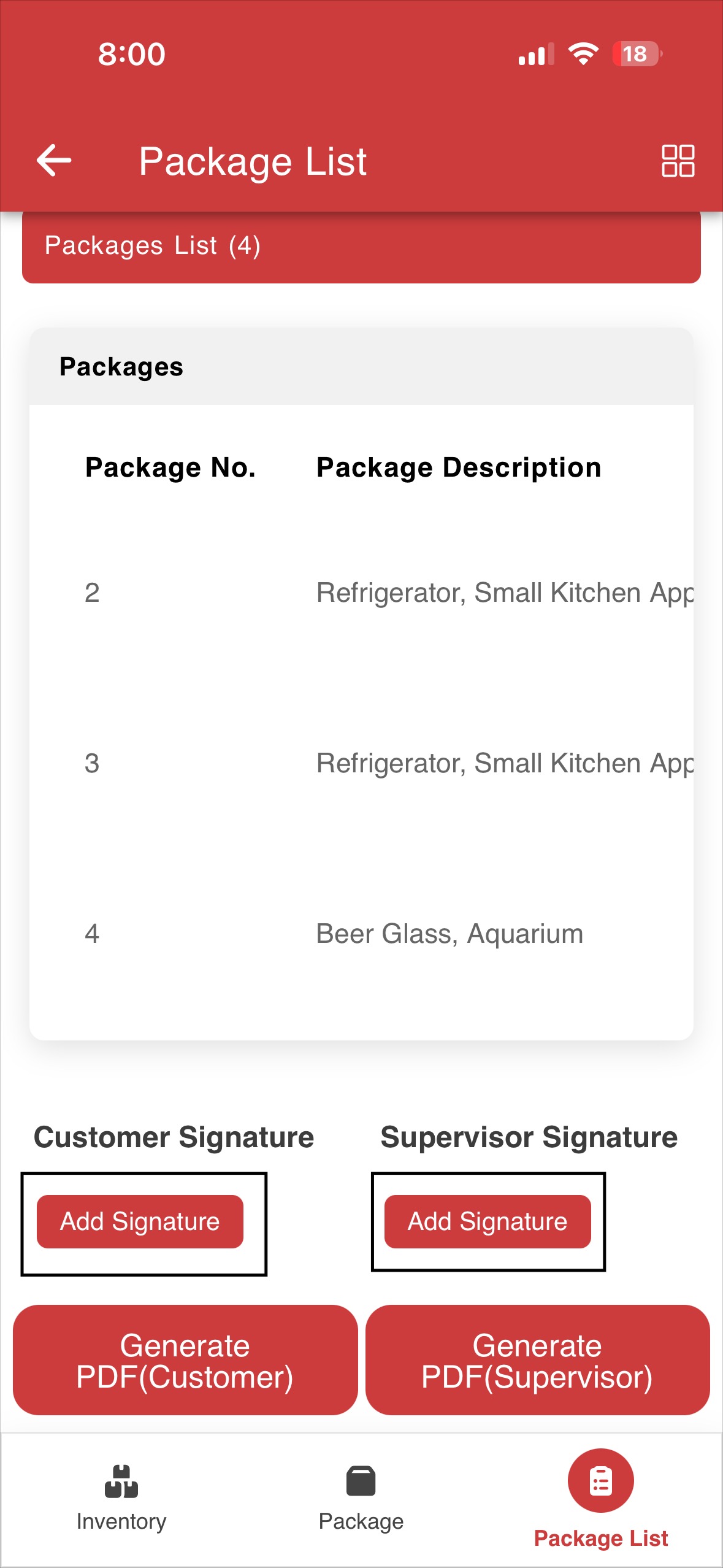
- In the Package List tab, locate the Customer Signature or Supervisor Signature section.
- Tap the Add Signature button under the required section.
Capture Signature
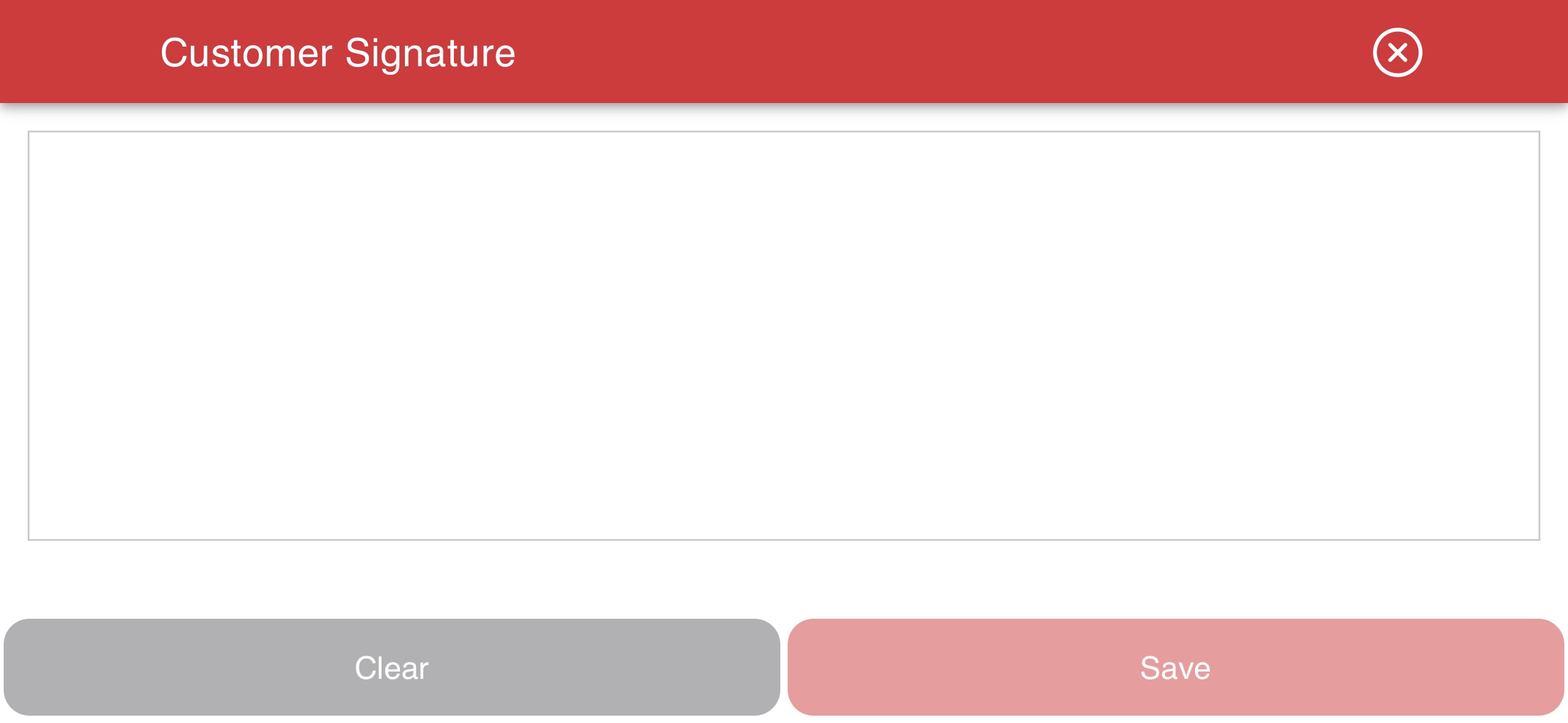
- A white signature canvas will appear on the screen.
- Ask the customer or supervisor to sign on the screen.
- After signing, tap Save to store the signature.
Signature Saved
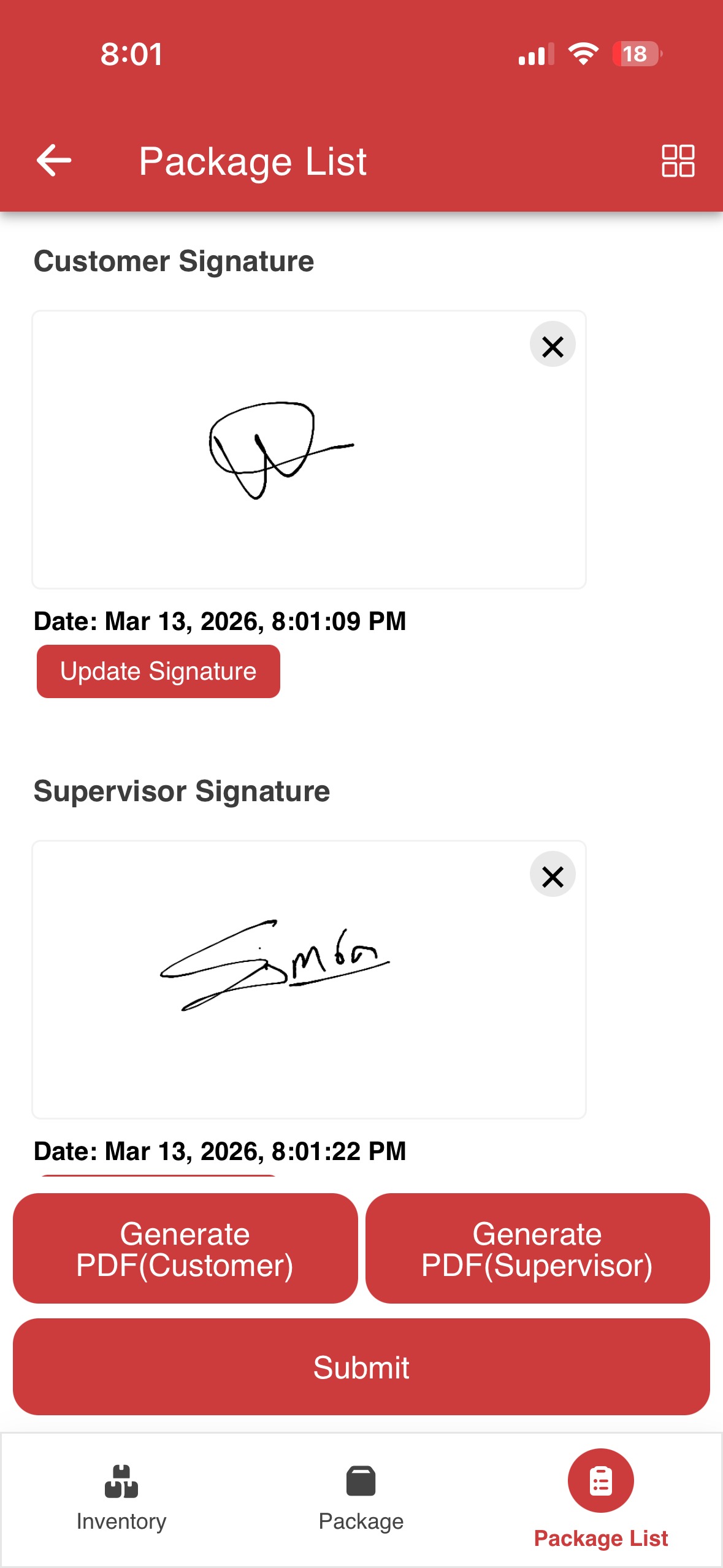
- Once saved, the signature will appear in the Package List tab.
- The date and time of signature capture will be displayed along with the signature.
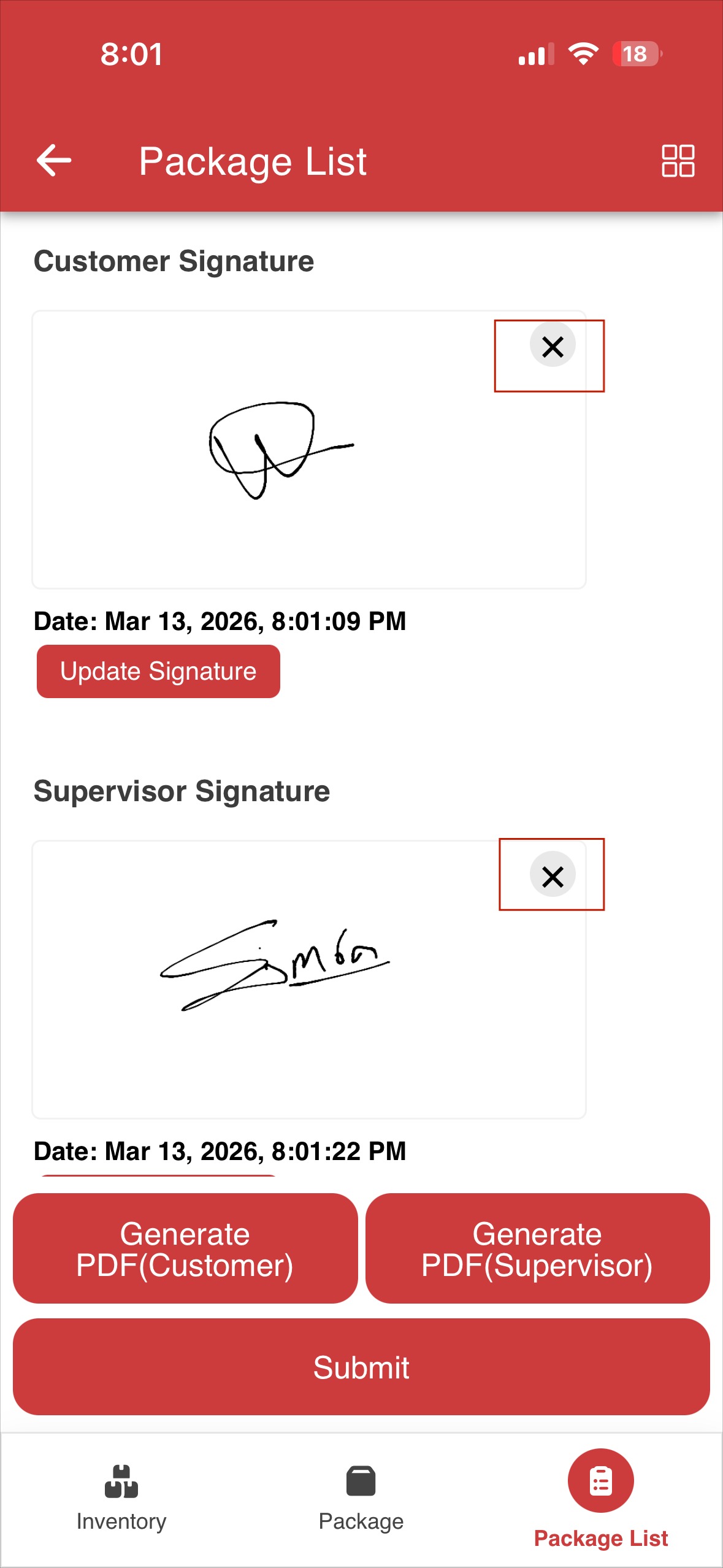
Step 4: Remove Signature
- To remove an existing signature, tap the cross (✖) icon at the top-right corner of the signature.
- The signature will be deleted from the Package List.
Step 5: Update Signature
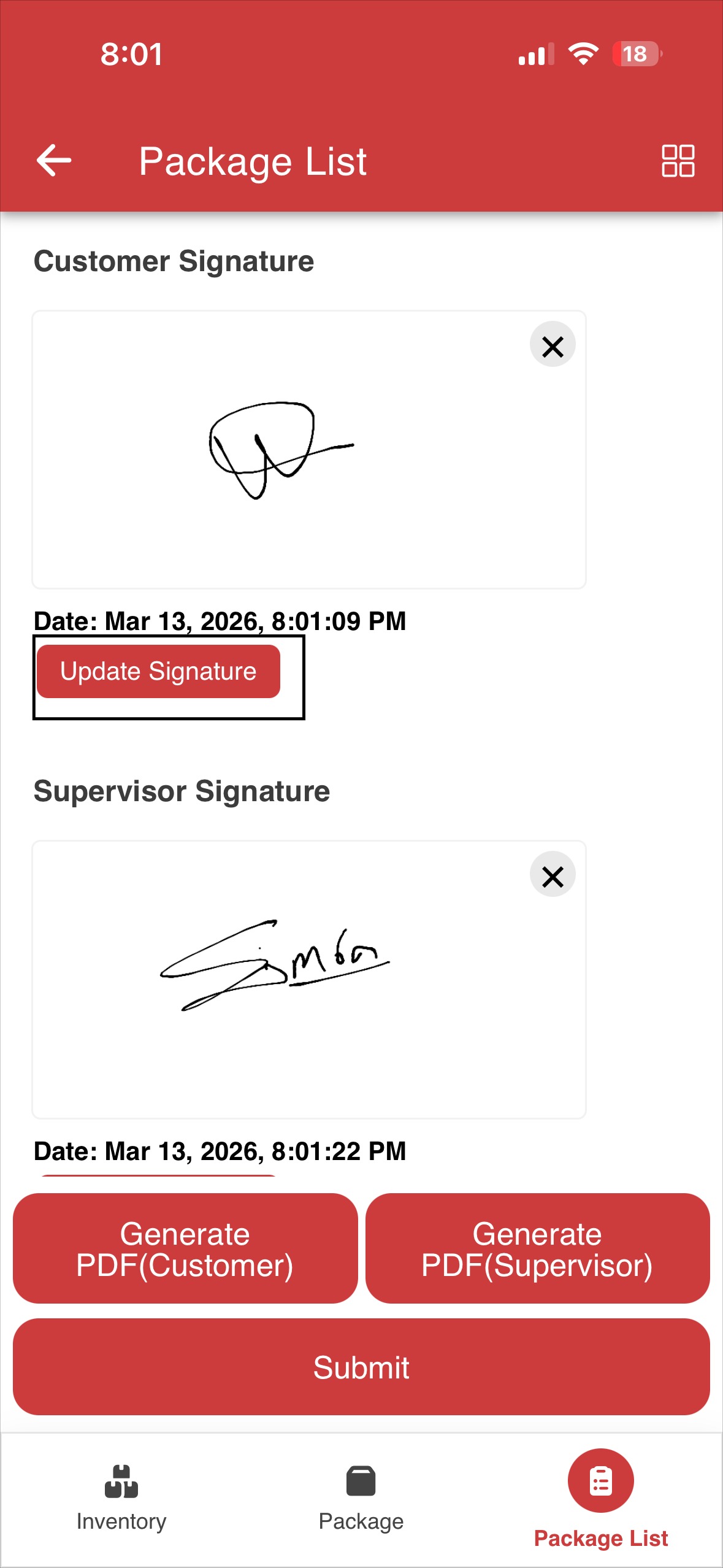
- Tap the Update Signature button under the required signature section.
- The signature canvas will open again.
- The customer or supervisor can provide a new signature.
- Tap Save to update the signature.
- The updated signature will replace the previous one with the new date and time.
Summary
Capturing signatures in the Ops App allows crew members to:
- Collect Customer and Supervisor approvals digitally
- Update or remove signatures
- Generate signed Package Summary PDFs for records and sharing
For instructions on how to generate pdfs, refer to the following document:
https://redskymobility.freshdesk.com/support/solutions/articles/43000779924-how-to-generate-pdfs-
Was this article helpful?
That’s Great!
Thank you for your feedback
Sorry! We couldn't be helpful
Thank you for your feedback
Feedback sent
We appreciate your effort and will try to fix the article