RedSky–Yembo Integration User Guide
This guide explains how the RedSky Mobility (RS) and Yembo Survey App integration works, how end users interact with it, what data is exchanged, and the conditions required for successful synchronization.
1. User Flow (How the Integration Works)
1.1 Overview
The Yembo–RS integration allows users to manage surveys smoothly between both systems.
With this integration:
Surveys can be scheduled directly from RedSky into Yembo.
Customer and job details entered in RS are automatically sent to Yembo.
Once a survey is completed in Yembo, the structured survey results are automatically returned to RS.
This reduces manual work, eliminates data entry errors, and ensures both systems stay in sync.
Enable the Integration
To activate Yembo for your environment, send a request to:
support@redskymobility.com
Our team will reach out to with all details that would be needed for this integration.
1.2 Step-by-Step Survey Lifecycle (RS → Yembo → RS)
Step 1: Create the Customer File in RS
To schedule a survey, the following fields must be completed:
Mandatory Customer Details
Last Name
Job Type
Origin & Destination Address (City, State, Country, Postal Code)
Bill To Code
Required Contact Details
Origin Primary Email
Origin Phone Number (Mobile or Home)
If both are provided → Origin Mobile is prioritized
Survey Selections
Set Survey Type = “Survey” (Optional)
Select Survey Option = “Yembo”
Set Schedule Survey Date
Set From Time
Save the Customer File
After saving, the Send to Yembo button appears.

Step 2: Schedule the Survey
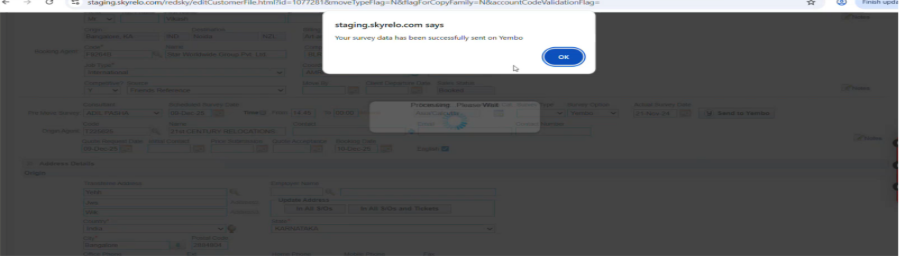
Click Send to Yembo
A confirmation popup appears indicating successful scheduling
The button becomes disabled after the survey is sent
Step 3: Open the Survey in Yembo
Users can access Yembo in two ways:
Option A: Directly from the Yembo App
Log in to Yembo
Go to Moves → All to view all scheduled surveys
Option B: From RedSky
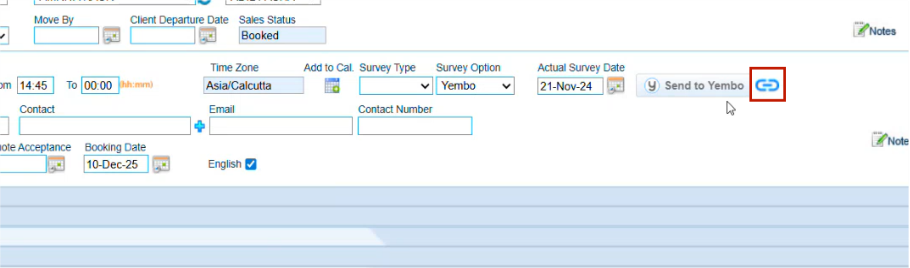
Go to Customer File → Survey Section
Click the Yembo Survey Link
If logged in → survey opens directly
If not → user logs into Yembo and is redirected to the survey
Step 4: Data Sent from RS to Yembo
The following data appears automatically in Yembo under Details:
First Name, Last Name
Primary Email
Phone Number
File Number
Origin Address (full)
Destination Address (full)
Move By Date (if available)
Schedule Survey Date and From Time
Notes added on RedSky with Subtype = Survey
Step 5: Conduct the Survey in Yembo
Step 6: Review & Complete the Survey
Only after the survey is marked Completed will data be sent back to RS.
Note: RedSky accepts the Yembo survey data only once. Data is transferred from Yembo to RedSky after the survey status is set to Completed. If the user changes the status back to Review and then marks it Completed again, no additional data transfer will occur. RedSky will not accept or overwrite data a second time.
Step 7: Data Sent from Yembo to RS
Once completed, the survey data flows back to RedSky:
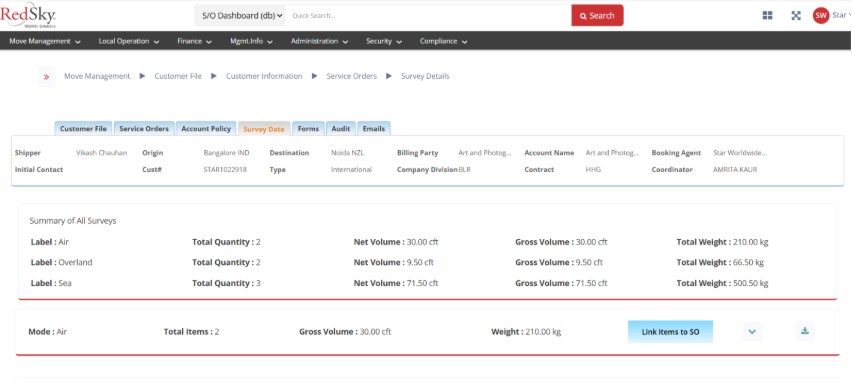
Customer File → Survey Details
For each shipment/mode, users can view:
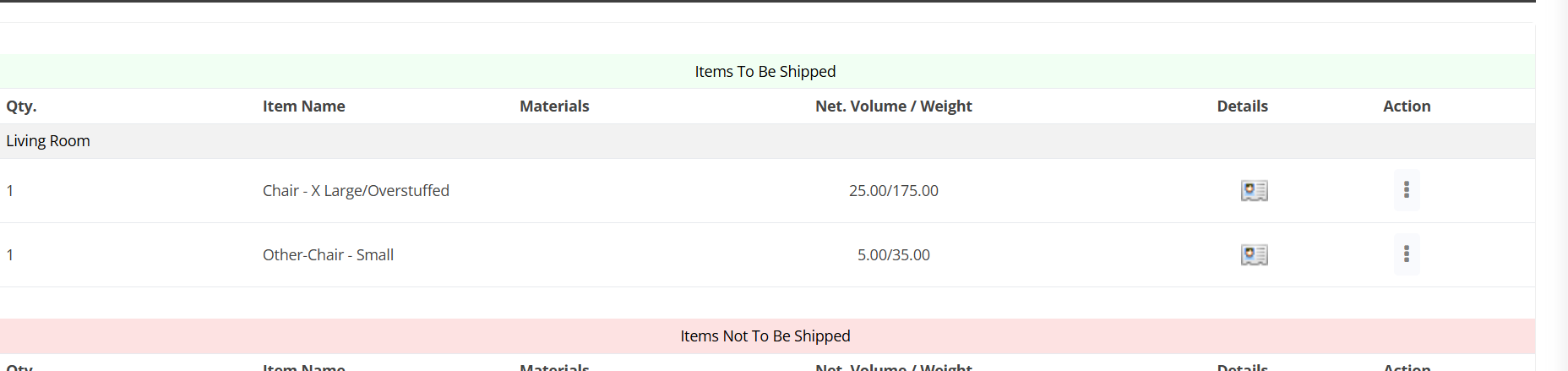
Rooms
Items under each room
Quantity
Net & Gross Volume
Weight
Shipment types (Air/Sea/Overland) can be linked to Service Orders later.

2. Data Transferred Between Systems
2.1 Outgoing Data (RS → Yembo)
| Field | Requirement |
|---|---|
| First Name | Optional |
| Last Name | Mandatory |
| Origin Phone | Mandatory |
| Origin Primary Email | Mandatory |
| Move By Date | Optional |
| Origin Address Line | Mandatory |
| Origin City | Mandatory |
| Origin State | Mandatory |
| Origin Postal Code | Mandatory |
| Origin Country | Mandatory |
| Destination Address Line | Optional |
| Destination City | Mandatory |
| Destination State | Mandatory |
| Destination Postal Code | Optional |
| Destination Country | Optional |
| Survey Schedule Date | |
| From Time |
2.2 Incoming Data (Yembo → RS)
Shipment-Level Data
For each shipment:
Rooms included
Items added under each room
Item details (name, quantity, net volume, weight)
Summary Section
For each mode:
Total Quantity
Total Net Volume
Total Gross Volume
Total Weight

3. Conditions & System Behaviors
3.1 Prerequisites
Integration must be enabled
Activated via RedSky Support.Mandatory fields must be completed before sending to Yembo
Last Name
Origin Phone Number
Origin Primary Email
Origin Address (full)
Destination City & State (Postal and Country optional)
Phone Priority Rule
If both phone numbers exist:
- Origin Mobile is sent to YemboUser must have valid Yembo login credentials
3.2 Data Transfer Behaviors
Condition 1: Room Without Items
If a room has no items, it will not appear in RS.
Condition 2: Item Without Shipment
Items with no assigned shipment:
- Still transferred
- Automatically categorized under “Unknown” in RS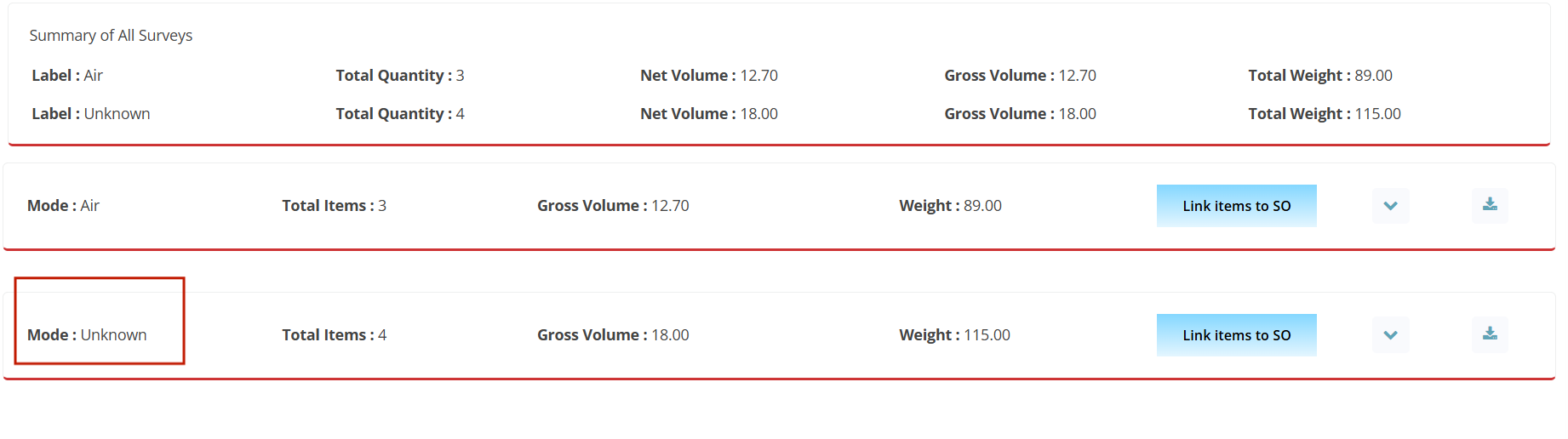
Condition 3: Survey Status Must Be Completed
Data is sent to RS only when survey status = Completed
Was this article helpful?
That’s Great!
Thank you for your feedback
Sorry! We couldn't be helpful
Thank you for your feedback
Feedback sent
We appreciate your effort and will try to fix the article