Purpose
This guide explains how crew members can generate, download, and share the Package Summary PDF for Customers and Supervisors from the Ops App. PDFs can be generated before and after capturing signatures.
Prerequisites
- A crew login account has been created.
- The crew has received valid login credentials (username and password).
- The Ops App is installed on the device.
- A job is assigned to the crew.
- At least one package has been created under the Package tab.
Step 1: Log In to the Ops App
- Open the Ops App on your device.
- Enter the provided username and password.
- Tap Login.
- After successful login, you will be directed to the Dashboard.
Step 2: Open an Assigned Job
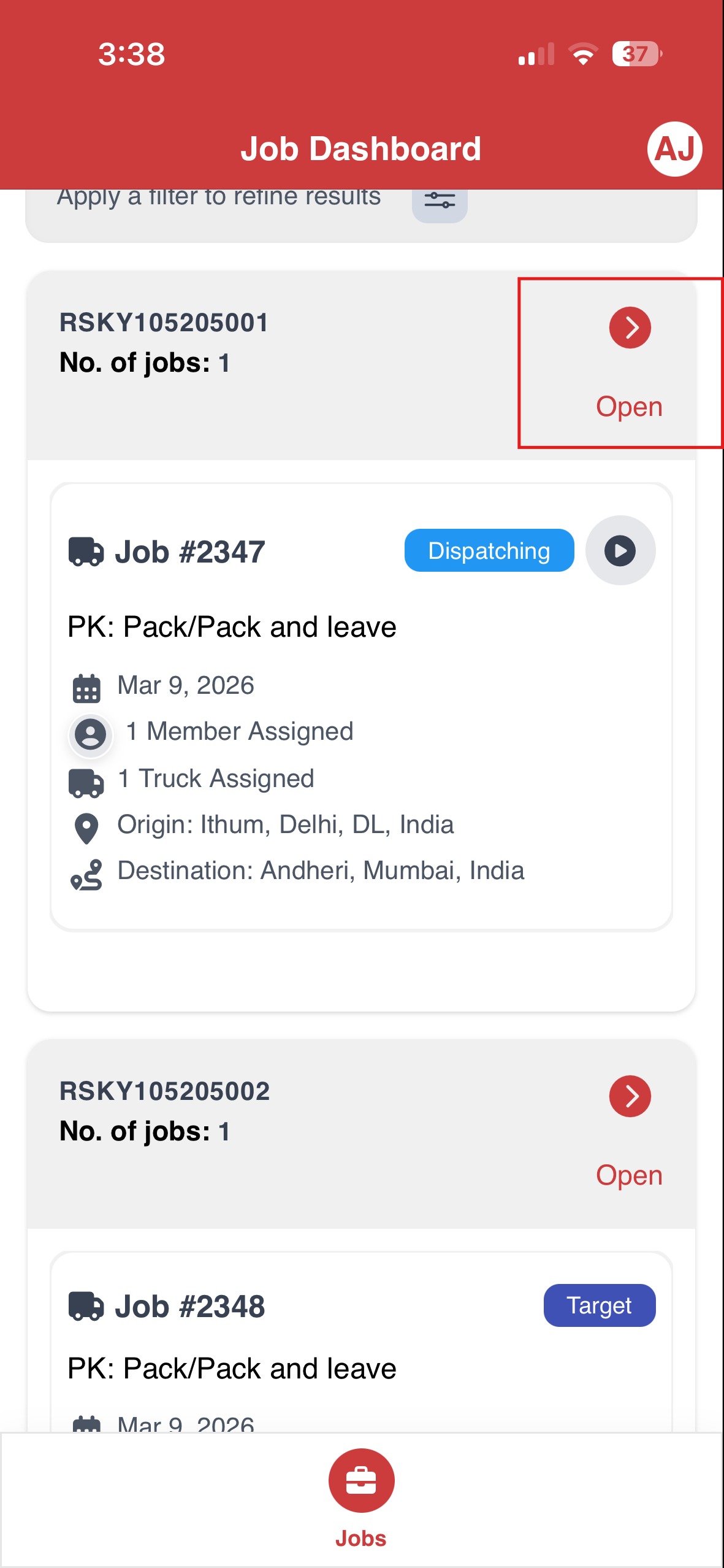
- From the Dashboard, go to the assigned job ticket.
- Tap the Open button located at the top left of the job ticket.
- Navigate to the Package tab.
Generating PDF Copy Before Capturing Signatures
Step 3: Generate PDF
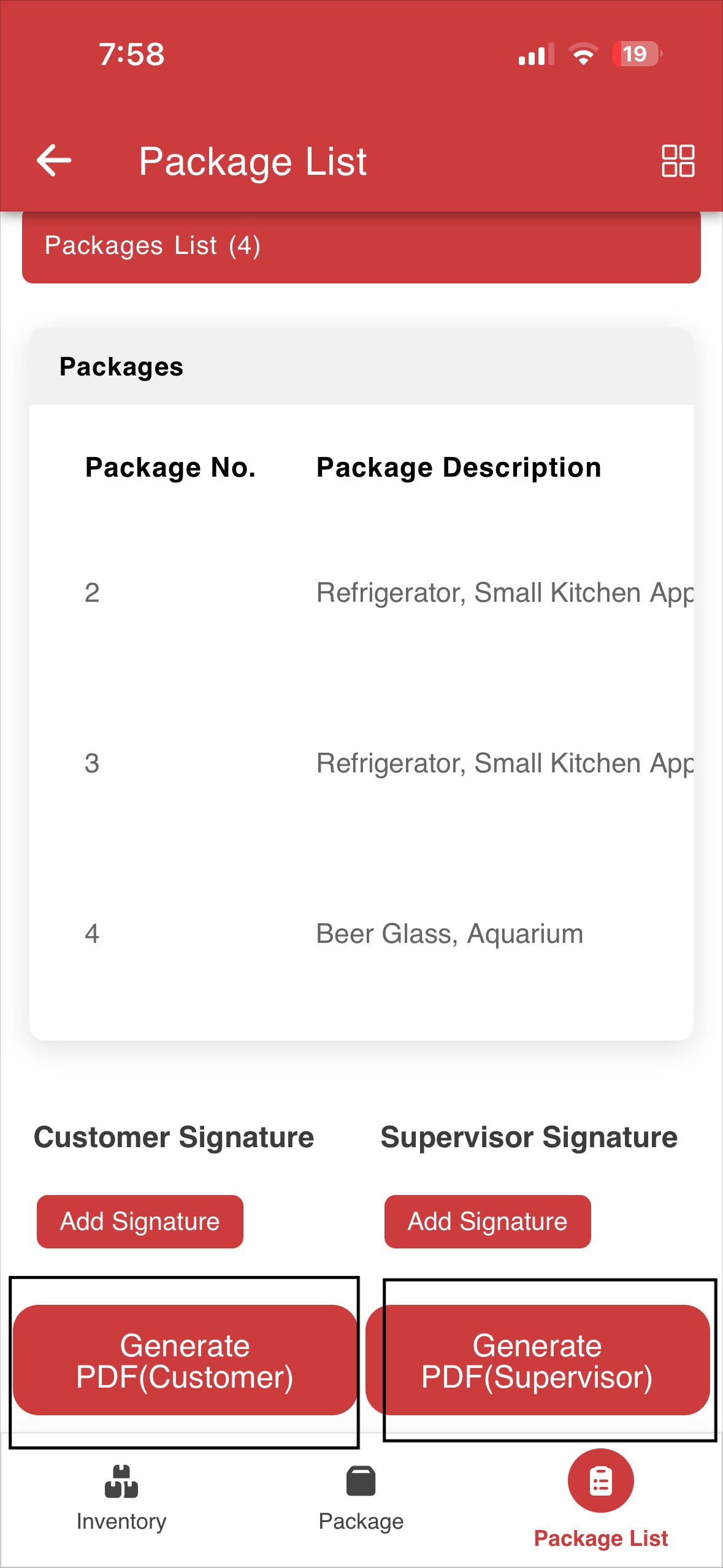
- In the Package Listtab, you will see two options to generate the PDF:
- Generate PDF for Customer
- Generate PDF for Supervisor
- Select the required option based on whom the PDF is intended for and tap on Generate PDF.
Step 4: Choose PDF Action
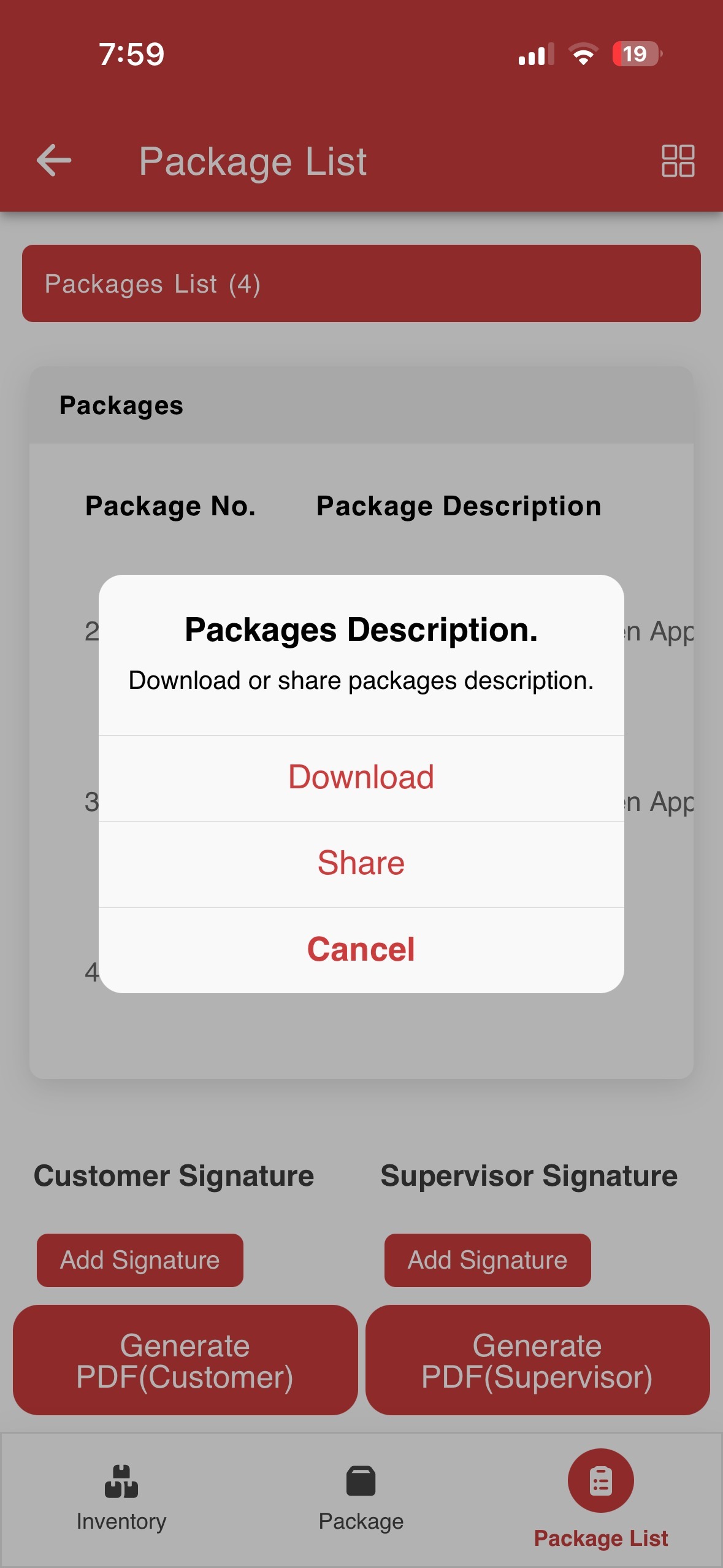
A popup window will appear with the following options:
- Download: Downloads the PDF to the device.
- Share: Allows the PDF to be shared using available applications such as WhatsApp, Email, etc.
- Cancel: Closes the popup and cancels the PDF generation process.
Select the required option to complete the action.
Result:
A copy of the Package Summary PDF is generated before capturing signatures.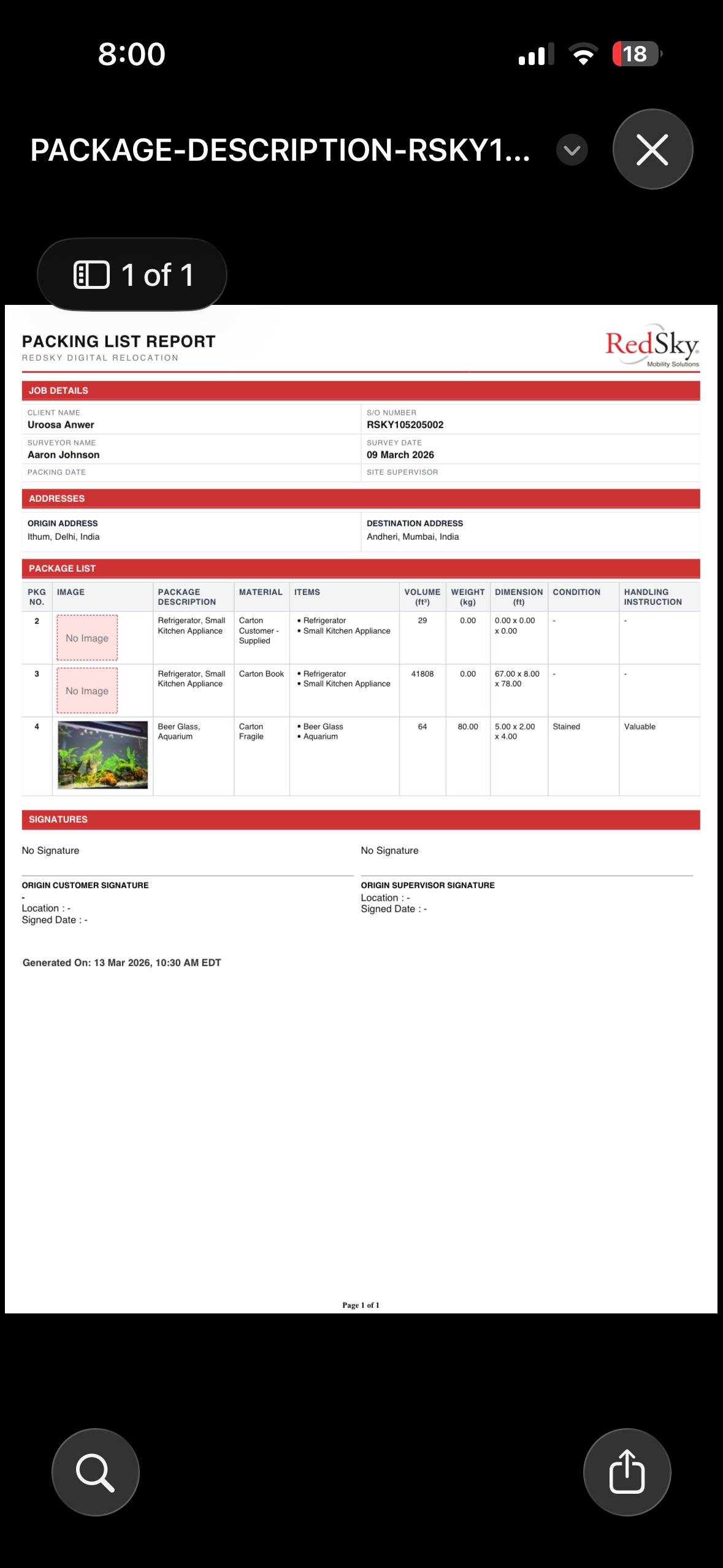
Generating PDF Copy After Capturing Signatures
Step 5: Generate PDF After Signatures
- Navigate to the Package List tab.
- Tap Generate PDF
- Select Customer or Supervisor.
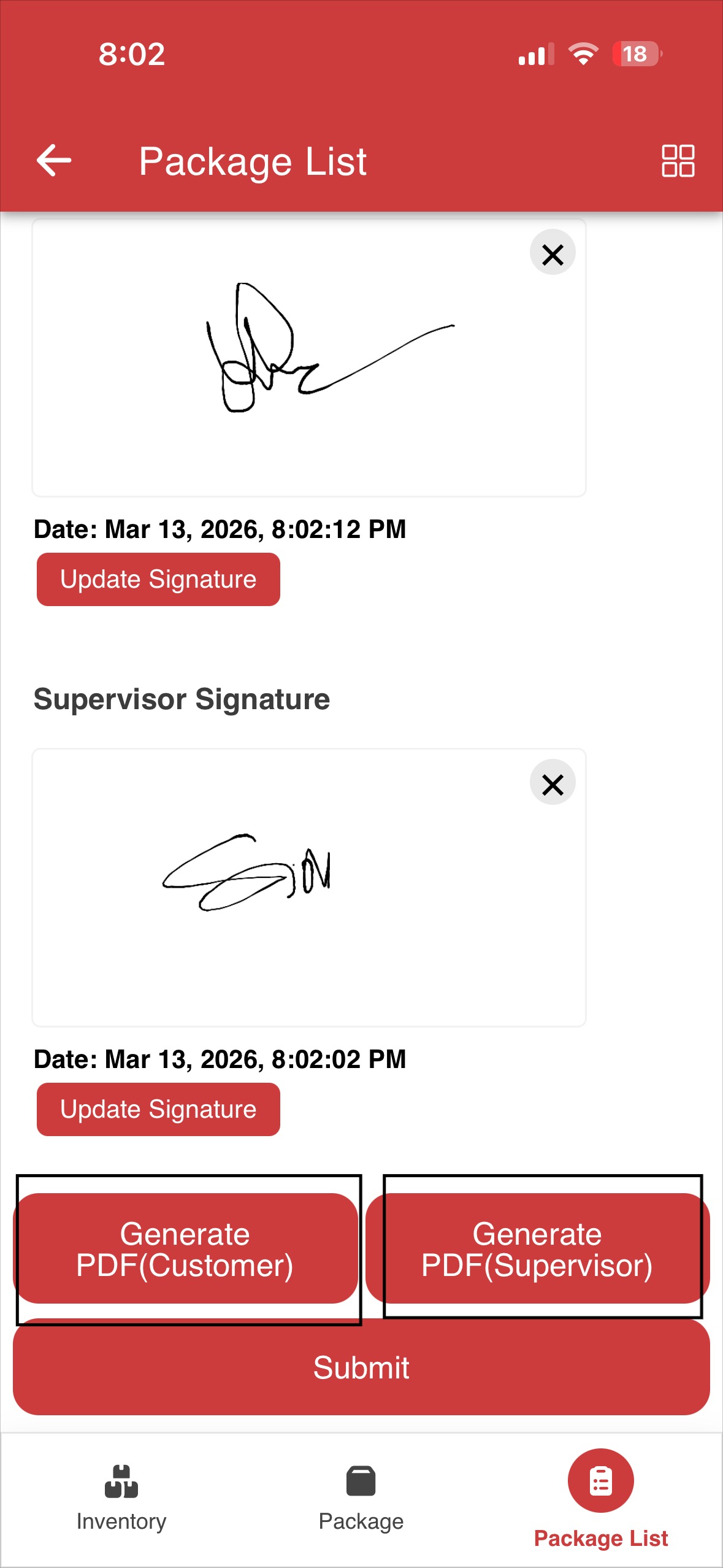
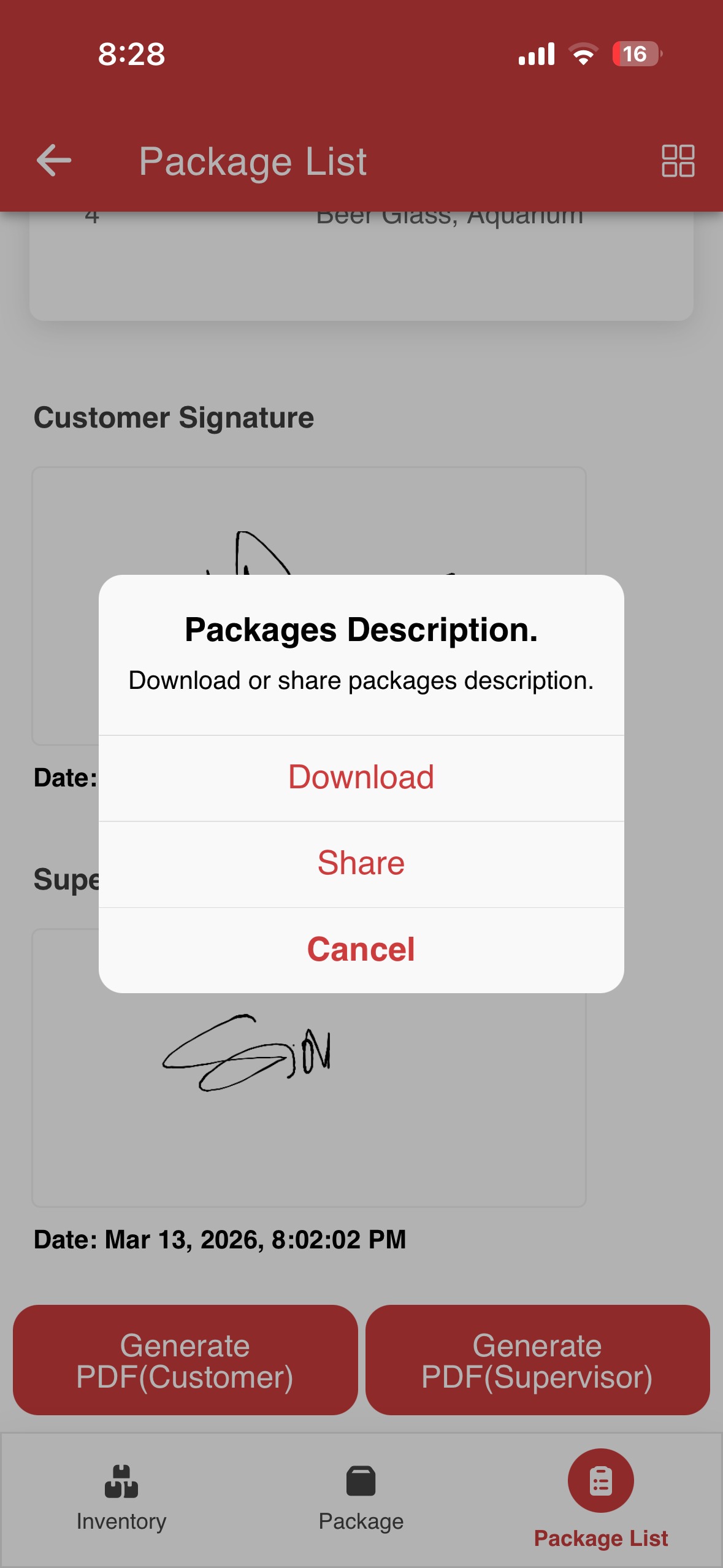
Step 6: Choose PDF Action
A popup window will appear with the following options:
- Download: Downloads the signed PDF to the device.
- Share: Allows the signed PDF to be shared via WhatsApp, Email, or other supported apps.
- Cancel: Cancels the PDF generation.
Select the required action.
Result:
A copy of the Package Summary PDF is generated after capturing customer and/or supervisor signatures.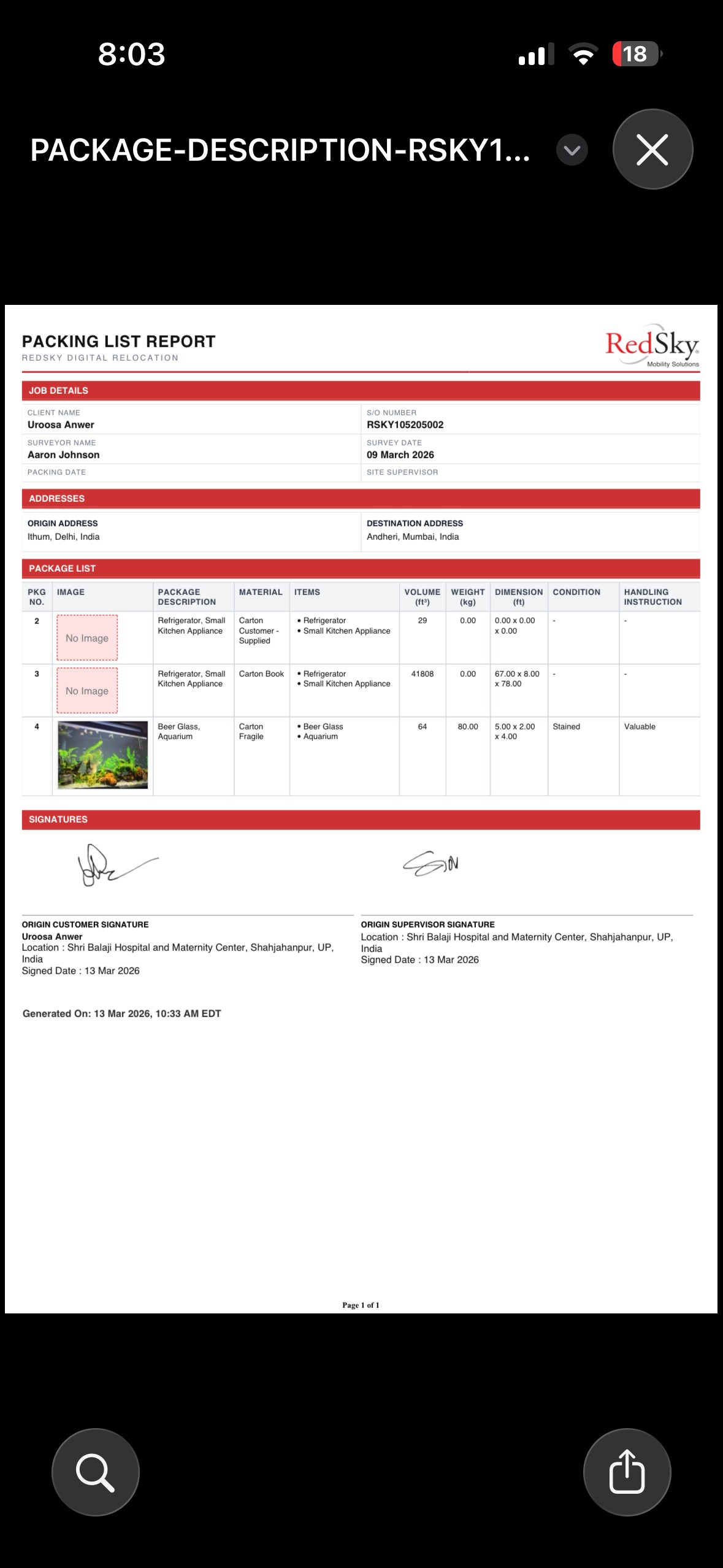
Summary
Generating PDFs in the Ops App allows crew members to:
- Create Package Summary PDFs for Customers and Supervisors
- Download or share PDFs before and after signatures
- Maintain proper documentation and job records
- Easily share job details through supported applications
https://redskymobility.freshdesk.com/support/solutions/articles/43000779928-how-to-capture-customer-supervisor-signatures-
Was this article helpful?
That’s Great!
Thank you for your feedback
Sorry! We couldn't be helpful
Thank you for your feedback
Feedback sent
We appreciate your effort and will try to fix the article