Purpose
This guide explains how crew members can edit or modify packages created in the Package tab of the Ops App, including updating items, package details, dimensions, conditions, notes, and package status.
Prerequisites
- A crew login account has been created.
- The crew has received valid login credentials (username and password).
- The Ops App is installed on the device.
- A job is assigned to the crew.
- At least one package has already been created under the Package tab.
For instructions on how to create packages, refer to:
https://redskymobility.freshdesk.com/support/solutions/articles/43000779861-how-to-create-a-package-
Step 1: Log In to the Ops App
- Open the Ops App on your device.
- Enter the provided username and password.
- Tap Login.
- After successful login, you will be directed to the Dashboard.
Step 2: Open an Assigned Job
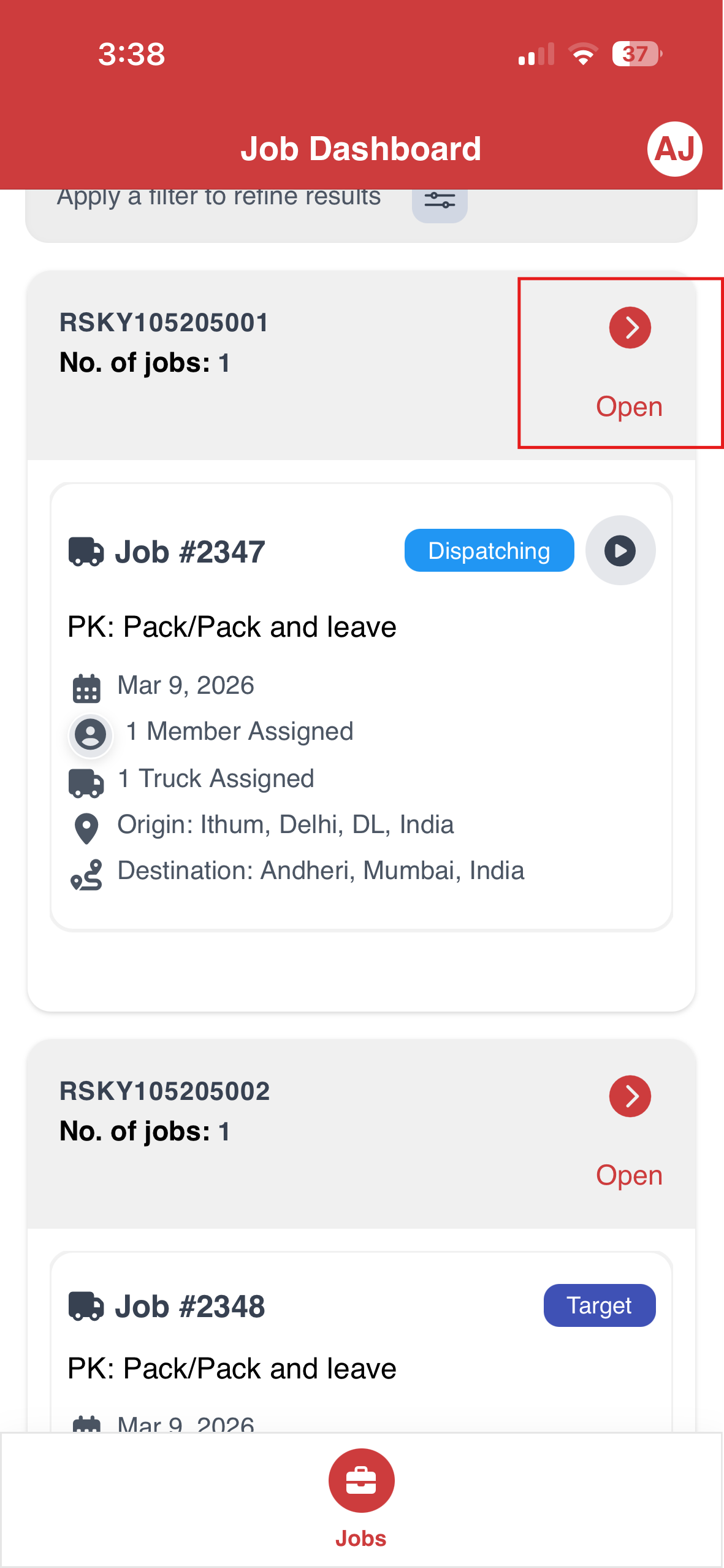
- From the Dashboard, go to the assigned job ticket.
- Tap the Open button located at the top left of the job ticket.
- Navigate to the Package tab.
Step 3: Locate the Package
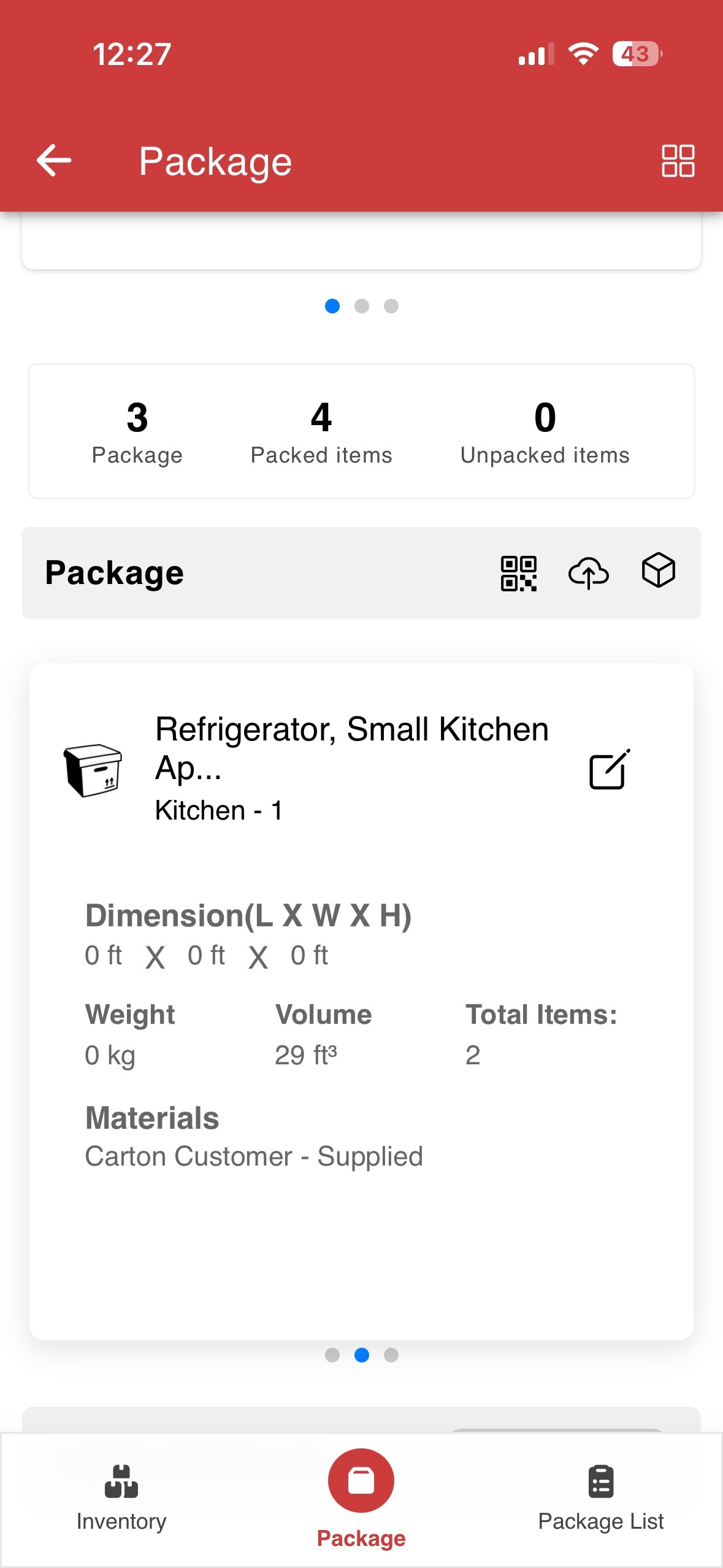
- Under the Package section, all created packages are displayed.
- Identify the package you want to edit.
Step 4: Open the Update Package Screen
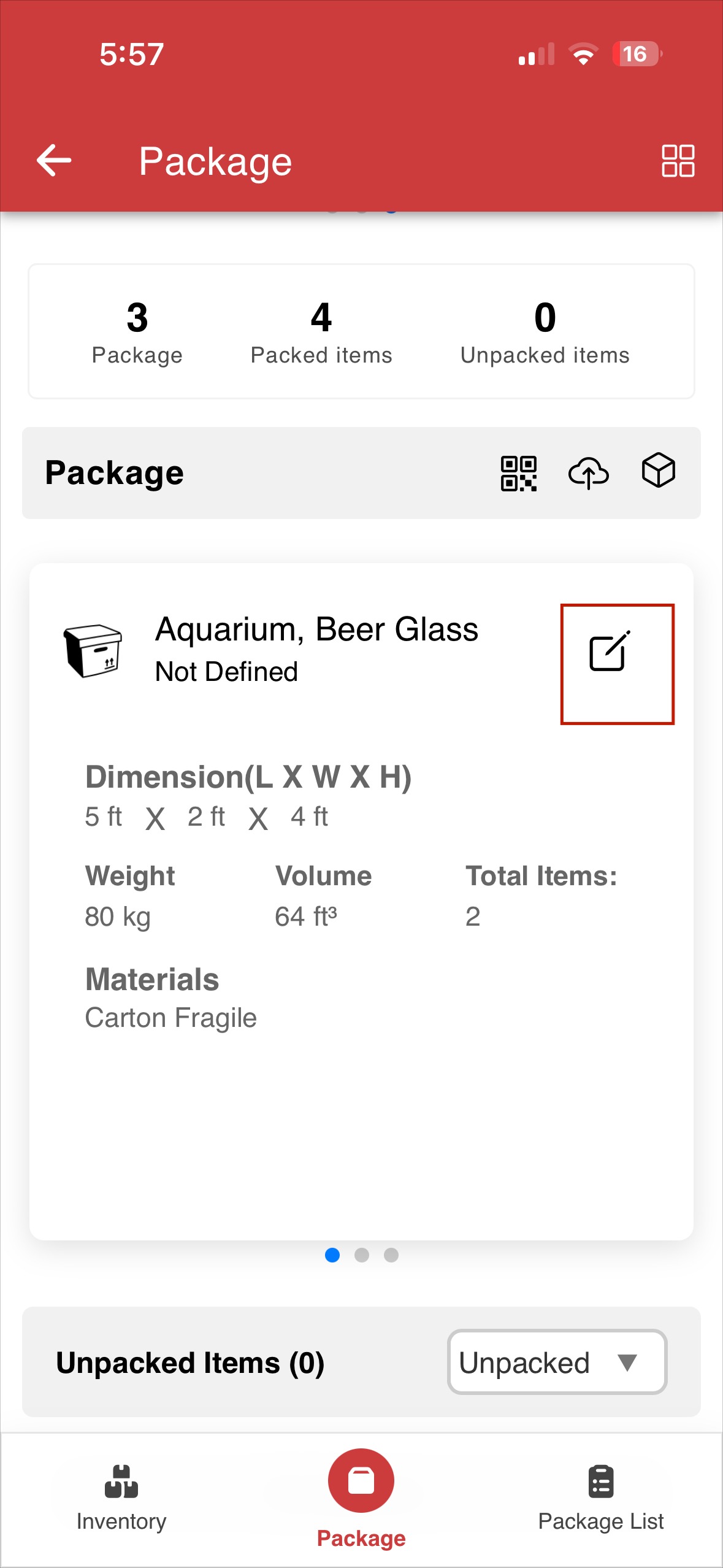
- Tap the Edit icon on the required package.
- The Update Package screen will open.
Step 5: Update Selected Items
Remove Items
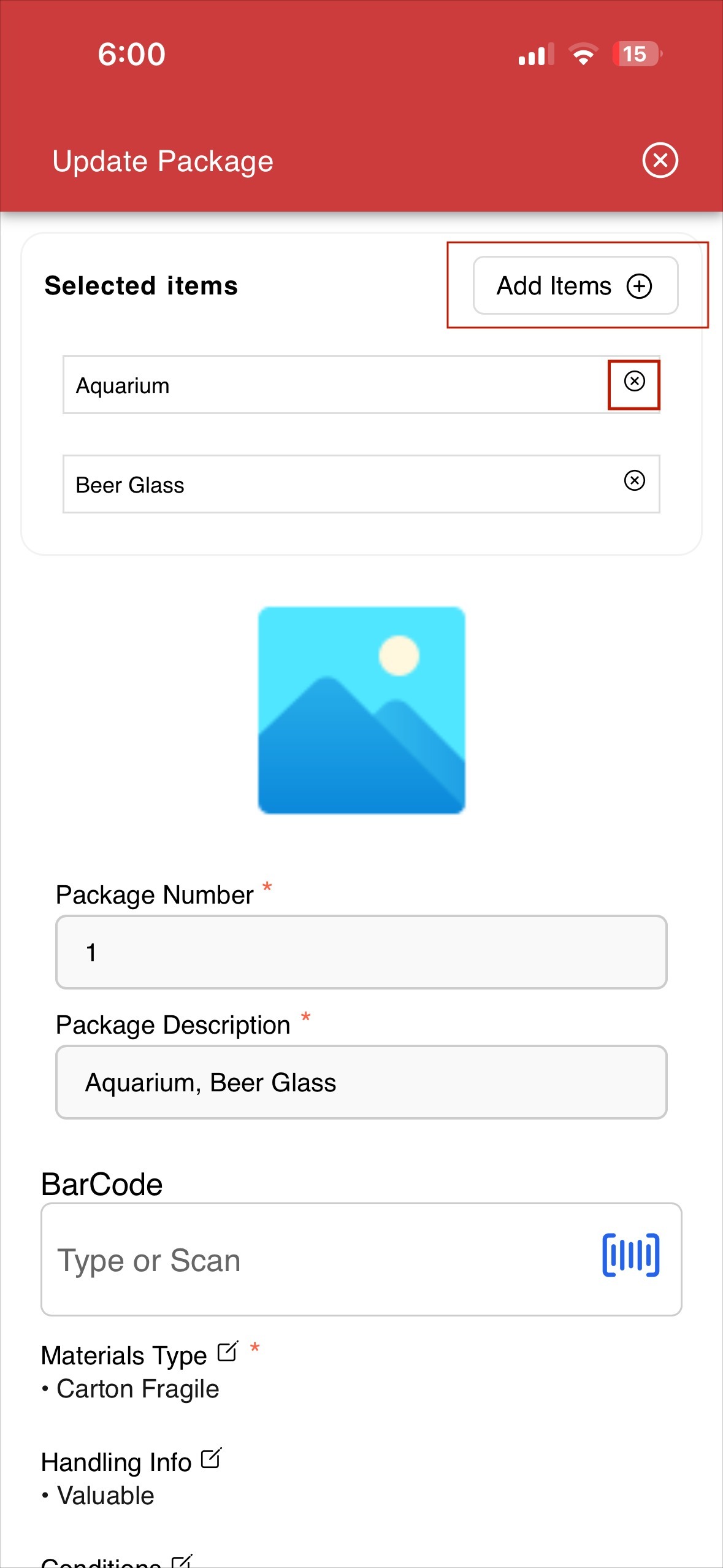
- Under Selected Items, remove an item by tapping the cross (×) icon next to it.
Add Items
- Tap Add Item at the top-right corner of the screen.
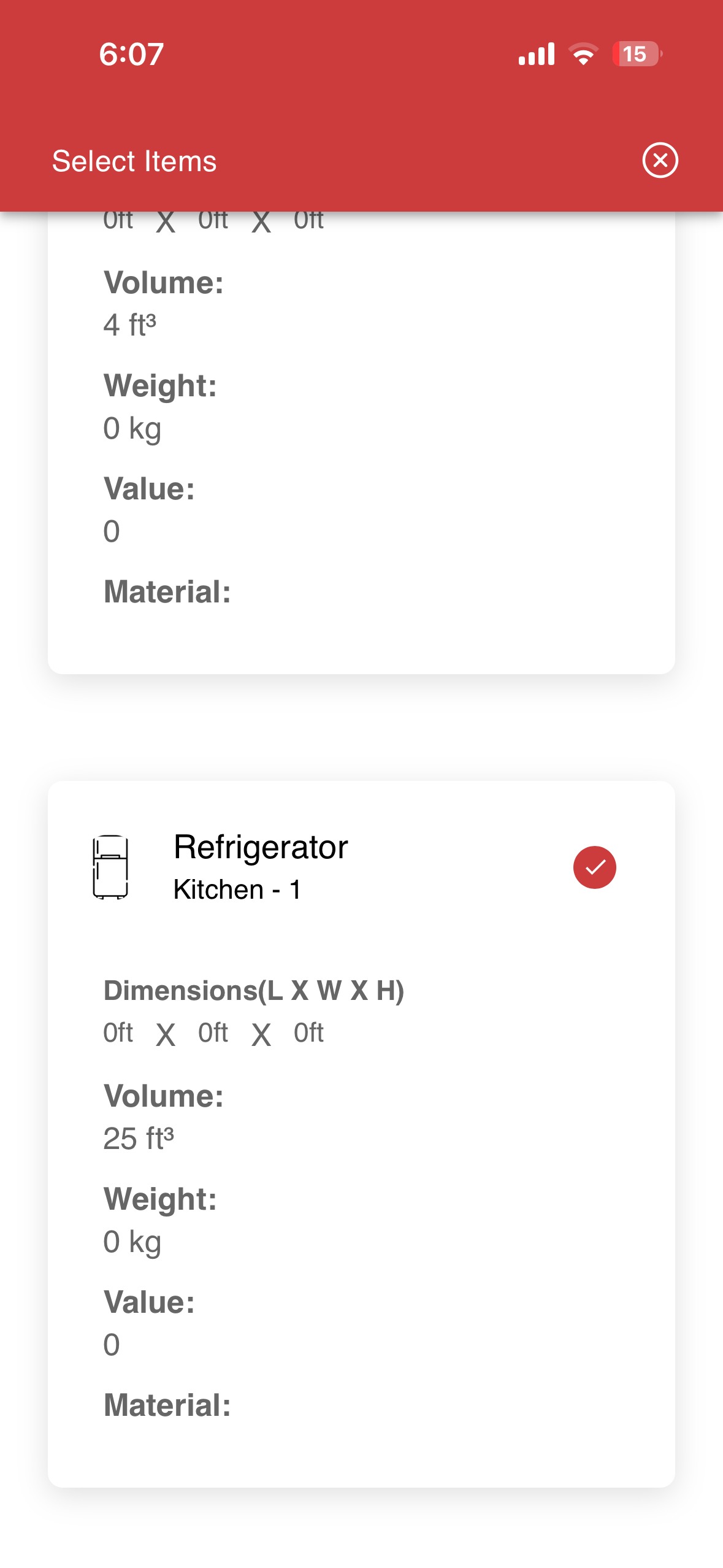
- A list of packed and unpacked items will be displayed.
- Select the required item using the radio button.
- The selected item will be added to the package.
Step 6: Update Package Details
Photo
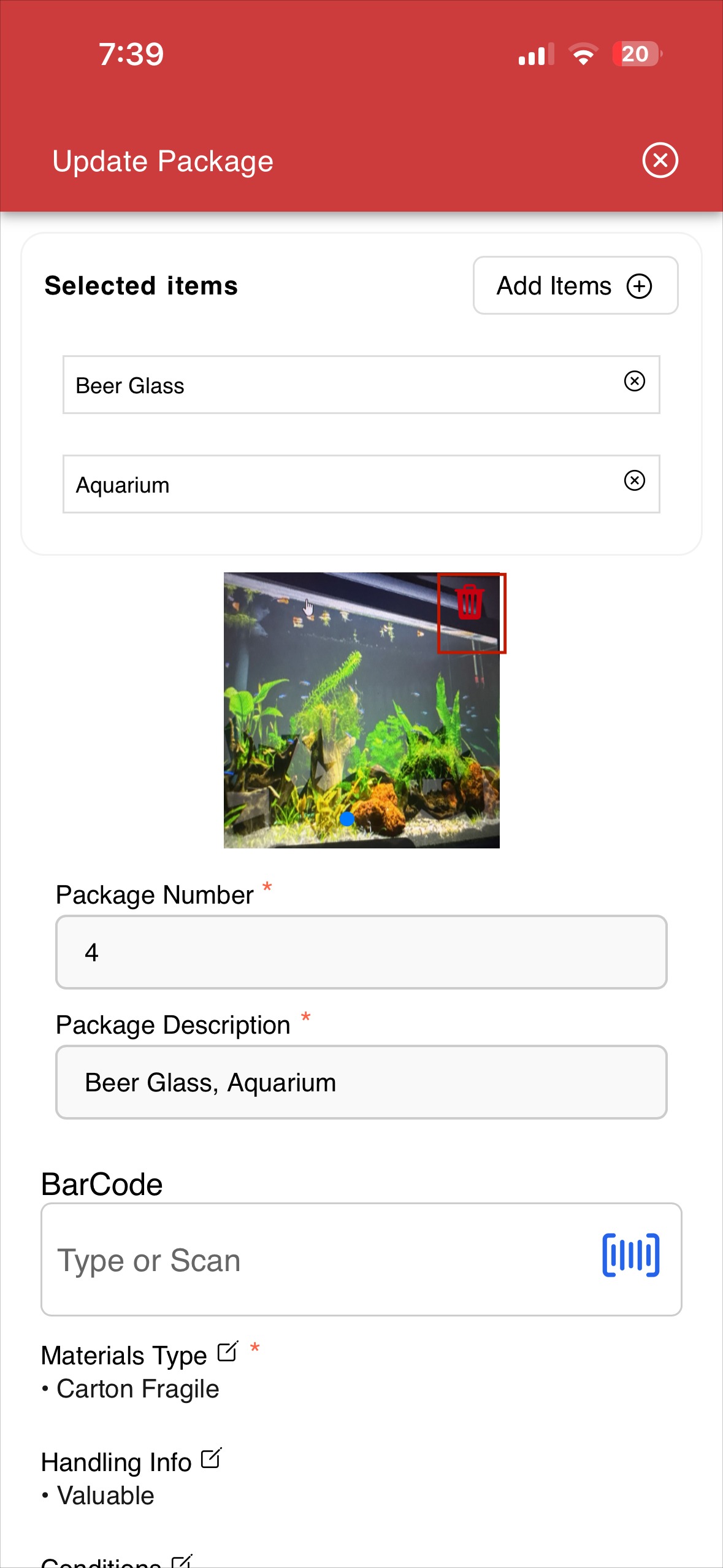
- Remove an existing photo by tapping the delete icon on the image.
- Add new photos by taking a photo or uploading from the device.
- More than 40 photos can be added by sliding the image to the left and adding additional photos.
Package Number
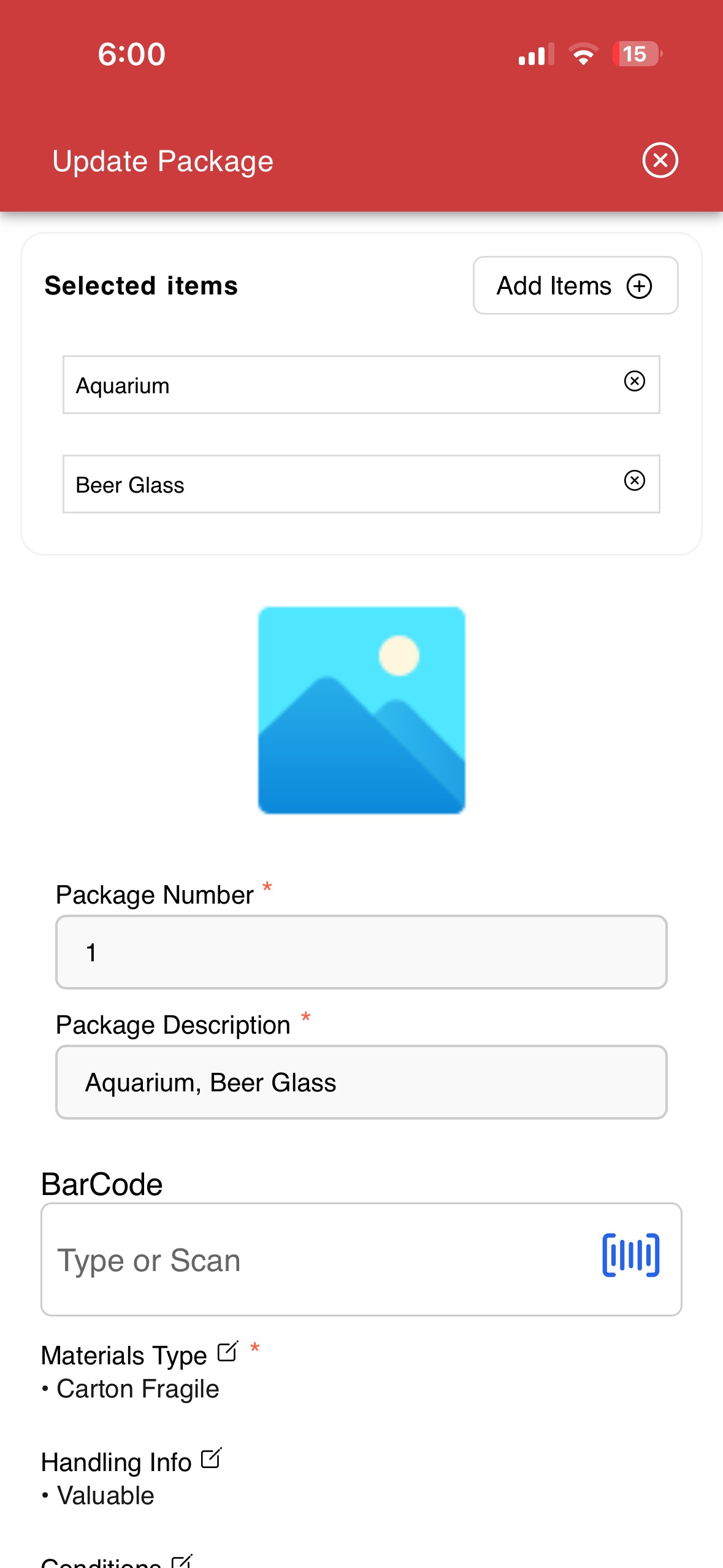
- Tap the Package Number field.
- Delete the existing value and enter a new package number.
Package Description
- Modify the list of item names by adding, editing, or removing text as required.
Barcode
- Remove or update the barcode by:
- Scanning a new barcode, or
- Manually entering the barcode number.
Materials
- Tap the edit icon next to Materials.
- Select the required materials using the radio button.
- Tap Save to update.
Handling Info
- Tap the edit icon and select the required handling instructions (e.g., Fragile, Do Not Tilt).
- Tap Save to apply the changes.
Step 7: Update Conditions
Tap the Condition field to update and manage package conditions.
Remove a Condition
- Tap Remove next to the existing condition.
Add a Condition
- Tap the Exception field and select a condition such as:
- Worn
- Scratched
- Torn
- Specify the Locationof the exception.
- Example: Scratched at the right corner
- Tap Add to include the condition.
- Multiple conditions can be added if required.
Step 8: Update Package Measurements
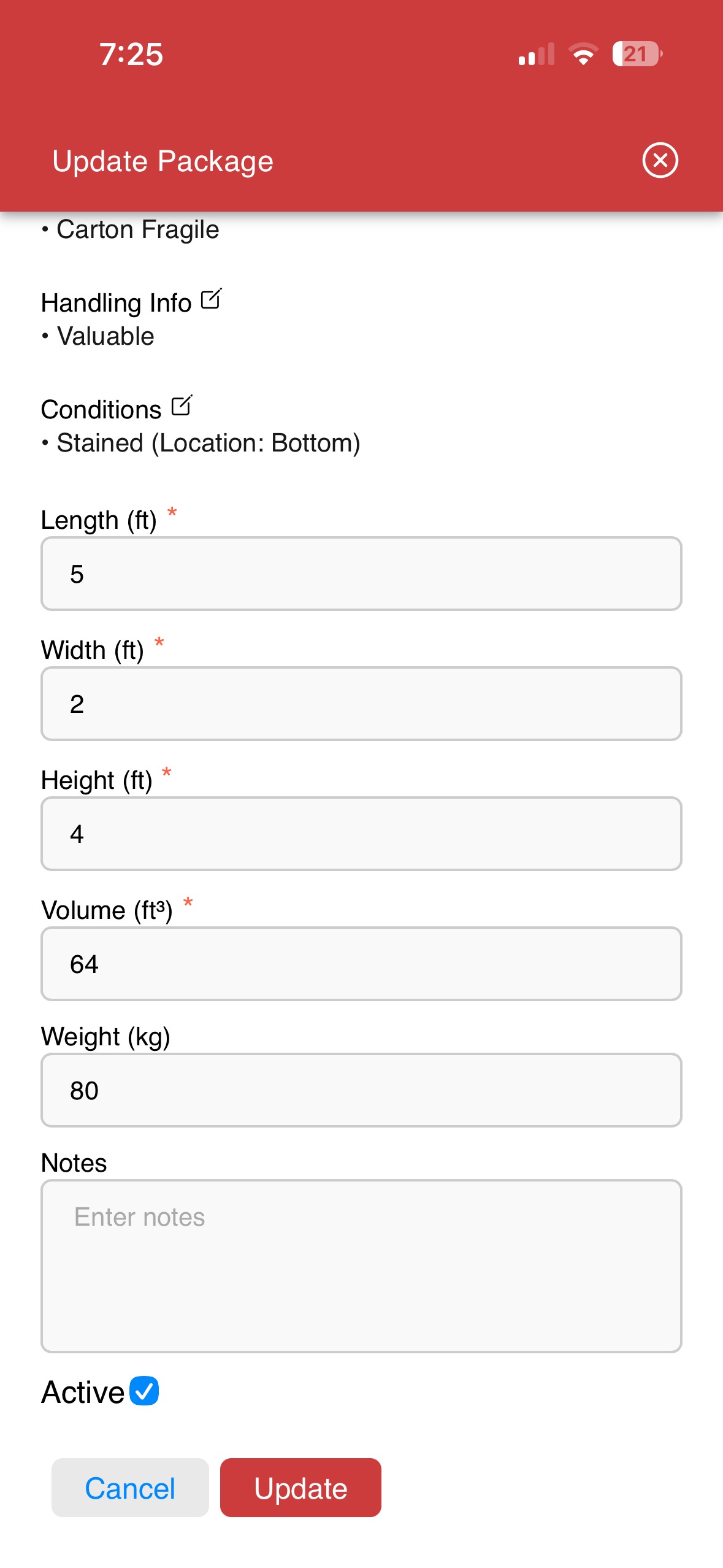
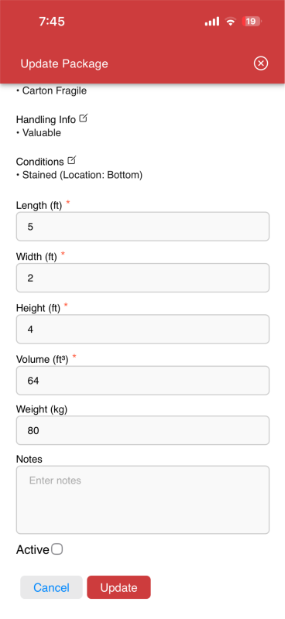
- Length: Update the length of the package.
- Width: Update the width of the package.
- Height: Update the height of the package.
- Volume: Update the volume of the package.
Step 9: Update Notes
- Tap the Notes field.
- Add or modify notes related to the package as required.
Step 10: Save Package Updates
- Tap Update to save all changes.
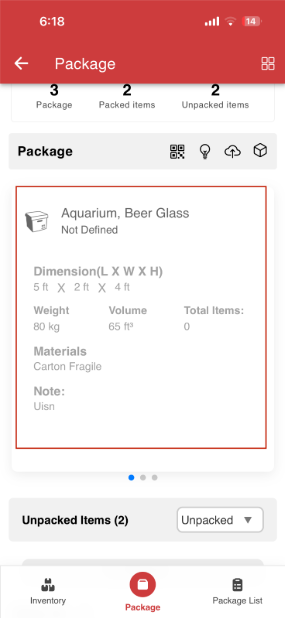
- The updated details will be reflected under the Packages section.
Step 11: Manage Package Status
Active Checkbox
- By default, the Active checkbox is selected, indicating the package is active.
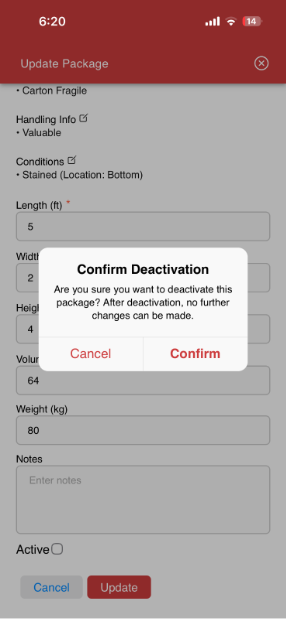
- If the checkbox is unchecked, a confirmation popup is shown.
- Confirm to deactivate the package.
- Once deactivated:
- The package appears greyed out in the list
- No further edits can be made to the package
Summary
Editing packages in the Package tab allows crew members to:
- Modify package contents and item selection
- Update package measurements, materials, and handling instructions
- Manage package conditions and notes
- Activate or deactivate packages as required
This ensures accurate package information and smooth execution of job workflows.
Was this article helpful?
That’s Great!
Thank you for your feedback
Sorry! We couldn't be helpful
Thank you for your feedback
Feedback sent
We appreciate your effort and will try to fix the article