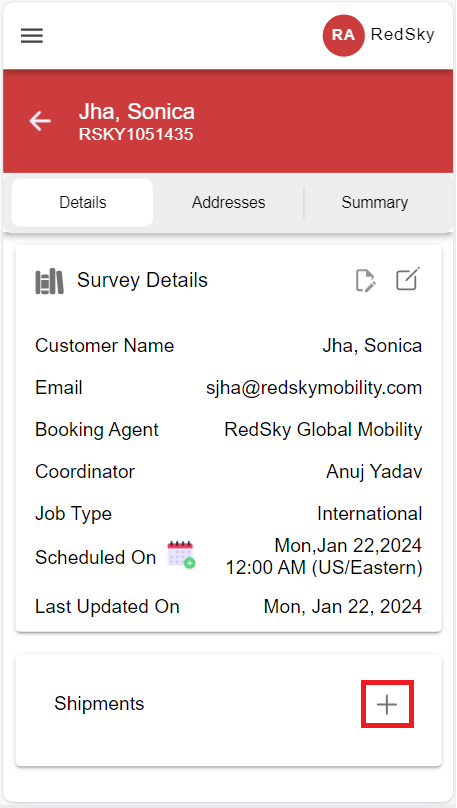
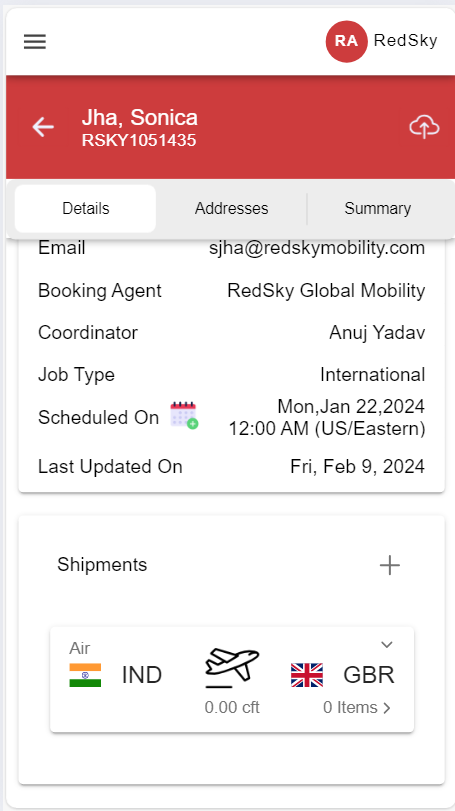
Step 1: Login into Redsky Survey app with your credentials. Open the job for which you want to add/update a shipment. Click on Add icon against the shipment to add new shipment.
To edit the shipment, click on  icon and then click on edit option.
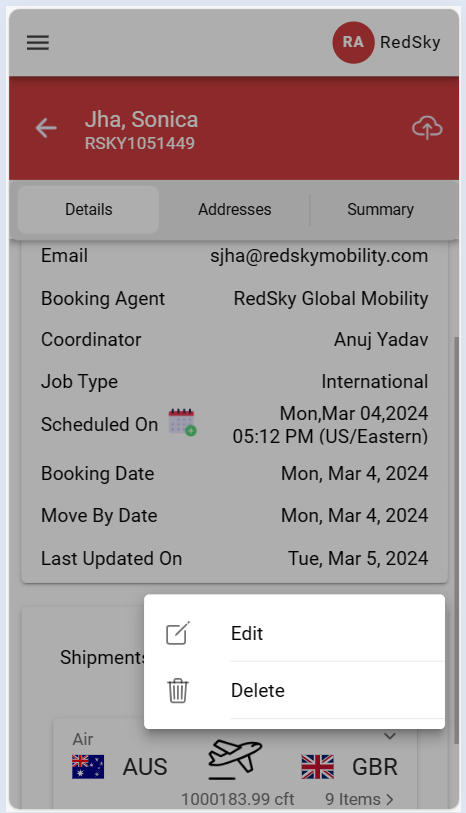
Step 2: Once you click on the add icon or edit option, a pop-up window will open.
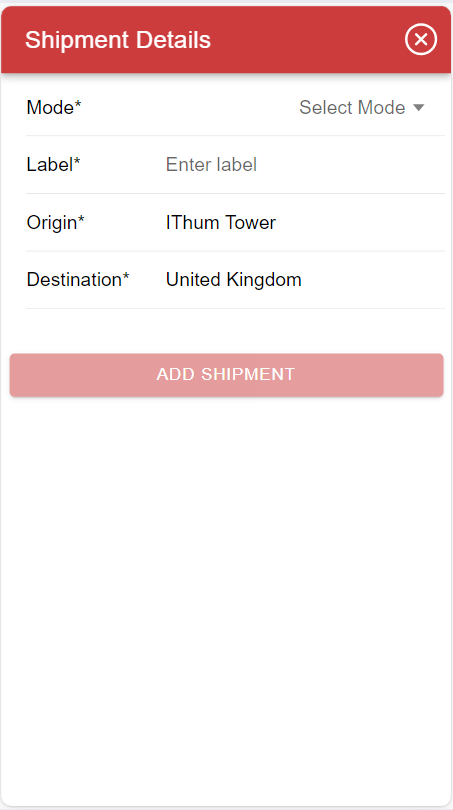
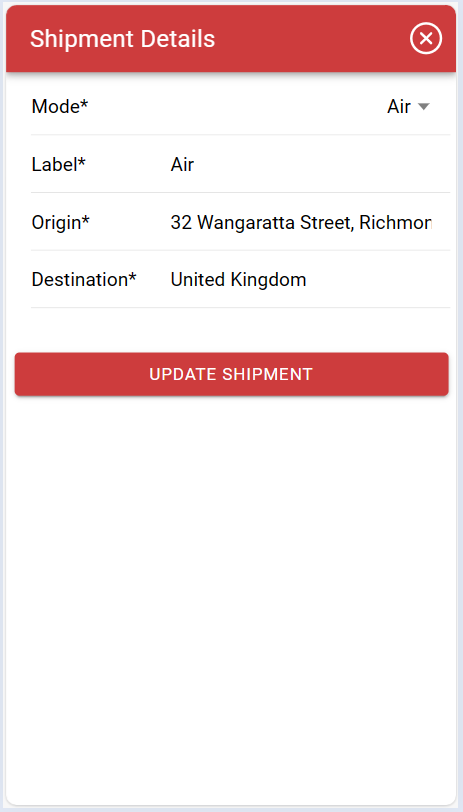
Step 3: The pop up will show the fields sand user must enter the details.
- Mode: Select the mode of the shipment
- Label: Label will be set sane as the mode; however, user can update the same.
- Origin: This will display the value of address line 1 from the origin address detail
- Destination: This will display the value of address line 1 from the Destination address detail if available else it will display the Destination country from the address
Step 4: Click on Add/Update shipment button to save the shipment details.
Was this article helpful?
That’s Great!
Thank you for your feedback
Sorry! We couldn't be helpful
Thank you for your feedback
Feedback sent
We appreciate your effort and will try to fix the article