Overview
Enabling HTTPS-Only mode in your web browser ensures that all connections are made securely over HTTPS. Please follow the instructions below based on the browser you are using.
Mozilla Firefox
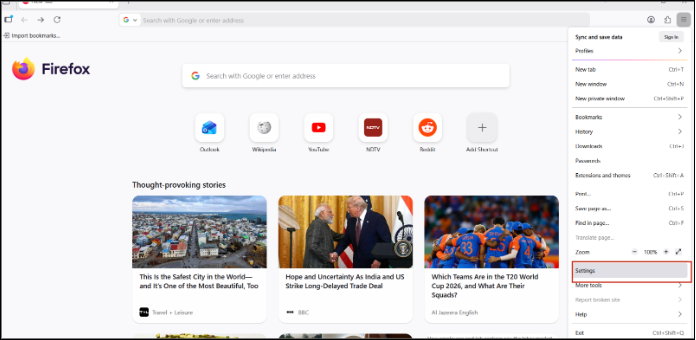
Step 1 - Open Firefox browser and click on the three horizontal line at the right upper corner of the screen.

Step 2 - Click on Settings.
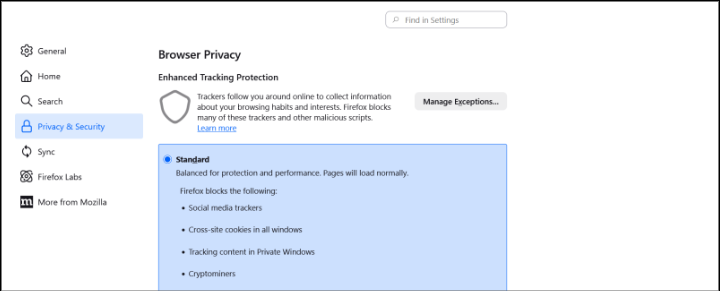
Step 3 - Navigate to Privacy & Security.
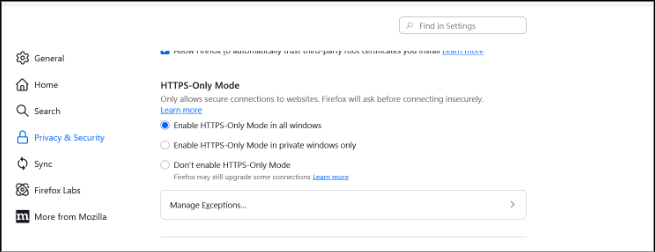
Step 4 - Scroll down to the HTTPS-Only Mode section and enable 'HTTPS-Only Mode in all windows'.
Microsoft Edge
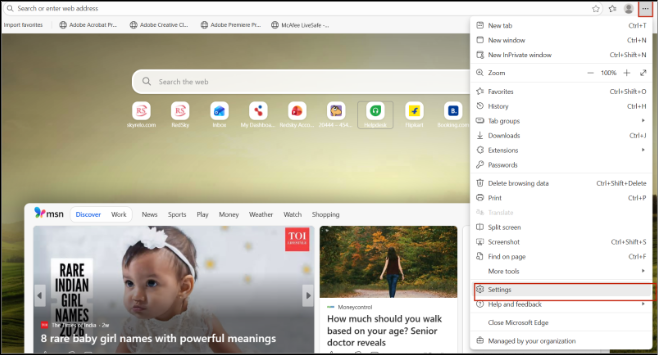
Step 1 - Open Microsoft Edge browser and click on the horizontal three dots at right most upper corner of the screen and go to Settings.
Step 2 - Navigate to Privacy, search, and services and then scroll down to the Security section.
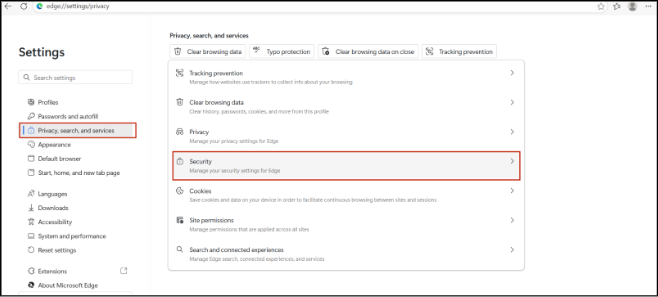
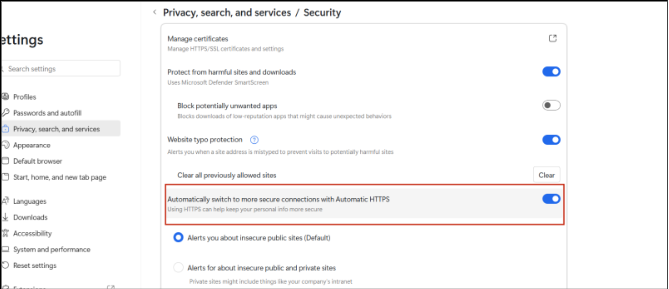
Step 3- Turn on 'Automatically switch to more secure connections with Automatic HTTPS'.
Google Chrome
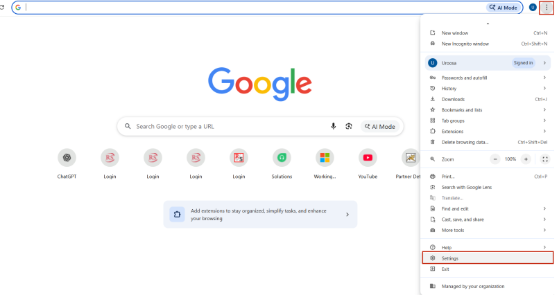
Step 1 - Open Chrome browser and click on the horizontal three dots at right most upper corner of the screen and go to Settings.
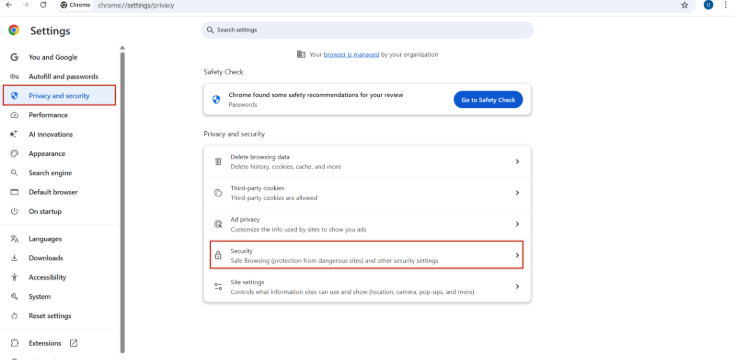
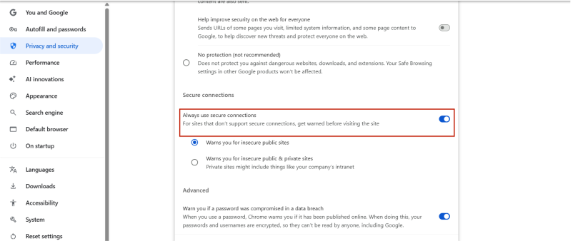
Step 2 - Navigate to Privacy and security and click on Security.
Step 3 - Enable the toggle for 'Always use secure connections'.
Was this article helpful?
That’s Great!
Thank you for your feedback
Sorry! We couldn't be helpful
Thank you for your feedback
Feedback sent
We appreciate your effort and will try to fix the article