The OMNI Report Extract is a menu under Management Info tab which produces an Excel (.xls) tonnage report of shipments and the OMNI numbers of the agents who handled them, for submitting to OMNI. You choose the filters — End Date, Company Division, Booking Agent Code, and Job Types — then pick one of the three buttons. All three exclude AUTO commodity shipments and cancelled / Downloaded orders.
To enable the feature kindly contact support@redskymobility.com
The Filters
One screen, three buttons. They all produce the same OMNI tonnage spreadsheet — the difference is which shipments they pull and whether they mark them as reported.
Filter | What it controls |
End Date | Cut-off for Extract / Extract & Update; report date to look up for Extract Data for a given OMNI Date |
Company Division | Restricts results to the selected division |
Booking Agent Code | Restricts results to orders booked by that agent |
Job Types | Restricts results to the selected job type(s) |
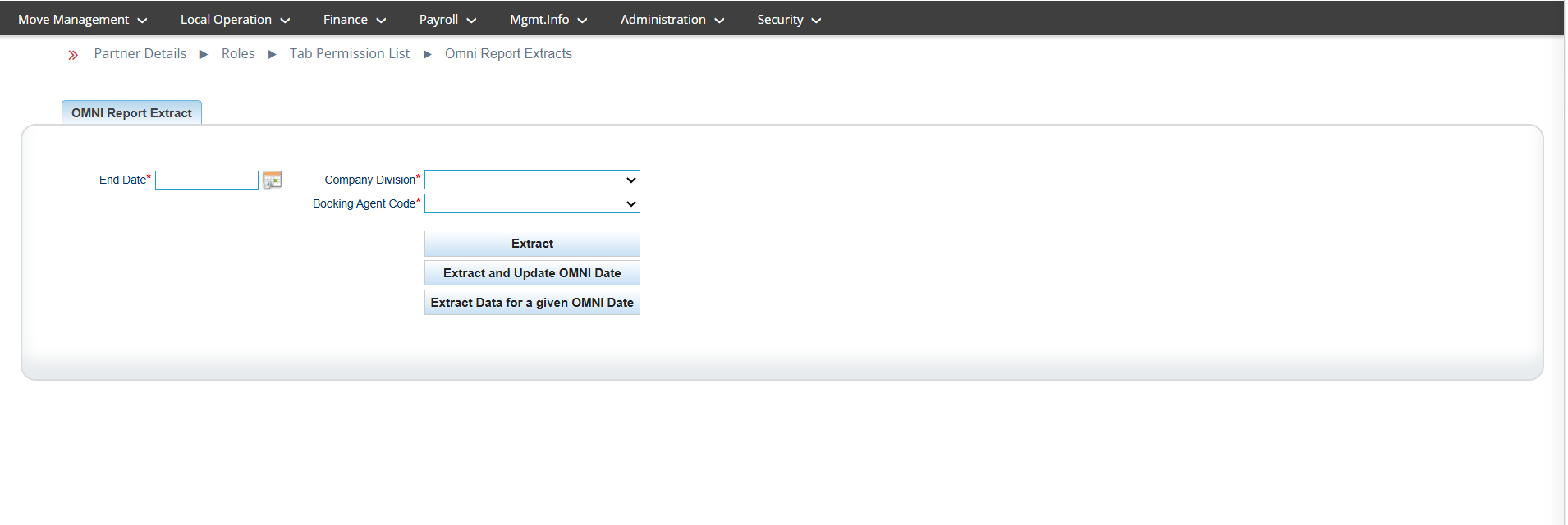
The Three Buttons
Think of them as Preview, Submit, and Re-download.
1. Extract — Preview (safe)
Pulls every shipment not yet reported to OMNI that loaded on or before the End Date, for the chosen division and booking agent — and downloads the spreadsheet.
- ● Pulls: shipments never reported yet, up to End Date
- ● Marks as reported? No — changes nothing
- ● Use it to: review what would be reported. Safe to run again and again.
2. Extract & Update OMNI Date — Submit (writes data)
Pulls the same not-yet-reported shipments and downloads the spreadsheet — and stamps each one as reported today, so they won't come up again next time.
- ● Pulls: shipments never reported yet, up to End Date
- ● Marks as reported? Yes — sets OMNI date = today
- ● Use it to: actually submit the report. This is the committing step.
3. Extract Data for a given OMNI Date — Re-download
Pulls shipments that were already reported on the exact date you type into End Date, and downloads that spreadsheet again.
- ● Pulls: shipments already reported on that date
- ● Marks as reported? No — read-only
- ● Use it to: re-print a batch you reported earlier.
⚠ Important: the End Date field means two different things For Extract and Extract & Update, End Date is a cut-off — "give me un-reported shipments up to this date." For Extract Data for a given OMNI Date, End Date is the report date to look up — "give me shipments that were reported on this exact day." Same box, opposite meaning. |
Side by Side
Button | Which shipments | Marks as reported? | Typical use |
Extract | Not yet reported, loaded up to End Date | No | Preview before submitting |
Extract & Update OMNI Date | Not yet reported, loaded up to End Date | Yes — dated today | Submit the report (the real run) |
Extract Data for a given OMNI Date | Already reported on the End Date | No | Re-download a past batch |
What's in the Spreadsheet
Every button produces the same columns — one row per shipment.
ØShip Number
ØOrigin Services Performed By — the origin agent
ØDestination Services Performed By — the destination agent
ØNet Weight (lbs)
ØMode — Air or Sea
ØShipper's Name
ØOA OMNI # — origin agent's OMNI number
ØDA OMNI # — destination agent's OMNI number
ØNo. of Shipments — always 1 per row
Which Shipments Qualify
A service order appears in the extract only when all of the following are true.
Rule | What it checks |
Company | The order belongs to your company (corp) |
Division | Matches the selected Company Division |
Booking agent | Booked by the selected Booking Agent Code |
Job type | One of the selected Job Types |
Load date | The shipment loaded on or before the End Date |
Reporting status | Not yet reported to OMNI (for Extract & Extract + Update) — or reported on the date entered (for the third button) |
Commodity | Not AUTO — vehicle-only shipments are excluded |
Order status | Not Cancelled and not Downloaded (excludes CNCL / CANCEL / DWNLD) |
Created date | Order was created in 2007 or later |
Agents on file | Both the origin agent and destination agent exist as partner records |
OMNI number | An involved agent has an OMNI number, and the origin and destination agents are different (standard corps; the VOER variant is looser and does not require this) |
Summary: the order must be yours, in the chosen division, booked by the chosen agent, of a chosen job type, loaded on/before the End Date, not AUTO, not cancelled/downloaded, created ≥ 2007, with both agents on file and an OMNI-numbered agent — plus not yet reported (first two buttons) or reported on the entered date (third button).
✓ The Golden Rule Run Extract first to check the list. When it looks right, run Extract & Update OMNI Date to submit — that's the only button that changes anything. If you ever need an old batch again, use Extract Data for a given OMNI Date with that report's date. |
Was this article helpful?
That’s Great!
Thank you for your feedback
Sorry! We couldn't be helpful
Thank you for your feedback
Feedback sent
We appreciate your effort and will try to fix the article